Previously, Excel exports used one fixed template. Now in Finmap you can build your own: choose the columns you need, their order and grouping — and save it as a template for future use.
ㅤ
Where to find it
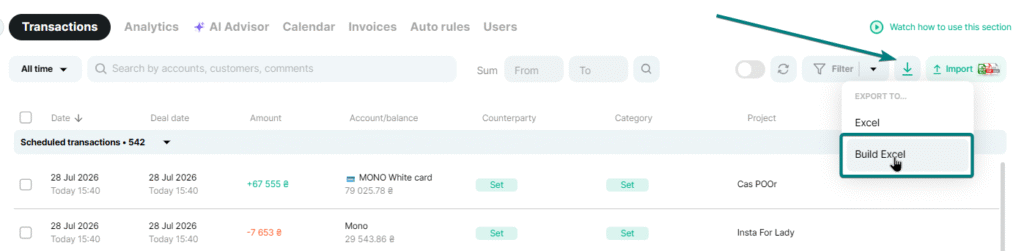
Go to the “Payments” section → the export button (down-arrow icon) → in the dropdown that opens, select “Build Excel”.
ㅤ
ㅤ
How it works
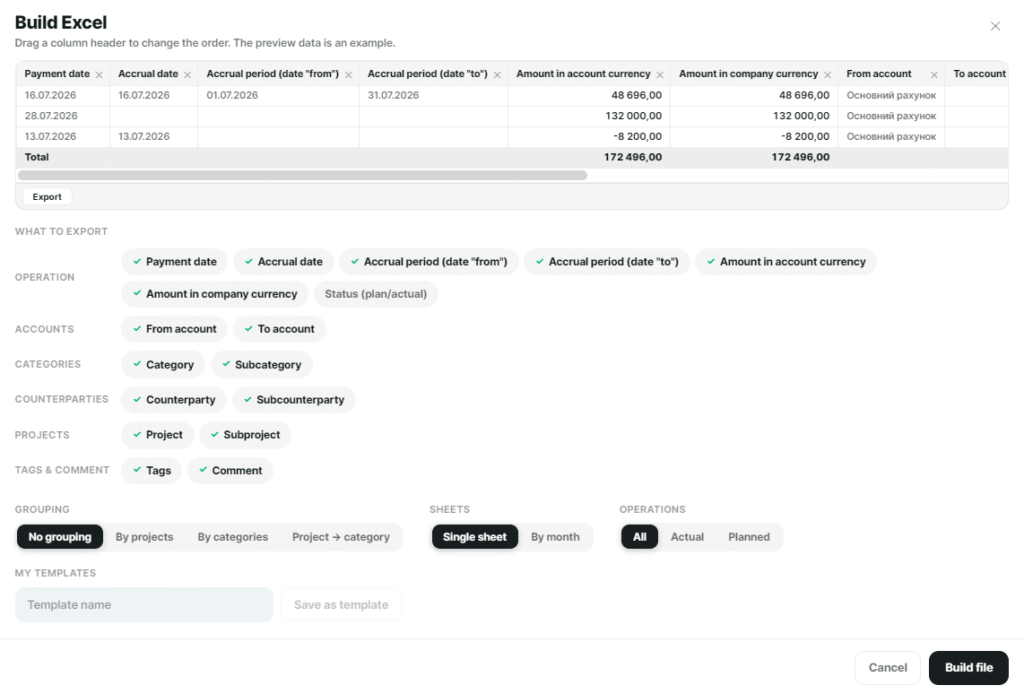
At the top of the window that opens is a preview: an example of what the file will look like with the columns you’ve selected. This lets you check the result before exporting. You can drag column headers to reorder them right in the preview.
Below is the “What to export” block: check the data you need.
- Operation: payment date, accrual date, accrual period (from/to dates), amount in account currency, amount in company currency, status (planned/actual)
- Accounts: from account, to account
- Categories: category, sub-category
- Counterparties: counterparty, sub-counterparty
- Projects: project, sub-project
- Tags and comment: tags, comment
You can also set:
- Grouping — no grouping, by project, by category, or project → category
- Sheets — one sheet, or split by month
- Operations — all, actual only, or planned only
ㅤ
ㅤ
For instance, you need to export only the actual payments for one project for your own records. Check payment date, amount, and project, choose “By project” grouping and the “Actual” filter — and you’ll instantly see in the preview what the finished file will look like.
ㅤ
Templates
If you’ll need this configuration again, enter a name in the “Template name” field and click “Save as template”. Next time you won’t have to set everything up from scratch — just pick the saved template from the list. Templates are saved individually for each user.
ㅤ
Good to know
- Clicking “Build file” completes the export with your selected settings.
- The preview updates instantly, so you can check the result before every export.