


Contents
How to upload data to Finmap with AI import
Statements, receipts and invoices from a file or photo, on your computer or phone
AI import transfers data from your documents to Finmap without manual entry. Upload a bank statement, a report from a service, or take a photo of a receipt, invoice or act. AI recognizes the document structure, and transactions appear in Finmap in a few minutes instead of hours of manual work.
Import works from both your computer and your phone.
Which files you can upload
SpreadsheetsExcel (XLSX, XLS), CSV
DocumentsPDF, TXT
Photosreceipts, invoices, acts and other documents taken with your smartphone
How to import data in 4 steps
Step 1 of 4
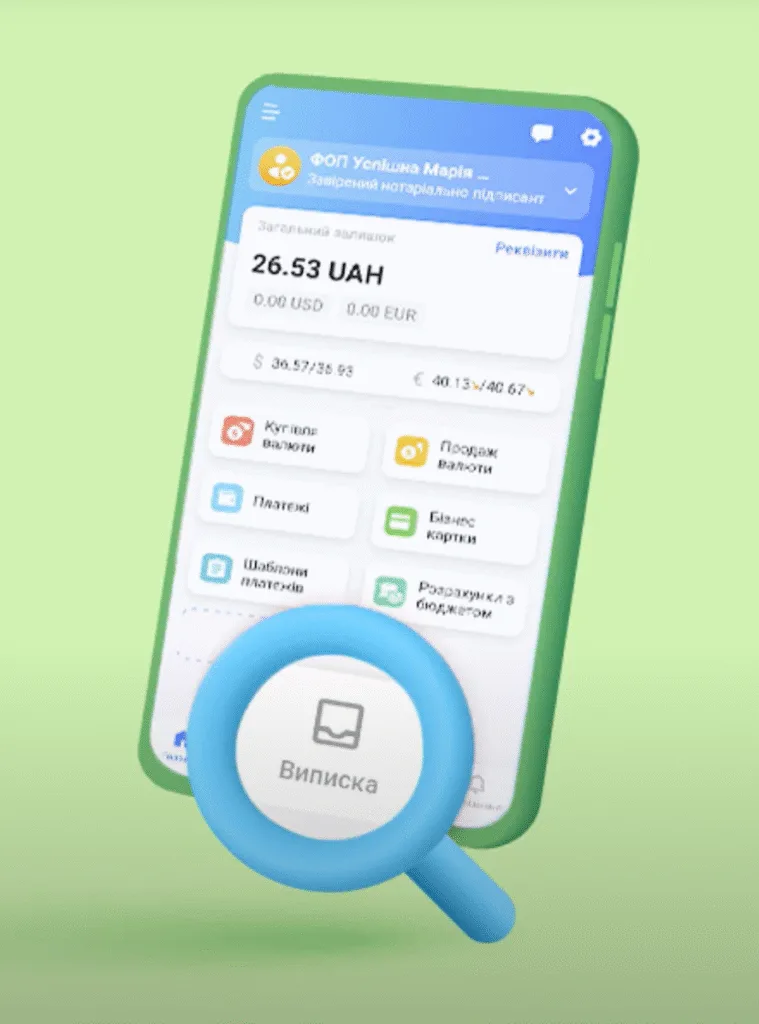
Prepare the file
Export a statement from your bank or service, or take a photo of a document. Make sure the file contains the data you need: dates, amounts, payment descriptions.
Step 2 of 4
Upload the file to Finmap
The file type is detected automatically.
Open AI import in Finmap →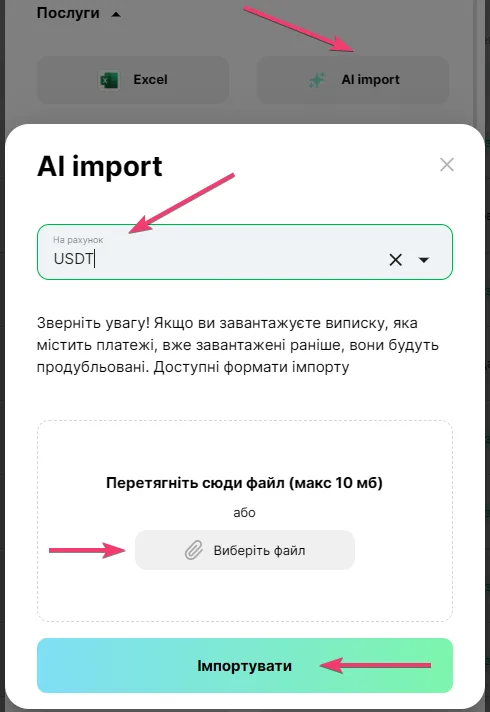
Step 3 of 4
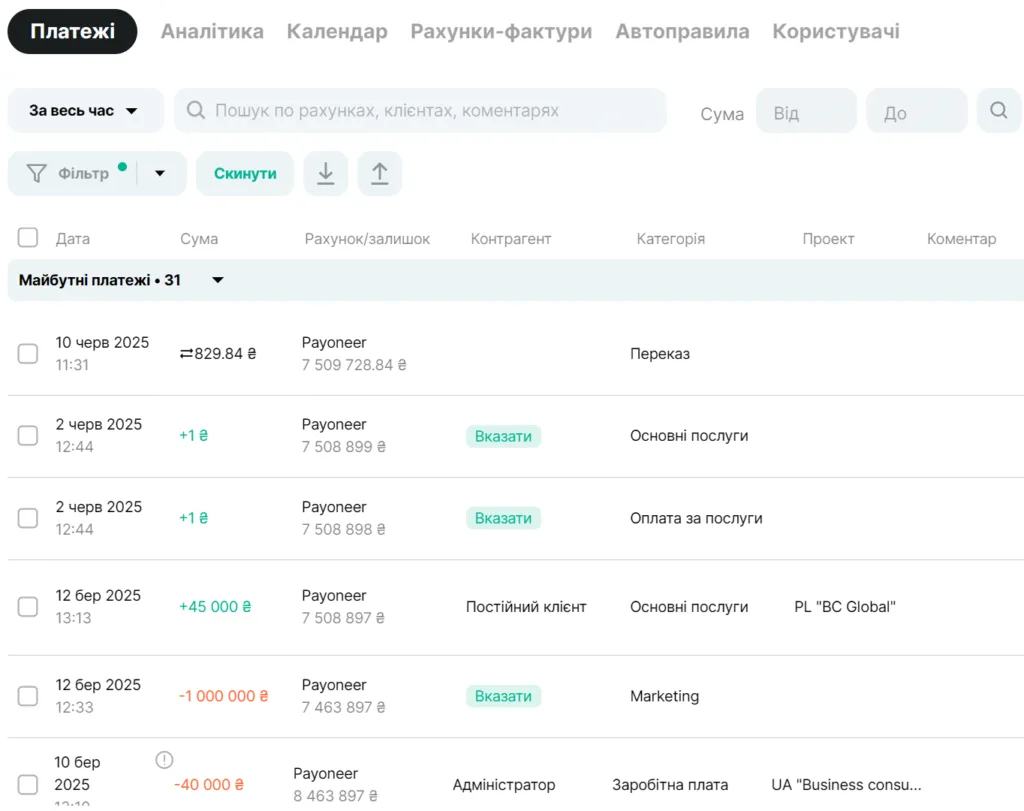
Check the result
Check that the amounts, dates and accounts in the transactions are correct. If everything is fine, upload the next files.
Step 4 of 4
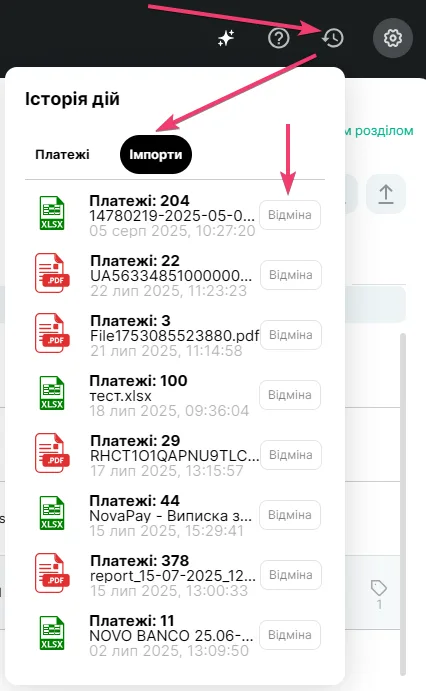
Undo the import if something went wrong
With Rollback, your data returns to the state it was in before the import. Fix the file and upload it again.
When a file may fail to upload
A document may be rejected if its format is not supported, the file contains errors, or it is too large for a single upload.
Split the file into parts or check its contents and try again.
AI import video tutorial
Connect and get even more automated solutions for your business.