


Contents
What to do if payments stop integrating and synchronization with the bank stops
Why a bank stops sending payments to Finmap, and how to restore the sync yourself.
Why a bank may stop sending transactions
Payments for an account may stop updating if the integration has stopped for one of these reasons:
The user who connected this integration was deleted.
The access rights of the user who connected the integration were changed.
There was a failure on the bank's side.
The consent period for data transfer has expired (applies only to European banks).
There was a period of an unpaid subscription.
How to check whether the sync is active
To check whether the sync with the bank is active, you need to:
go to the accounts menu (side panel);
check whether the bank icon is shown next to the account name.
How this looks in the app
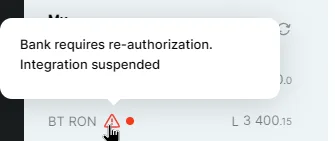
When the integration stops, a banner appears in the “Payments” section: “The bank is temporarily not sending new transactions.”.

Clicking “Details” shows the list of the company's accounts. The problem account is marked with a warning icon and a “Reconnect bank” button.
How to reconnect the integration
If the bank icon is missing, or the sync of new transactions has stopped, you need to reconnect the integration.
1. Go to the account editing menu.
2. Click “Disconnect bank” next to the account you need.
*If you don't see this option, the integration is already disconnected, so you can go straight to the “Connect bank” step*
3. Do NOT check the box for deleting previously synced payments.
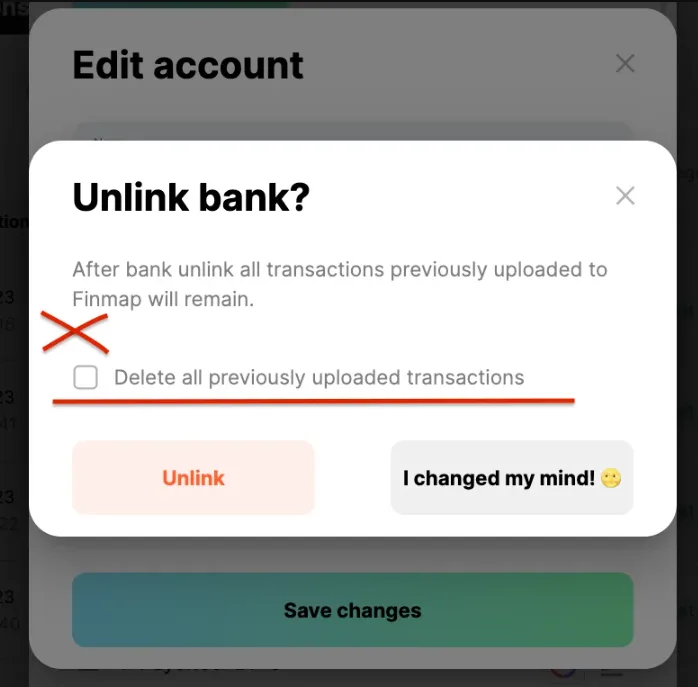
4. Save the changes, then click “Connect bank” in the same window.
5. Connect the account again. When choosing the sync restart date, set it earlier than the last successfully synced payment.
📌 For example, if Finmap has a transaction dated 21.03.2026 19:00, reconnect starting from 21.03.2026 18:00.
As a result, all balances will update automatically, and new payments will be pulled in starting from the date you specified.
If the data still hasn't appeared after reconnecting
Wait a few minutes — syncing new transactions after reconnecting doesn't happen instantly.
Check whether the warning icon next to the account has disappeared from the accounts list — if so, the connection has been restored successfully, and the data will load shortly.
If the warning is still there, or the data still isn't updating after a long time, contact Finmap support and provide the account and bank name so we can check the connection on our end.