Contents
FAQ About Employee Position Settings
Here you’ll find answers to the most frequently asked questions about setting up roles for added users in Finmap.
In this article, we'll go over different cases of setting up roles in the Users section in Finmap. You'll learn how to configure user roles correctly for your company's different needs to keep your finances well managed.
1. The confirmation email about the company invitation doesn't arrive
The email is only a notification that you've been added to the company. It doesn't contain a code to confirm registration or joining the company, or any other details an employee would need to get into your company.
So employees don't need to wait for the email — they can sign up right away using this link:
https://my.finmap.online/auth/register/en.
Once registered, they immediately get access to the company they were added to.

2. An employee was added to the account but didn't receive a password to access the company. What should I do?
To get access to Finmap, the employee needs to sign up for the service on their own using this link:
https://my.finmap.online/auth/register/en. The employee creates their own password.
3. Where can I find the company I was added to as an employee?
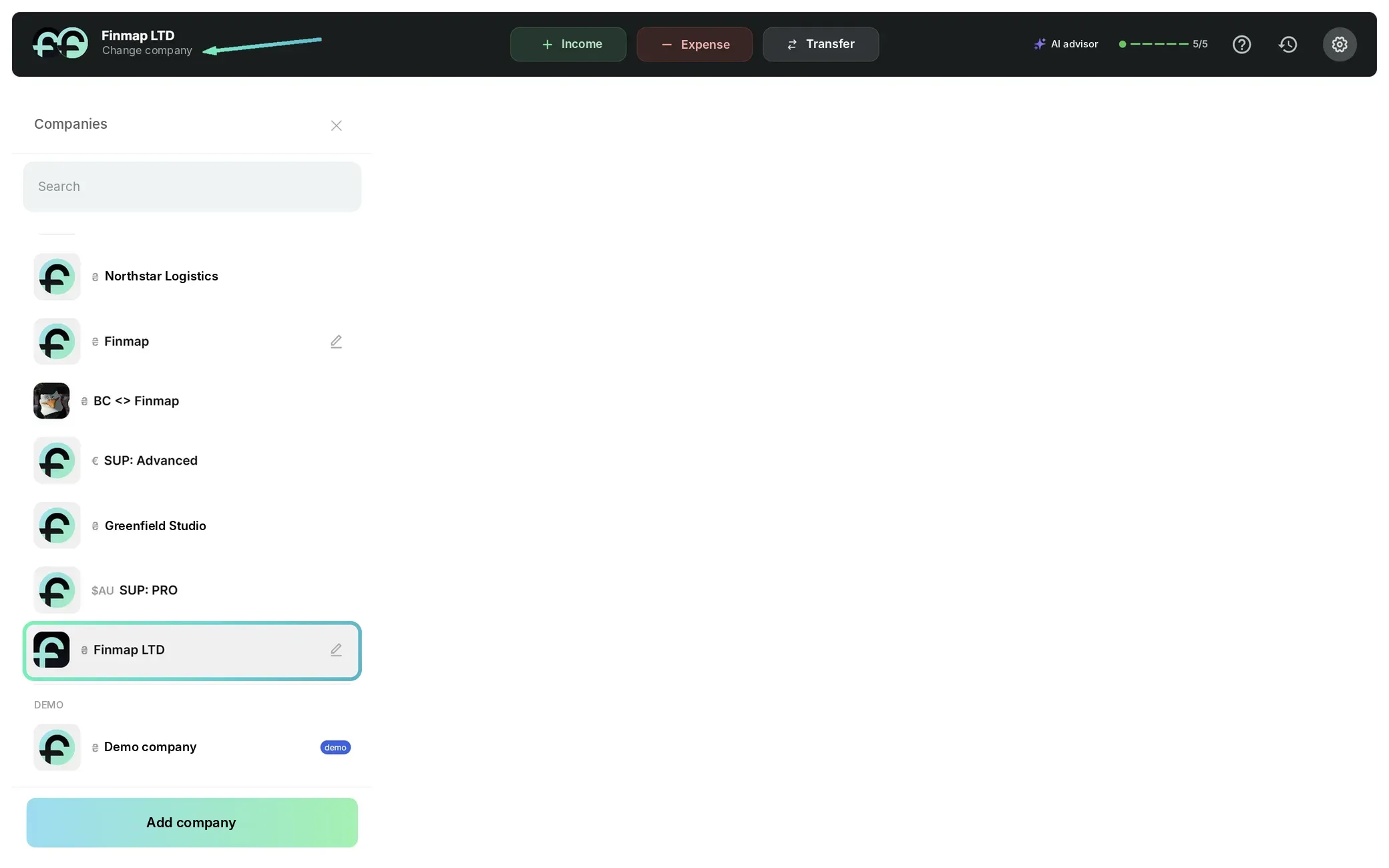
All companies — both your own and those you've been added to — are shown in the Company menu (top left corner) or in Settings: https://my.finmap.online/settings/companies.
❗️Keep in mind that companies are separate from each other, so a company owner can't see the other companies in your account.
4. How do I set up access so employees can't see account balances?
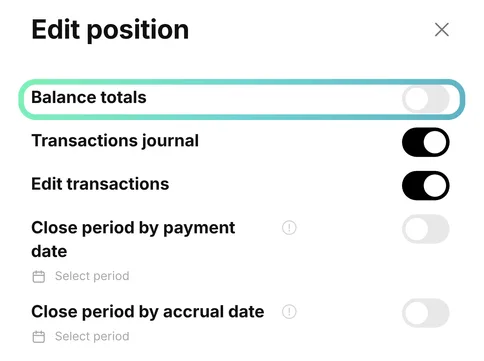
To stop employees from seeing account balances and the Total on accounts amount, simply turn off the Show total balance and accounts toggle in the relevant roles.
5. How do I give an employee access to specific accounts only?
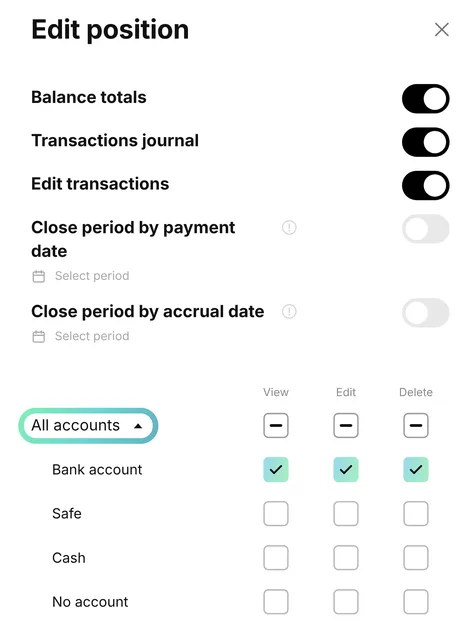
To give an employee access to certain accounts only, open the All accounts block in their role. Select the account(s) your employee should work with.
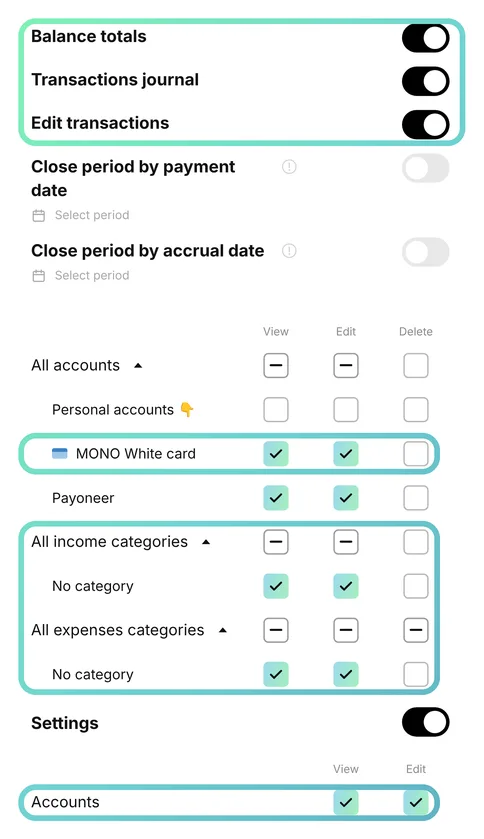
6. What minimum permissions does a role need so an employee can connect a bank integration and payment sync runs smoothly?
You need to grant access to:
1. Balance display, the Transaction log, and Edit operations.
2. View and edit access to the account the integration will be connected to.
3. View and
edit access to the Uncategorized income and Uncategorized expense entities.
4. View and
edit access to Accounts in the Settings block.
7. How do I let an employee merge payments into a transfer?
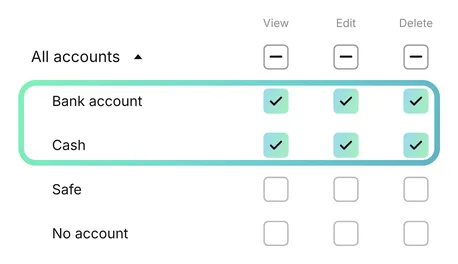
To let an employee merge income and expense payments into a transfer, grant the following access:
1. View, edit, and delete access to payments on both accounts whose payments will be used to create the transfer.
2. Delete access to Uncategorized income and Uncategorized expense.
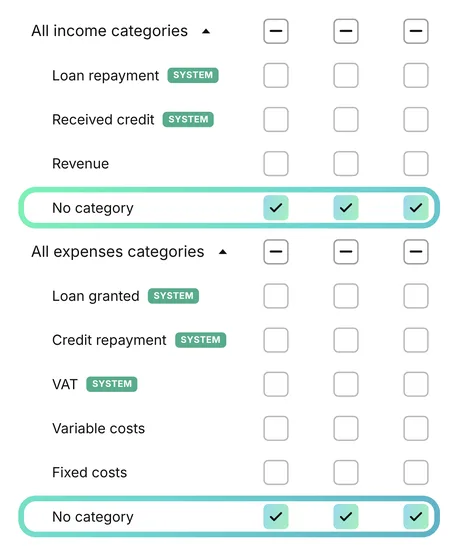
❕If the payments that will be turned into a transfer include other entities (specific categories, counterparties, projects, and/or tags), the employee must have view, edit, and delete access to payments with those entities.
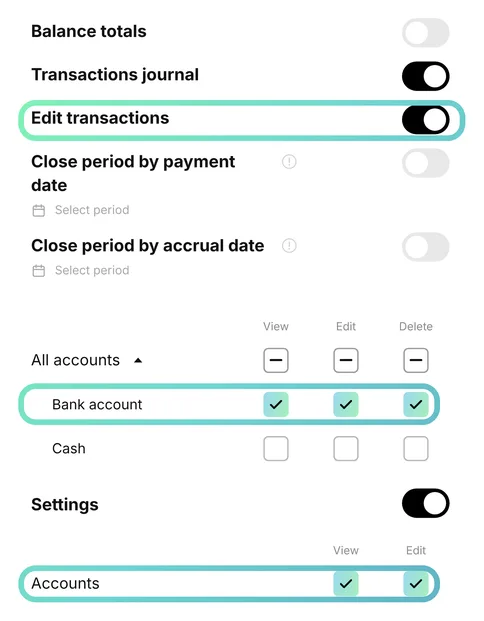
8. What should I enable in a role so an employee can import a bank statement?
To let an employee import a bank statement, grant them the following access:
1. Access to Edit operations.
2. Access to the account the statement will be uploaded to.
3.
View and edit access to Accounts in the Settings block.
9. How do I stop an employee from seeing transfers?
Since a transfer involves 2 accounts that money moves between, you can restrict access to transfers like this:
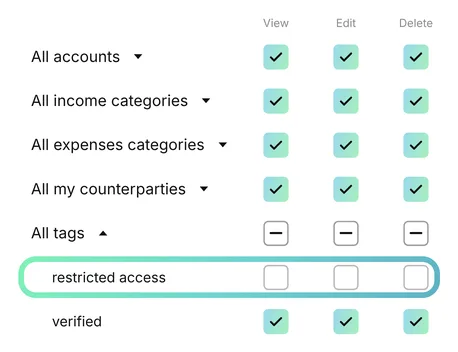
Add a tag to all transfers you want to hide, for example a restricted access tag. Then fully remove access to this tag in the employee's role.
10. How do I set up a role so an employee can work with Invoices?
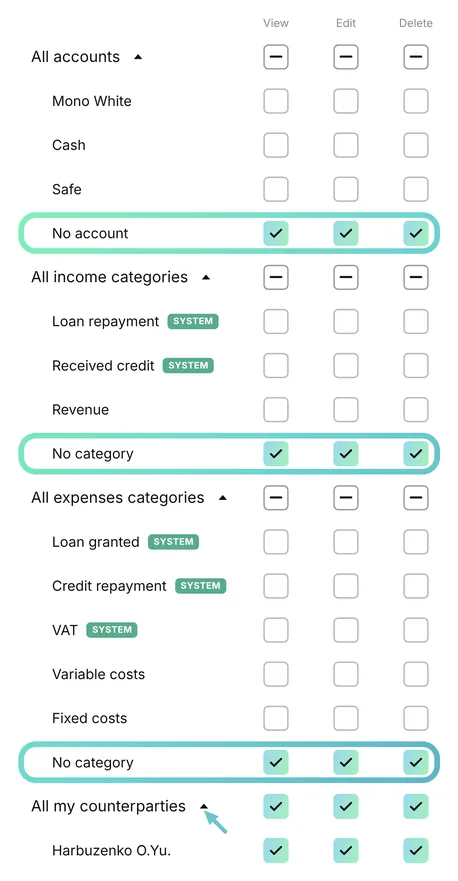
Since Invoices in the service are created without an account or category, to view them the employee's role must include access to:
1. The counterparties you plan to specify in Invoices.
2. The No account entity.
3. The Uncategorized income and Uncategorized expense entities.
11. An employee can't see or edit the payments they need. What should I do?
If a user can't see or edit certain operations, check their role settings.
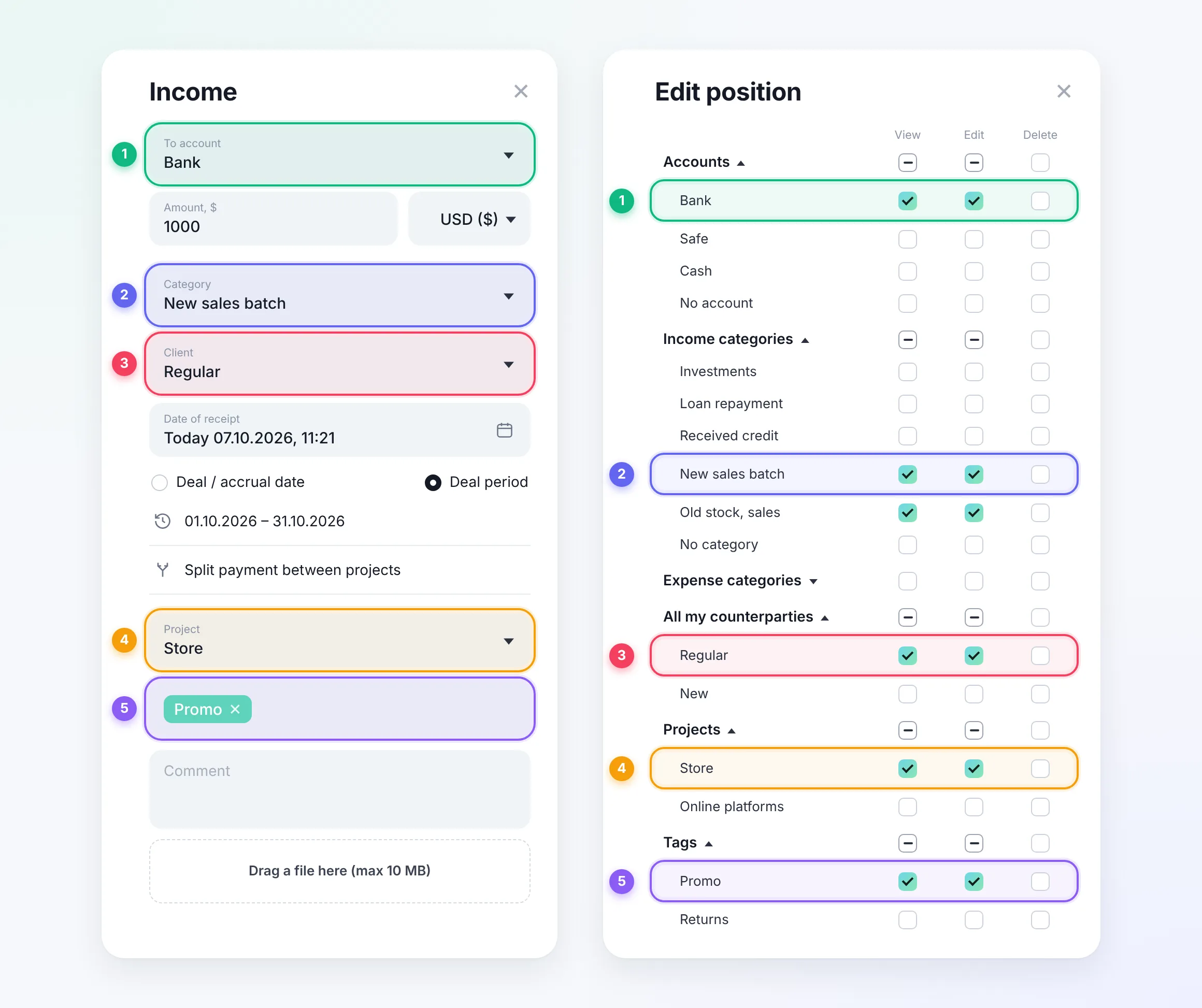
Make sure they have view/edit access to every entity specified in the operation: account, category, counterparty, project, and tag.
We recommend opening two separate windows to compare each entity:
1. The entities entered in the payment.
2. The employee's role settings.
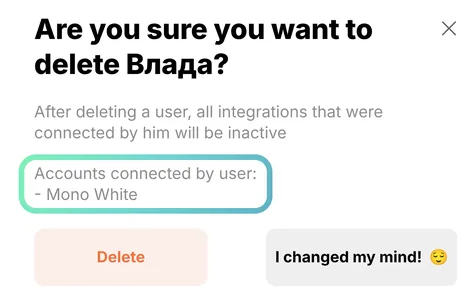
12. What happens if I delete an employee who connected integrations to the company's accounts?
When you delete the employee, payments already synced to the account won't be deleted, but the integration will stop. You'll need to reconnect the integration to your accounts from the owner's account or from another added employee with sufficient permissions, as described in point 6 of this article.
When you delete an employee, you'll see a notification showing which integrations this employee connected.