


How to use multi-currency in Finmap
When creating a company, Finmap will ask you to select the company currency - this is the currency in which analytics and reports will be displayed
If you have an international business and work with different currencies, you can reflect this in the service by creating separate accounts for each currency
In order to create an account with the required currency, click on the "Add" button on the panel with accounts on the left, select "Create account", specify its name, select the required currency and specify the starting balance, if necessary
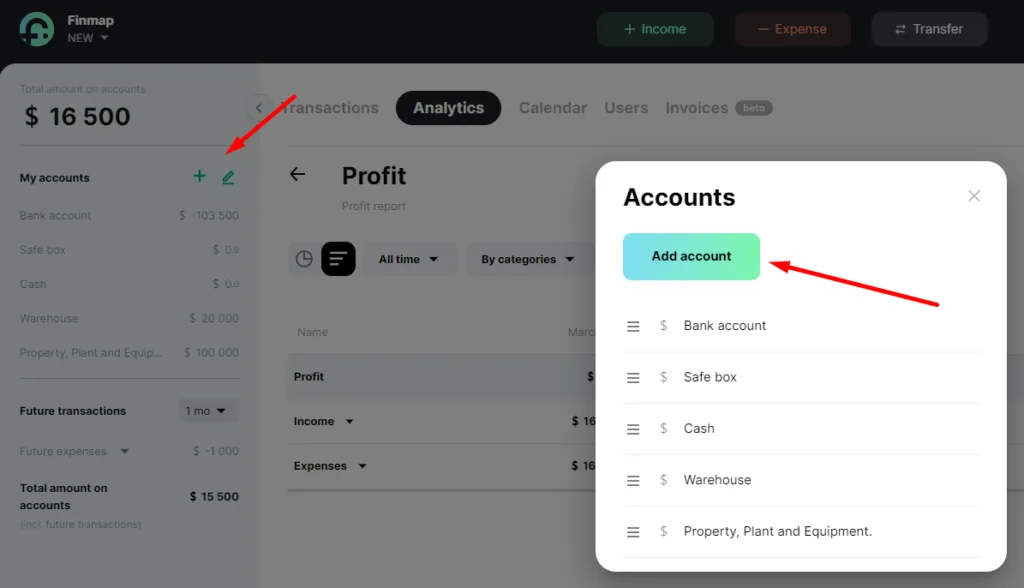
Now let's see how Finmap will show a report in one currency if we have accounts in different ones? And how will the program display the exchange of one currency for another
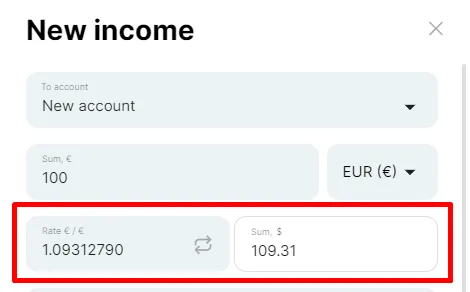
When you enter income or expenses in a currency other than the company's currency, Finmap will show you at what rate against the main currency this transaction will be accounted for in analytics and reports
You can easily change this rate or the corresponding amounts to your own information you need
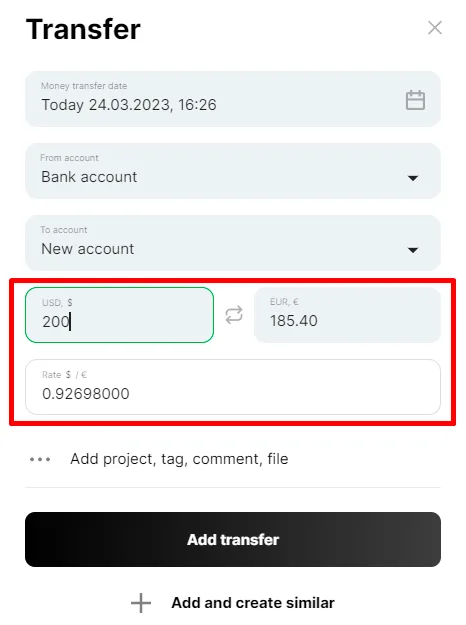
When making a transfer between different currencies, select which account you are transferring from and to, and deposit the required amount. Finmap will then show the amount in both currencies and the exchange rate
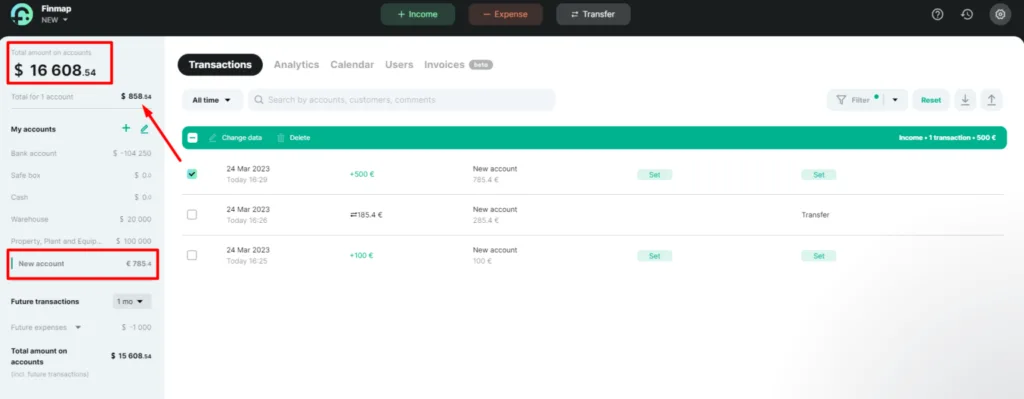
"Total on accounts", "Planned payments" and "Total on accounts including planned payments" - in these lines, the balances are always recalculated at the rate of your national bank "as of today"
If you work with other exchange rates, you can add your own fixed rate in Finmap. To do this, go to Settings - Company settings and select the "Fixed exchange rates" item
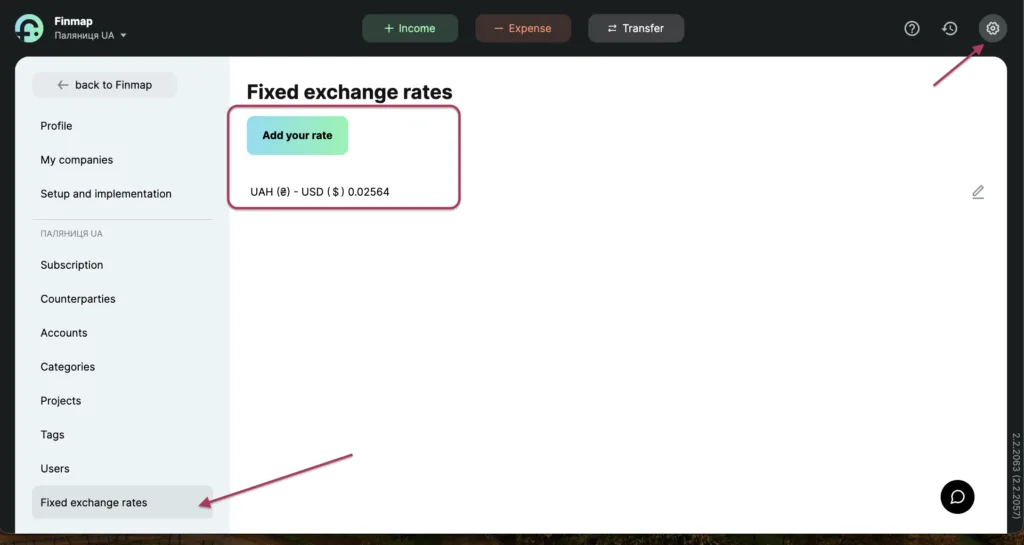
Add your exchange rate and the next time you add a transaction to Finmap, it will automatically substitute your fixed rate.
If you are missing any currency in the list of currencies, write to us in the support chat inside the service and our technical specialists will add it in a short time.