


Contents
Remuneration sheet in Finmap
See how much is accrued to employees, how much has already been paid and how it is split between projects and categories.
The “Remuneration sheet” is for those who pay employees, contractors or sole proprietors a fixed rate or fee and split that amount between several projects. For example, non-profits, agencies and teams that work on projects with donors.
The section helps you keep track in one place: how much is accrued to each employee, how much has already been paid and how much is still to pay. An accrual can be split between projects and categories, so you can view the sheet both by employees and by projects.
Where to find the report
Go to the “Analytics” section and open “Custom reports”. Choose “Remuneration sheet” there.
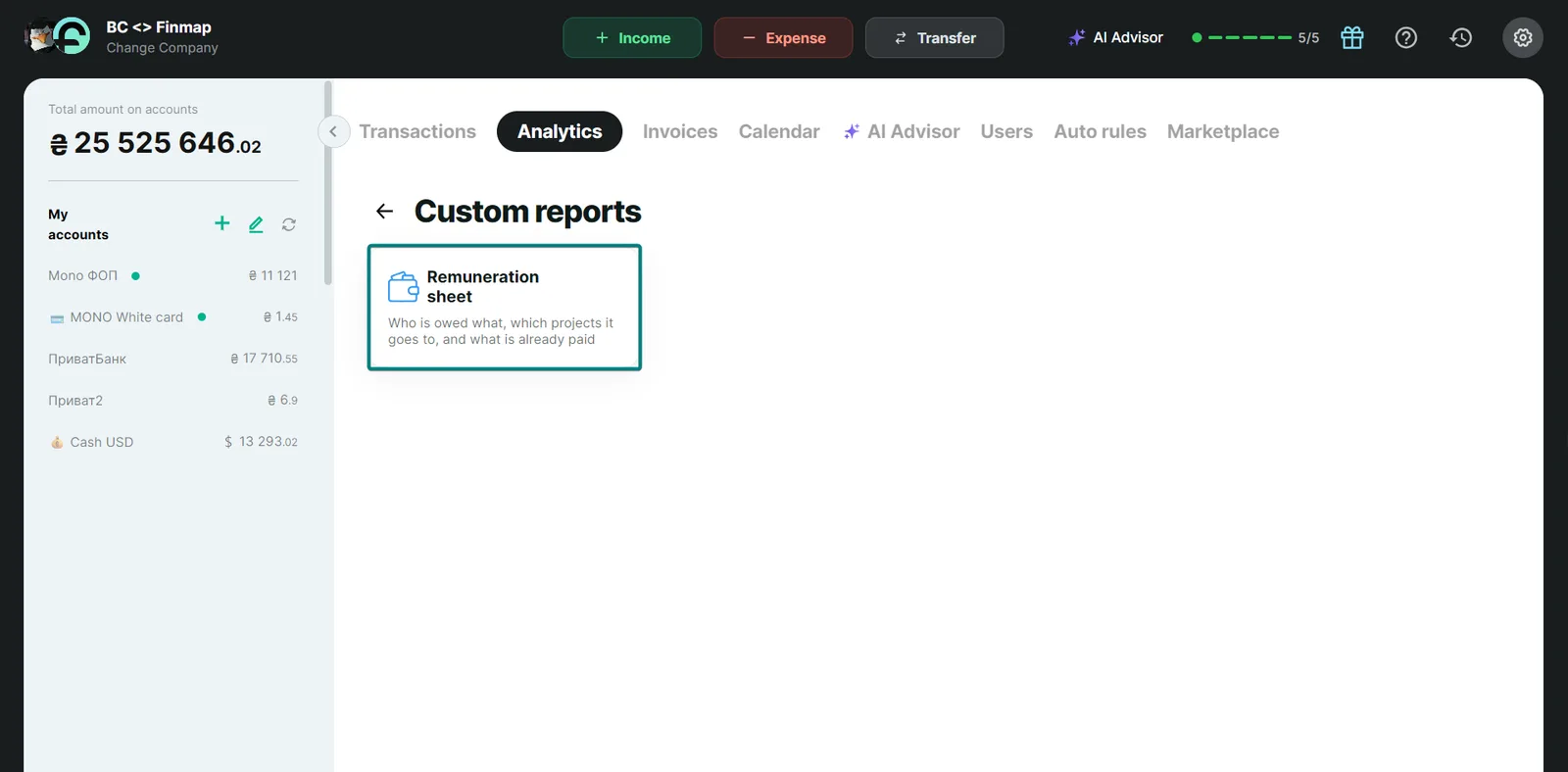
What the sheet shows
You can view the sheet in the way that suits you using filters:
- Time filter: choose the month or year you want to see data for.
- “By people” or “By projects”: data separately for each employee or for each project.
- “All projects”: you can choose only the projects you need.
- “Export”: saves the sheet to Excel.
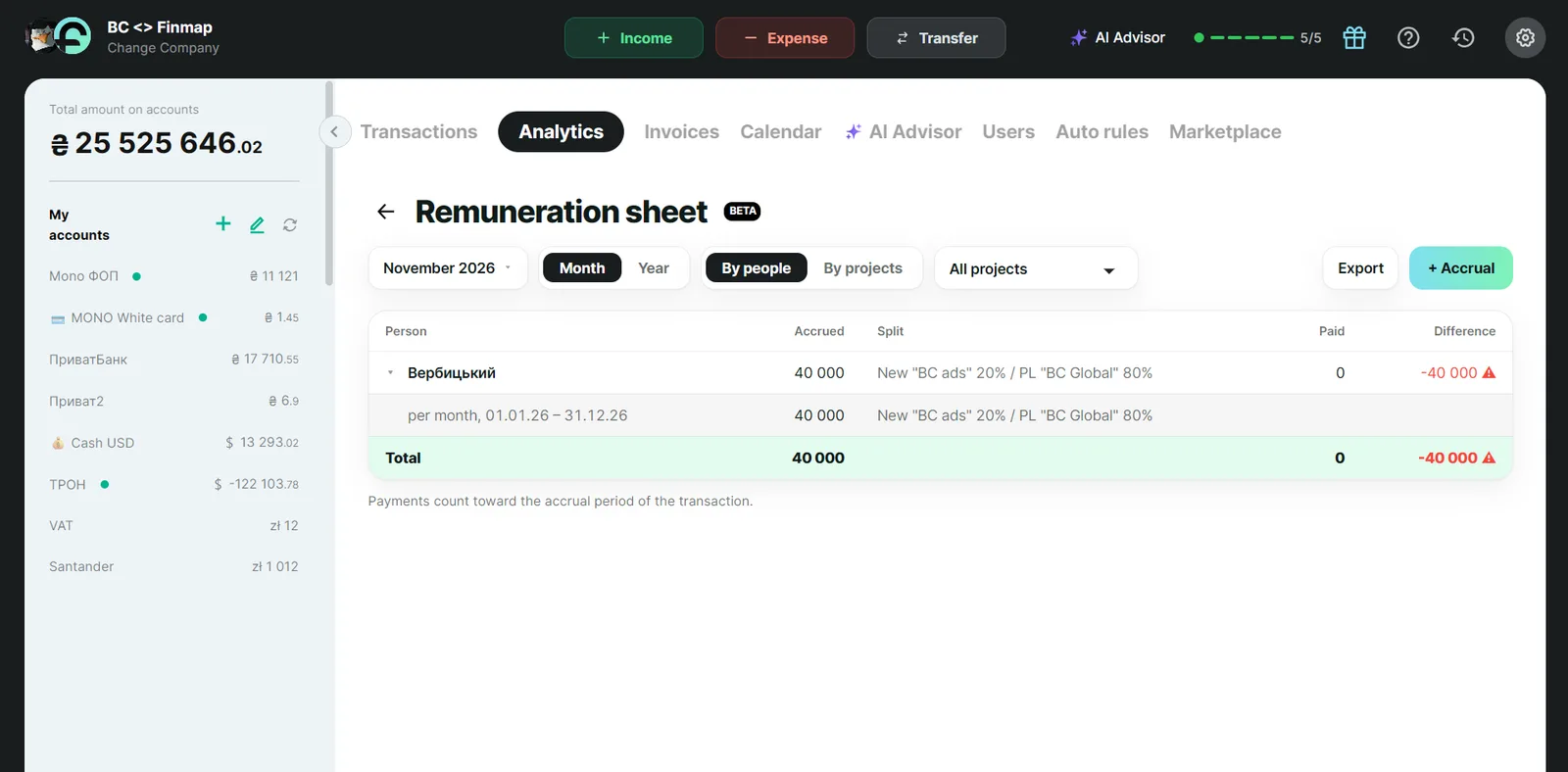
In the table you will see these columns:
- “Person” — the employee.
- “Accrued” — how much is accrued to them.
- “Split” — which projects or categories the accrual is split between.
- “Paid” — how much has already been paid.
- “Difference” — how much is left to pay. Pay attention to this column.
Below the table there is a reminder that payments count toward the accrual period of the transaction.
How to add an accrual
To add an accrual, click the “+ Accrual” button on the right. A window opens where you fill in the data. On a phone it opens full screen.
- In the “Person” field, choose the employee you need.
- Specify the “Period”: “From” and “To”.
- Enter the amount and currency and choose how to count it: “per month” or “for the whole period”. If the currency differs from the company currency, a “Rate” field appears: enter it.
- If needed, fill in the “Service” (for the act) and a comment. These fields are optional.
- In “Split”, specify how the amount is divided: project or category, then “Category”, “Tag” and a percentage or amount. There can be several parts.
- Click “Save”. The button becomes active when the split adds up to exactly 100% (or the full amount). Under the split you can see how much is missing.
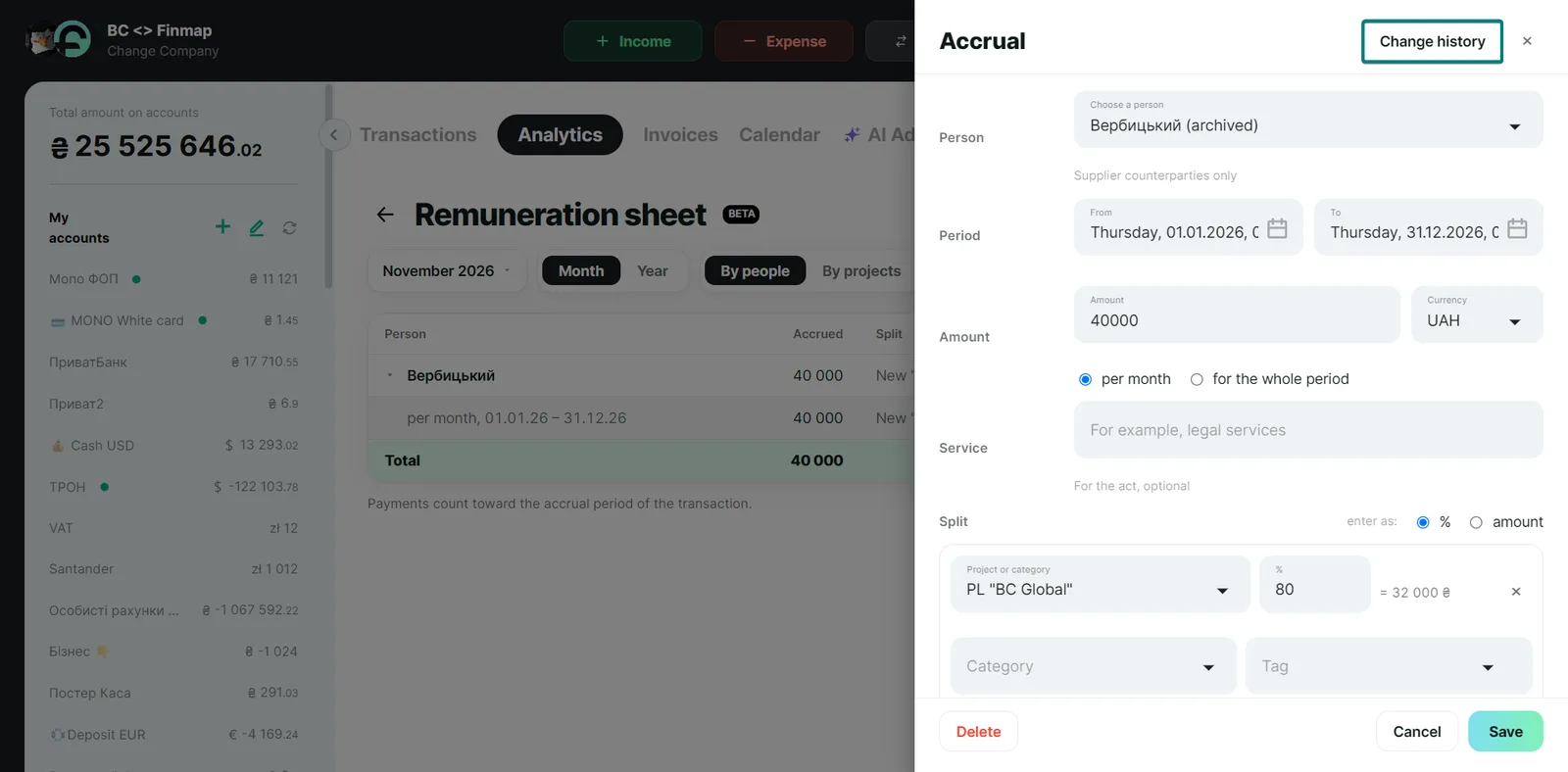
After saving, you can open the accrual again, for example, to adjust something. The window has a “Change history” button: you will see who changed what and when.
How the numbers are calculated
Accrued
- A “per month” amount is accrued in full for every month of the period. Even if the employee started on the 15th, the month counts as full.
- A “for the whole period” amount is divided equally between months. A fraction is shown next to it, for example “1/3”.
- A rate increase is a new accrual from the new month. Past months are not recalculated.
Paid
- Only completed expenses for this employee are counted. Planned operations, that is, with a future date, are not counted.
- The month of a payment is determined like this: the accrual period in the operation, then the accrual date, then the operation date. So a salary for July paid in September stays in July if the operation has an accrual period.
- Refunds from the employee are not subtracted yet.
Currency
- The sheet shows amounts in the company currency.
- The rate is taken from the accrual. If it is missing, the rate for the last day of the month is used, and for the current month, today's rate.
- If there is no rate at all, “Accruals without a rate: N” is shown next to the amount instead of zero.
What the sheet does not do
- It does not affect other reports. Accruals are visible only in the sheet. “Profit”, “Payables” and “Money” see only the payment operations themselves.
- It does not create operations. Enter a payment as a regular expense for the employee.
- It has no restore after deletion. A deleted accrual disappears from the sheet.
- It does not upload accruals from Excel. Export to Excel is available.
Frequently asked questions
Who sees the sheet?
The sheet is visible to the company owner and users with the “Full access” and “View, edit and delete everything” positions. The section is not available to other positions, including “View and edit everything”: the sheet shows remuneration amounts, so access is restricted. They also cannot open the sheet by a link. If you don't see the “Remuneration sheet” in “Custom reports”, check your position. If it is suitable, the section may not be enabled for your company yet.
An employee is missing from the “Person” list
Only counterparties of the “supplier” type get into the list. Create a counterparty with this type or change the type of an existing one.
“Paid” shows 0 although I paid the employee
Check in order:
- Whether the operation is completed. An operation with a future date is planned and is not counted.
- Whether it is an expense for the same counterparty as in the accrual.
- Whether the accrual period in the operation matches the month you are looking at. A payment sits in the month of its accrual period, not in the month the money was sent.
A payment is in the wrong month
A payment goes to the month of the operation's accrual period. If there is none, to the month of the accrual date, and if there is none either, to the month of the operation date. Fix the accrual period in the operation itself.
“Accruals without a rate” is shown next to an amount
The accrual is in another currency and there is no rate for this month. Enter the rate in the accrual.
I can't choose a project or category in the split
The project or category is already chosen in another part of this split. You cannot choose the same one twice. Change the percentage in the part that is already selected.
I deleted an accrual by mistake
There is no “restore” button. Create the accrual again: specify the employee and the period.
Short on time to figure it out yourself? Finmap financial experts will help you set up reports for your business. Go to Settings → Finance Expert Help and book a consultation.