


Contents
Transactions: search, filters, files and planned operations
How to work with the Transactions section: find operations, filter them, preview and download attached files.
The journal is the Transactions section, the main place in Finmap. It stores all your operations: income, expenses and transfers. You can add them manually, connect a bank integration or upload statements from banks and services. Below is what else the journal offers.
Connecting a bank and importing statements
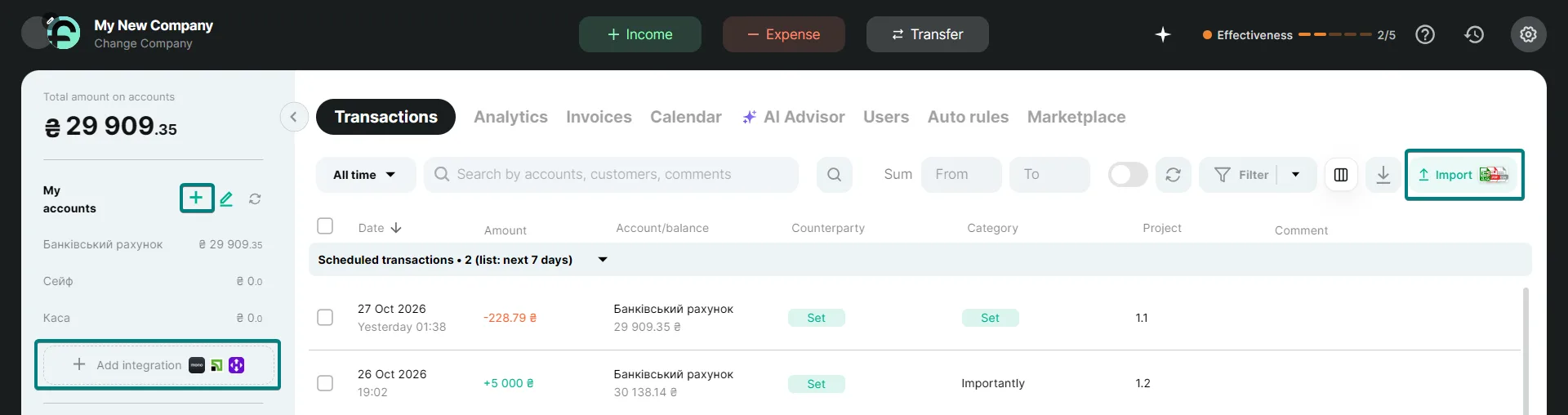
To avoid entering operations manually with the buttons (Income, Expense, Transfer), there are two ways.
- Connect a bank integration via “Add integration” in the left panel — operations will be pulled in automatically.
- Or upload a statement from a bank or service with the “Import” button above the list of operations.
Planned operations
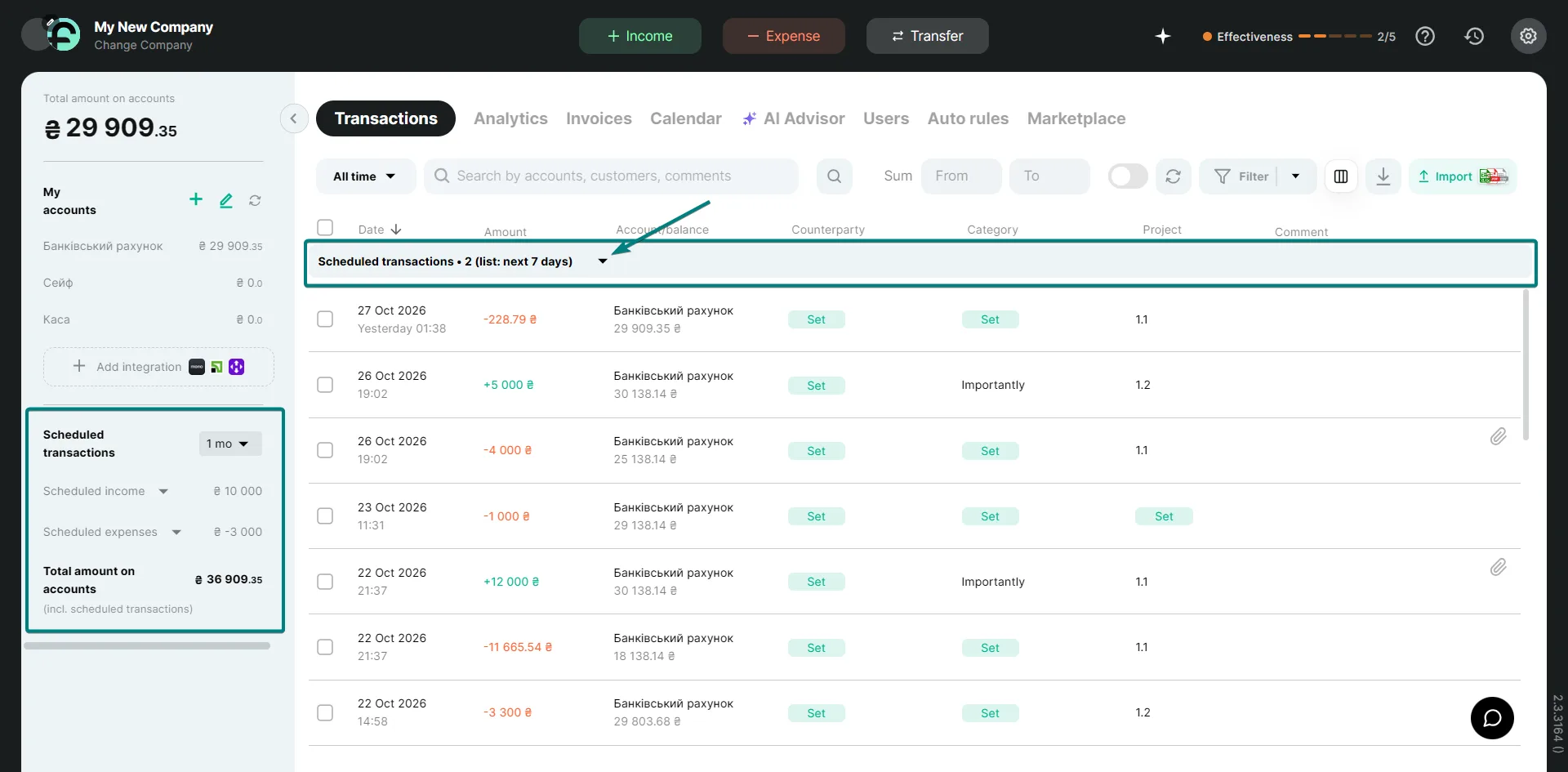
Planned operations are payments dated in the future. In the left panel under your accounts you see balances that take planned operations into account.
Above the list of all operations in the journal you can expand the planned ones and see the operations themselves. Receivables and payables are formed from them.
Journal view
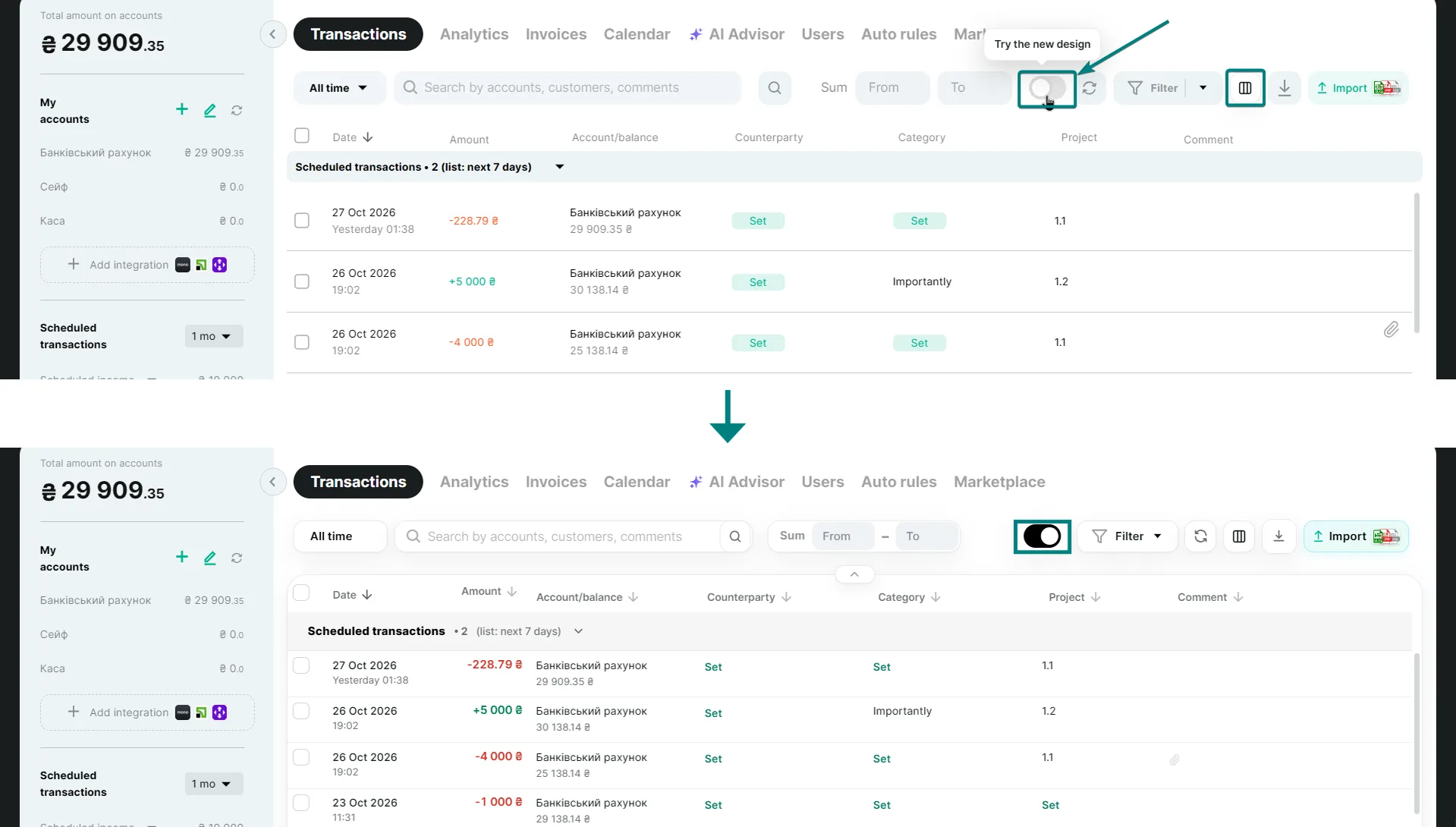
Above the list there is a switch between the new and old journal view. Choose the one that suits you — your data does not change.
The columns icon (journal settings) next to it lets you choose which columns to show for you.
Editing operations
You don't need to open an operation to fix something in it. Click the category, project or counterparty right in the operation's row and choose the value you need from the list.
If you click the operation itself, it opens for editing: here you can change the comment, add tags and change other data.
Bulk editing
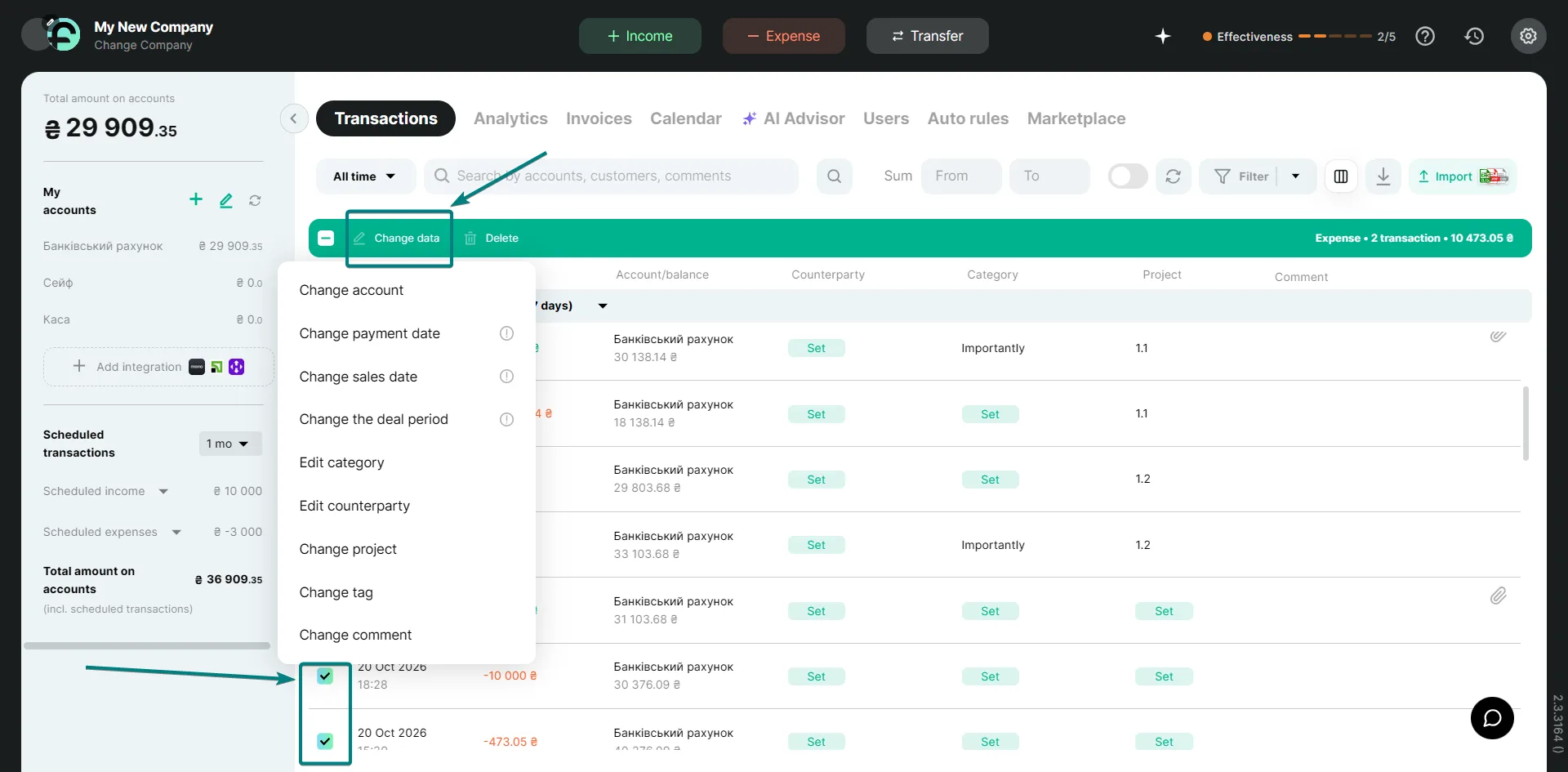
To make changes in many operations faster, use bulk editing.
- Tick the operations you need.
- In the green bar above the list, click “Change data”.
- Choose what to change — for example, the project. It is set at once in all ticked operations.
Category, project and counterparty can also be filled in by auto rules — then new operations fill themselves in.
Filters
The “Filter” button lets you keep only the operations you need. Filters can be combined: the list will show operations that match all selected conditions at once. You can also quickly narrow the list by amount in the “From” and “To” fields and by period.
Search
The “Search by accounts, customers, comments” field looks for operations by account name, counterparty and comment text. Type a word or part of it — the list filters right away.
If an operation is not found, check:
- The period. The default is “All time”, but if you chose another period, operations outside it are not shown.
- Whether filters are on: they also limit the list.
- Search does not look at other fields, such as category or project. Use a filter for those.
Attached files
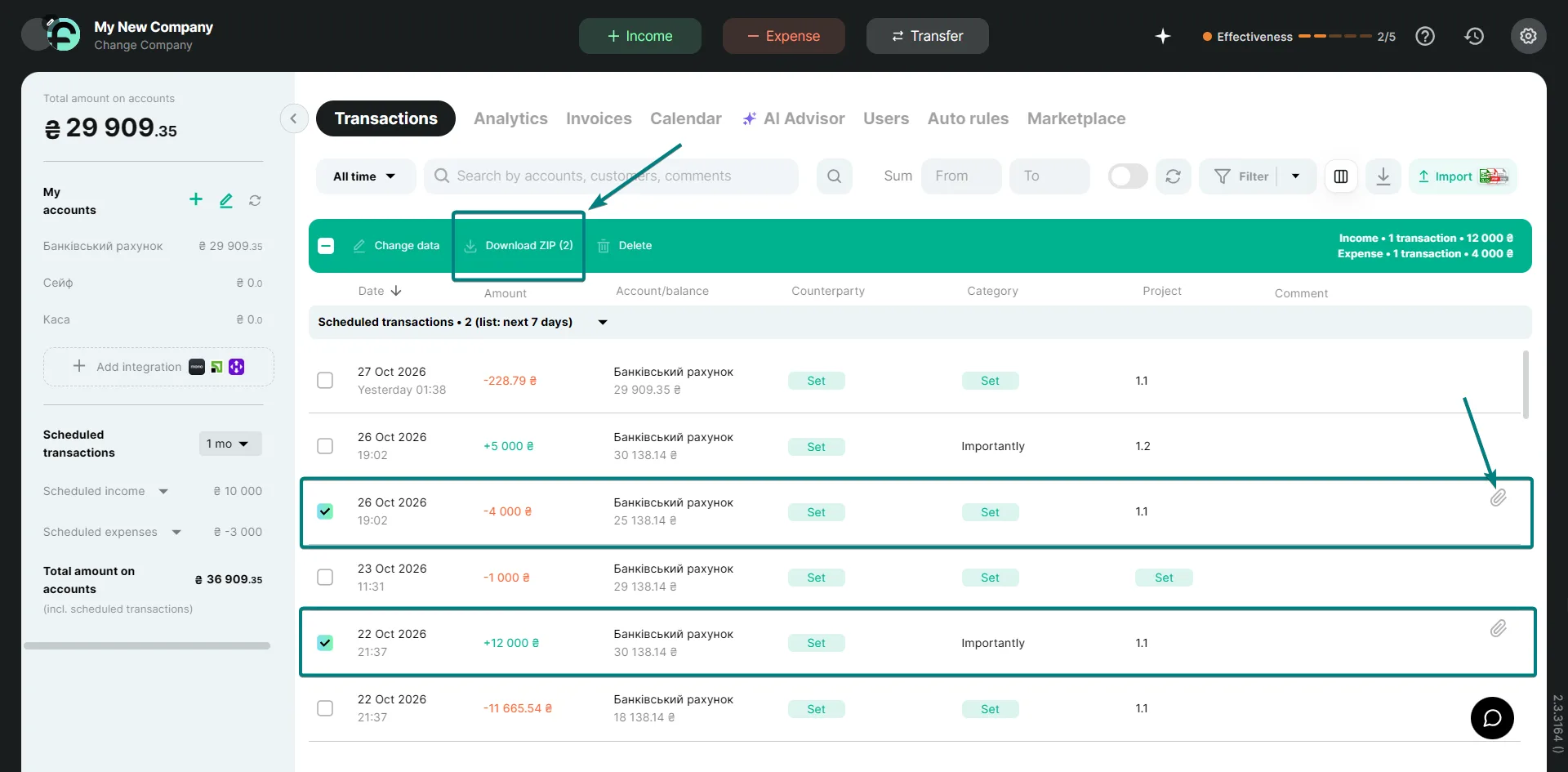
You can attach a file to an operation — for example, a receipt or an invoice. Such operations have a paperclip icon on the right of the row.
Preview without downloading
- Open an operation with an attached file.
- Click the “eye” icon (preview mode). The file opens right in the service, without downloading to your computer.
- Preview works for images and PDFs. Other formats (for example, Excel or Word) are downloaded to your device.
Downloading all files as one archive
- Tick the operations you need (this is the bulk selection mode).
- In the green bar above the list, click “Download ZIP”.
- You will get a ZIP archive with all the files attached to these operations.
If there are many operations, a message will appear saying the request is being processed. Just wait: the archive will download as soon as it is ready.
Effectiveness
Effectiveness shows how fully you use Finmap's capabilities.
You can find more details in the instructions.
Frequently asked questions
Why doesn't search find my operation?
Check the period and filters. Search works by accounts, counterparties and comments, so search for a word from the comment or a counterparty name.
How do I change the category or project in several operations at once?
Tick the operations, click “Change data” and choose the new value: it will be set in all selected operations.
How do I preview a receipt without downloading it?
Click the “eye” icon in the operation: images and PDFs open right in the service.
How do I download files from several operations at once?
Tick the operations and click “Download ZIP”: you will get one ZIP archive.
What does the “request is being processed” message mean?
There are many operations and the archive is still being prepared. Wait, and it will download automatically.
Why doesn't a file open in preview?
Preview is available for images and PDFs. Other formats are downloaded to your computer.
Short on time to figure it out yourself? Finmap financial experts will help you set up your journal for your business. Go to Settings → Finance Expert Help and book a consultation.