


Contents
Integrating LiqPay with Finmap via Apix-Drive
How to connect LiqPay to Finmap via Apix-Drive: a step-by-step guide to automating the transfer of payments and transactions.
What is Apix-Drive
Apix-Drive is a no-code automation platform that lets you exchange data between different services without writing code.
For the integration with Finmap it works like this:
LiqPay → Apix-Drive → Finmap
Apix-Drive tracks new transactions in LiqPay and automatically creates the corresponding financial operations in Finmap.
How the integration works
To set up the integration you need to:
Choose LiqPay as the source system.
Choose the event that will start the automation.
Log in to LiqPay.
Connect Finmap.
Map the fields.
Launch the integration.
After that, all new payments will reach Finmap automatically.
Step 1. Create a new connection
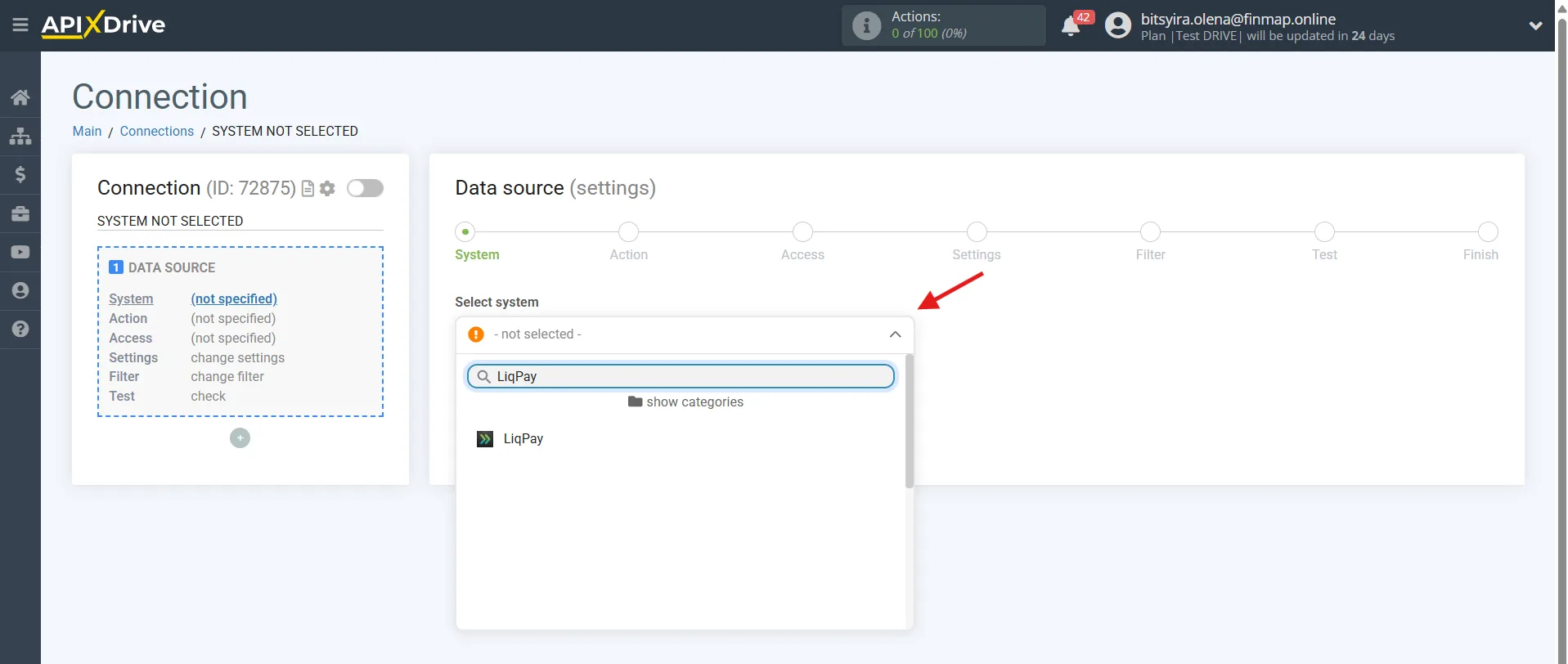
In your Apix-Drive account, create a new Connection.
As the source system, choose:
LiqPay
Step 2. Choose the trigger
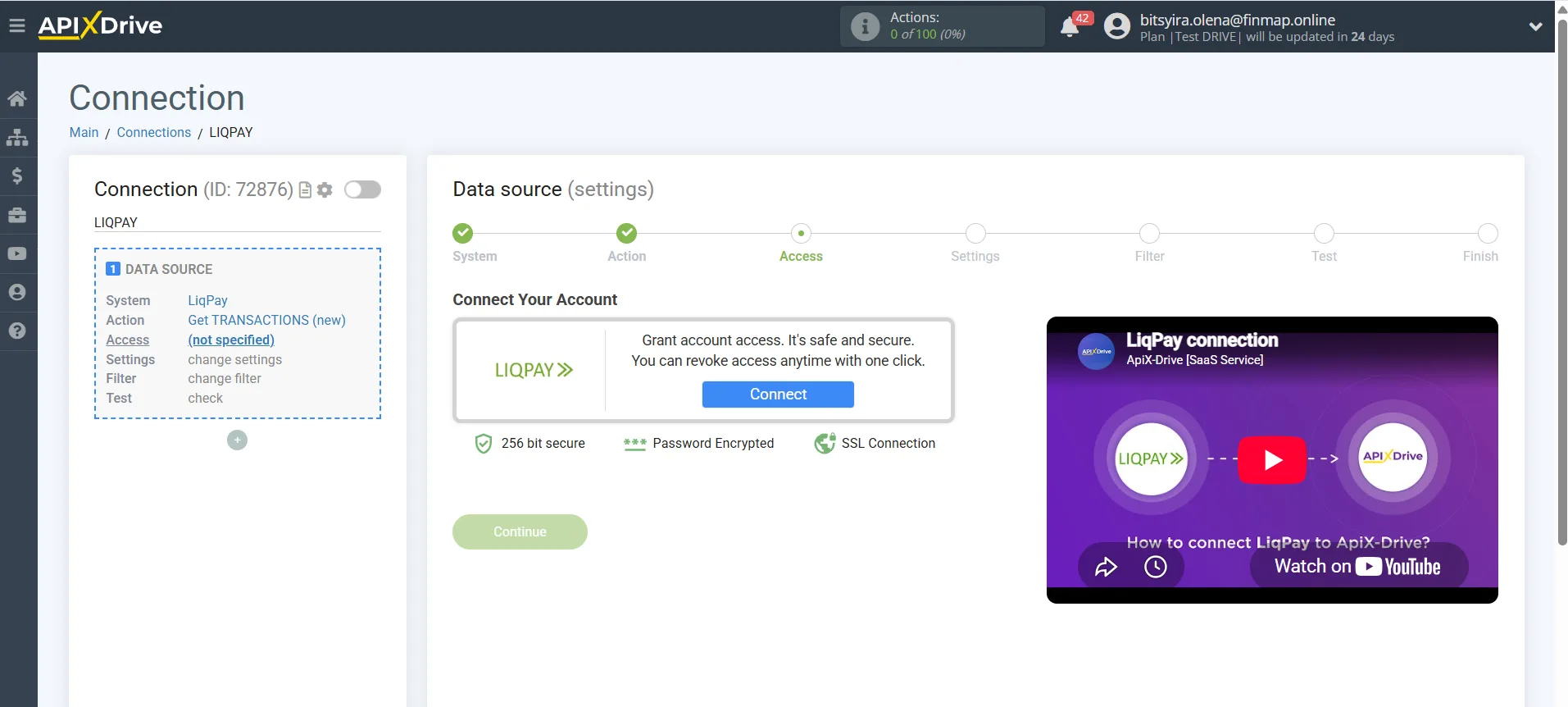
LiqPay supports one trigger.
Get TRANSACTIONS (new)
Fires once a new transaction appears in LiqPay.
This means every new payment can be sent to Finmap automatically.
Depending on your business processes, these can be:
payments from clients;
online payments through the website;
invoice payments;
payments for goods or services.
This trigger is the foundation of the LiqPay integration with Finmap.
Step 3. Connect your LiqPay account
Log in to your LiqPay account and grant Apix-Drive the necessary permissions.
Once the connection succeeds, the service will get access to information about new transactions.
LiqPay API: https://www.liqpay.ua/doc/api/internet_acquiring/checkout?tab=1&referrer=wordpress.com
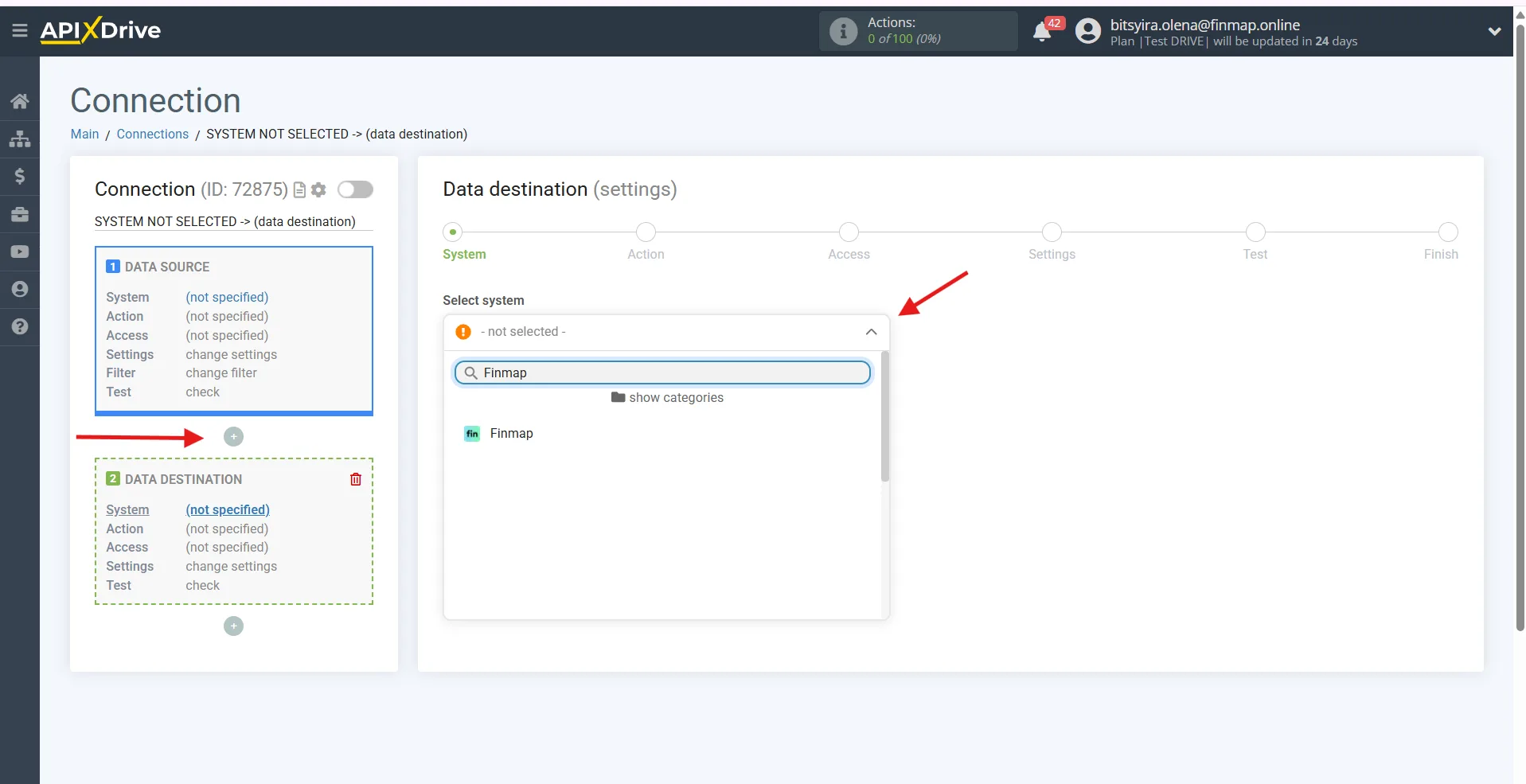
Step 4. Choose the destination system
As the destination system, choose:
Finmap
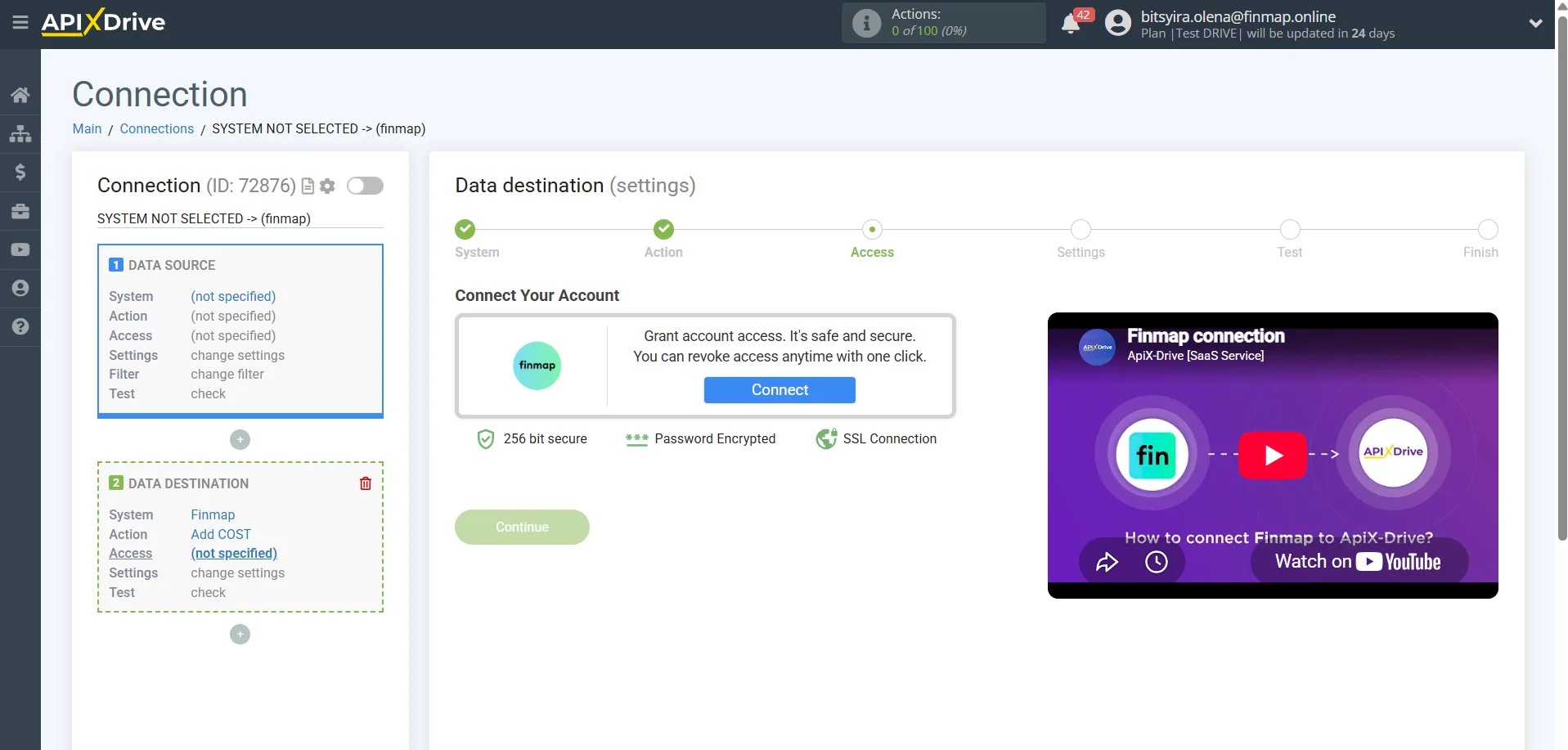
You can generate the Finmap API key here: https://my.finmap.online/settings/api
Step 5. Choose the action in Finmap
Currently three types of operations can be created through Apix-Drive.
Add RECEIPT
Creating income.
The main scenario for the LiqPay integration.
Used to show payments received in Finmap automatically.
Add COST
Creating an expense.
Can be used in non-standard scenarios — for example, to track refunds or individual fees automatically, if they are passed as separate transactions.
Add TRANSFER
Creating a transfer between the company accounts.
Rarely used for the integration with LiqPay.
Step 6. Map the fields
Pass the required transaction data to Finmap:
amount;
currency;
payment date;
transaction ID;
payment purpose;
client (if available);
comment;
the account the money should be credited to.
Once configured, run a test data transfer.
Step 7. Launch the integration
If the test succeeded, turn the automation on.
After that, all new payments from LiqPay will create financial operations in Finmap automatically.
Recommended integration scenarios
1. New payment → Income in Finmap ⭐⭐⭐⭐⭐
Trigger
Get TRANSACTIONS (new)
Action
Add RECEIPT
The most common integration scenario.
Every new successful payment creates income in Finmap automatically, with no manual data entry.
2. Online payments from the website → Automatic revenue tracking ⭐⭐⭐⭐⭐
Trigger
Get TRANSACTIONS (new)
Action
Add RECEIPT
Suitable for online stores, online schools, service companies and other businesses that accept payments through LiqPay.
3. Tracking fees or refunds ⭐⭐⭐☆☆
Trigger
Get TRANSACTIONS (new)
Action
Add COST
Can be used if the business process passes payment system fees or refunds as separate transactions.
What to pay attention to
The integration transfers new transactions only, so every payment made after activation will appear in Finmap automatically.
Before launching the integration, we recommend checking exactly which transaction statuses LiqPay passes (for example, only successful payments, or cancelled and refunded ones too). If Apix-Drive allows filtering to be configured, it is worth passing only successfully completed payments to Finmap.
To avoid duplication, we recommend using the unique transaction ID as the operation identifier. This matters especially if the same transaction can be processed in other automations.
If your process requires the LiqPay fee to be tracked separately, it makes sense to build a separate integration scenario that records it as an expense, provided that information is available in the transaction data.