


Contents
Integrating SalesDrive with Finmap via Apix-Drive
How to connect SalesDrive to Finmap via Apix-Drive: a step-by-step guide to the automatic transfer of orders and sales.
What is Apix-Drive
Apix-Drive is a no-code automation platform that lets you transfer data between different services without programming.
For the integration with Finmap it works like this:
SalesDrive → Apix-Drive → Finmap
Apix-Drive receives data from SalesDrive and automatically creates the corresponding financial operations in Finmap.
How the integration works
To set up the integration you need to:
Choose SalesDrive as the source system.
Choose the available trigger.
Log in to SalesDrive.
Connect Finmap.
Map the fields.
Launch the integration.
After that, new data will be sent to Finmap automatically.
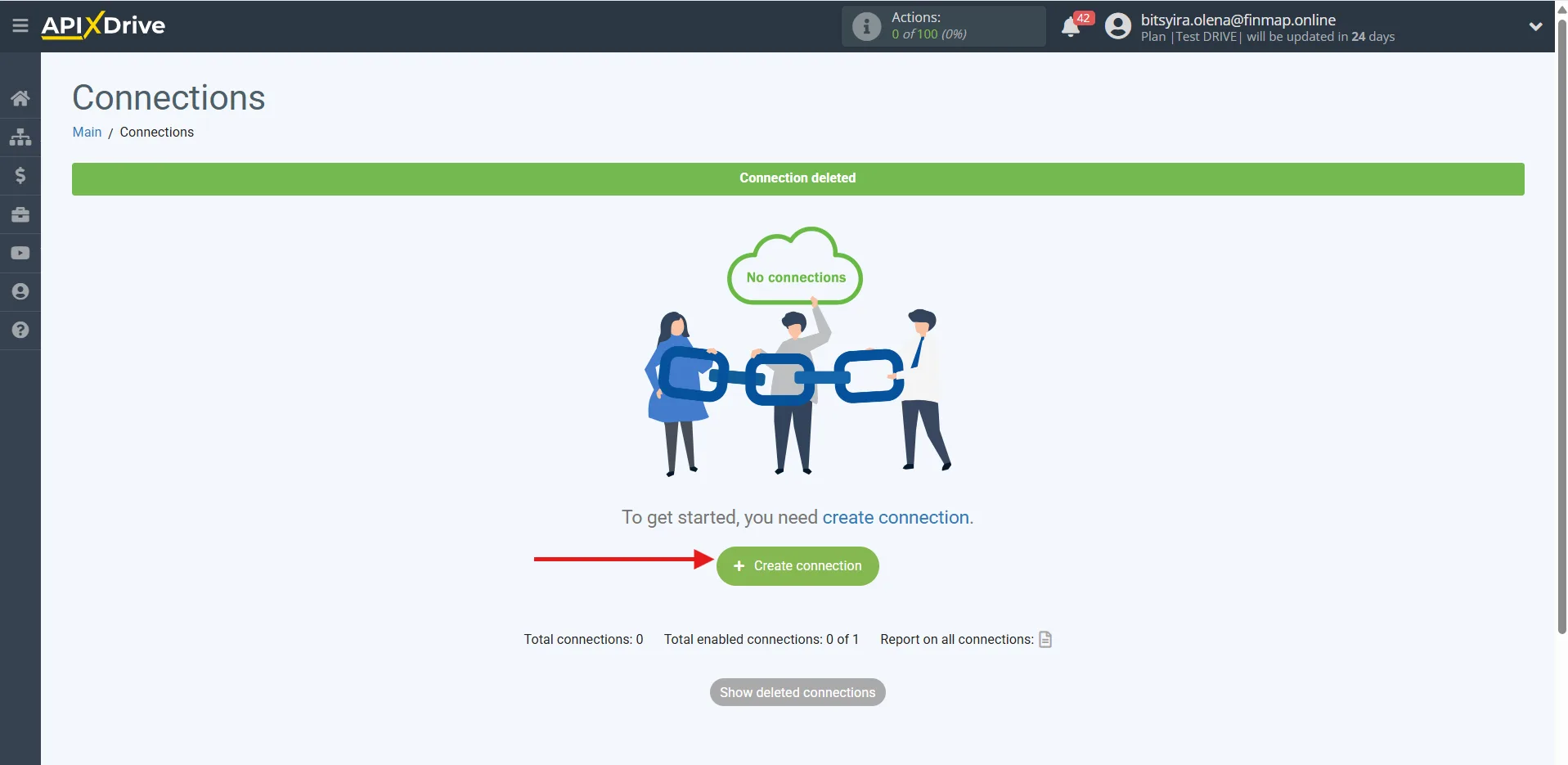
Step 1. Create a new connection
In your Apix-Drive account, create a new Connection.
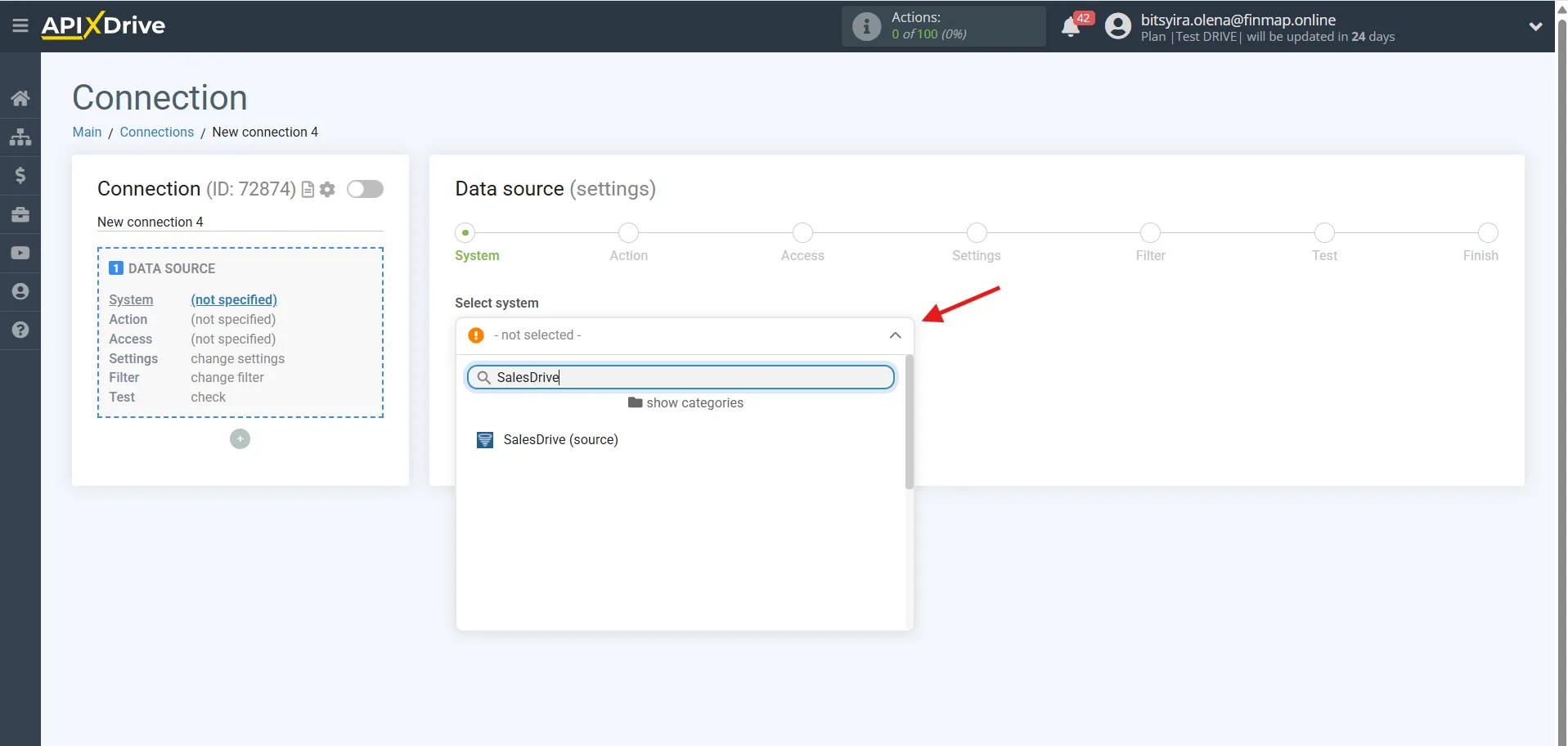
As the source system, choose:
SalesDrive
Step 2. Choose the trigger
SalesDrive supports one universal trigger.
Get DATA
Fires once new data appears in SalesDrive.
Depending on how the connector is configured, this can be:
new orders;
new sales;
other records available through the SalesDrive API.
Exactly which data is transferred depends on the parameters chosen while setting up the integration.
This is the trigger used to send information to Finmap automatically.
Step 3. Connect your SalesDrive account
Log in to your SalesDrive account and grant Apix-Drive the necessary permissions.
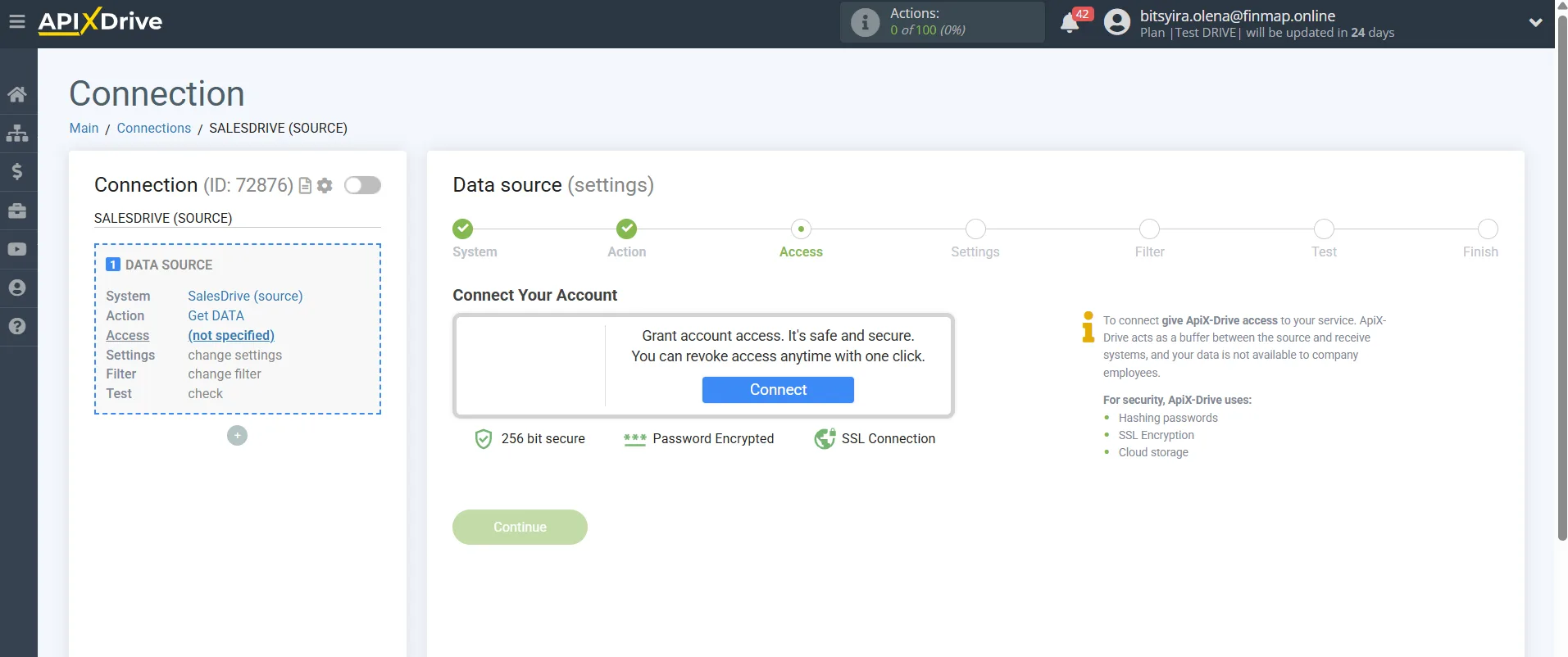
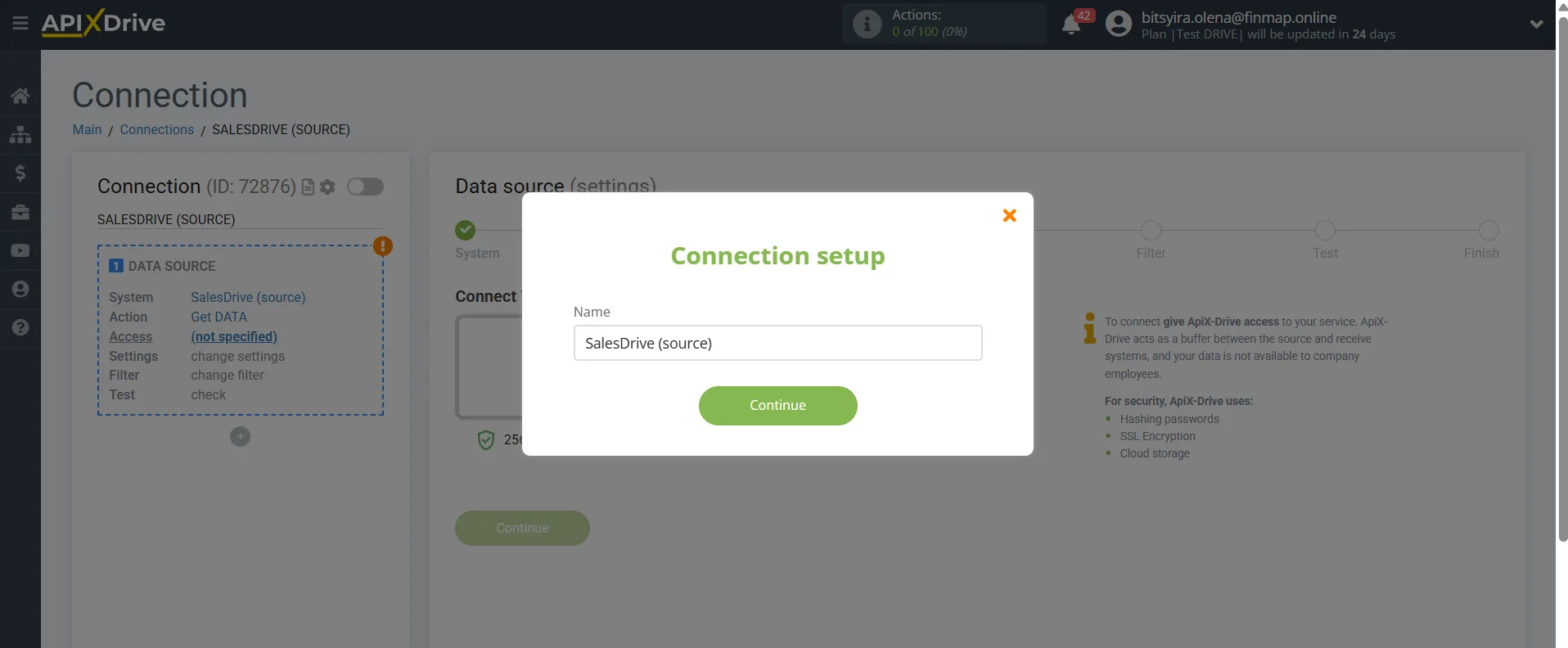
SalesDrive API key: https://salesdrive.ua/knowledge/api/
Step 4. Choose the destination system
As the destination system, choose:
Finmap
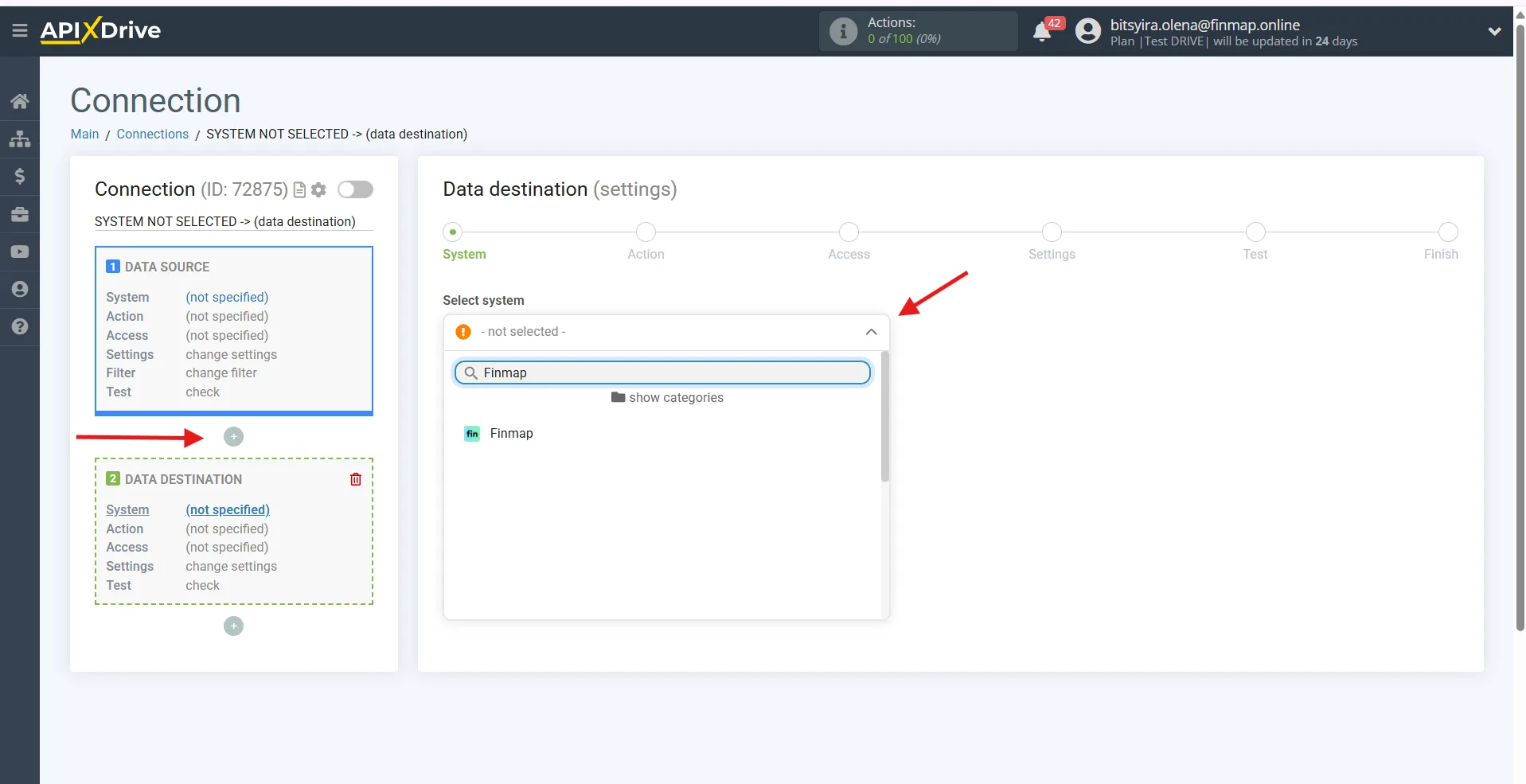
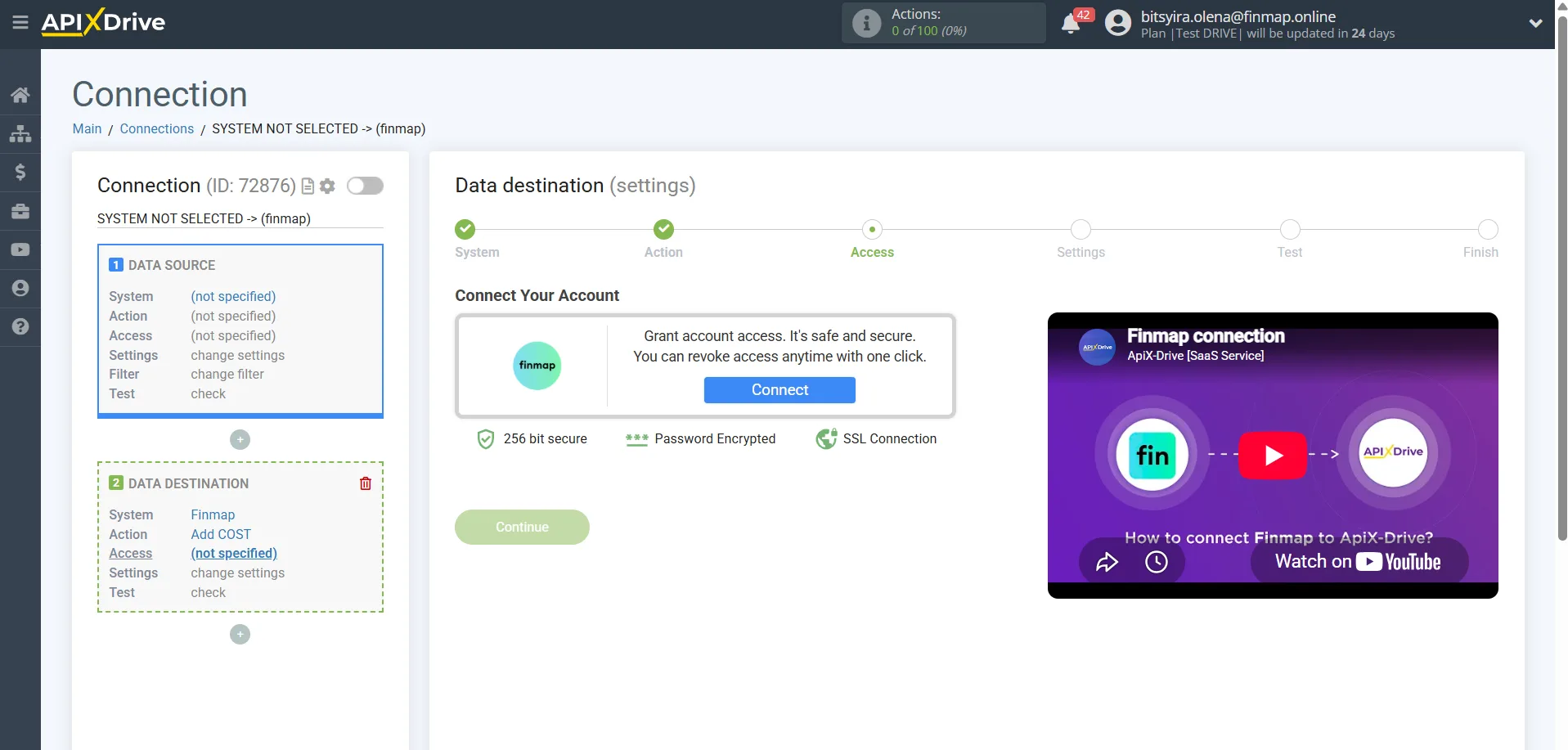
You can generate the Finmap API key here: https://my.finmap.online/settings/api
Step 5. Choose the action in Finmap
Currently three types of operations can be created through Apix-Drive.
Add RECEIPT
Creating income.
The main scenario for the SalesDrive integration.
Used to create income automatically once information about a sale or a payment is received.
Add COST
Creating an expense.
Suitable for non-standard scenarios, if information about expenses needs to be passed from SalesDrive.
Add TRANSFER
Creating a transfer between the company accounts.
In most cases not used with SalesDrive.
Step 6. Map the fields
Pass the required data to Finmap:
amount;
currency;
date;
client;
order number;
comment;
project;
account.
Once configured, run a test data transfer.