


Contents
Project budget: how to manage a grant and report to the donor
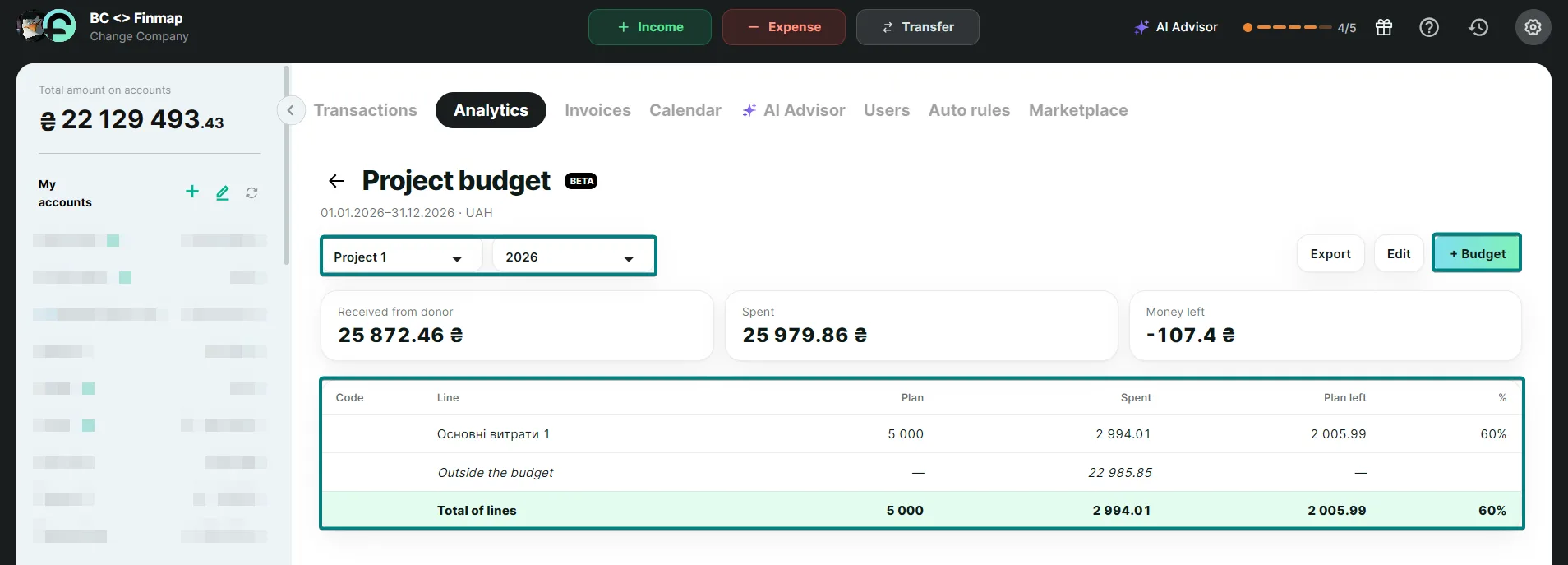
See how much money you received, spent and have left for each grant budget item
When an organization receives a grant, the donor provides funds against a specific budget: this much for salaries, this much for rent, this much for equipment. Later, the donor asks what the money was spent on and how much is left. Usually this means keeping a separate Excel spreadsheet and copying every expense into it by hand.
Finmap has the Project budget report for this. You enter the grant budget once and record expenses as usual. The report shows how much has been spent on each budget item and how much is still available. No separate spreadsheet needed.
What you'll see in the report
Received from donor
How much money came in
Spent
In total and for each budget item
Balance
How much money is left
Overspending ⚠
Items where spending exceeded the plan
If the grant is in a foreign currency, amounts are converted at the exchange rate from your agreement with the donor. That way, the figures in the report match what the donor sees.
Where to find it in Finmap
Analytics → Custom reports → Project budget
How to create a budget
- Click + Budget.
- Select the project the grant was received for. If you record expenses in subprojects, check with subprojects. Enter a name, period and currency. If the grant currency differs from your company currency, enter the Agreement rate.
- Add the budget items. In Finmap they are called lines. For each line, enter a name, an amount and the expense categories that belong to it. To save time, click Lines from categories and fill in the amounts.
- Click Save.
Lines created with Lines from categories have no amount. Enter one for each line, otherwise the Save button stays inactive. An amount of 0 works too.
What goes into the report
IncludedCompleted expenses of this project within the grant period.
Not includedPlanned payments. They will appear in the report once you complete them.
Expenses that don't match any budget item are shown in a separate Outside budget row. This makes it easy to spot a category you forgot to add to a line.
Received from donor includes all completed income of the project within the budget period. If the project has other income, it will be included in this amount too.
Several grants for one project
If a project is funded by several grants, or a grant has been extended for another year, create a separate budget for each one, for example “Grant 2026” and “Grant 2027”. You can switch between them at the top of the report.
Good to know
Your transactions stay unchangedThe budget only displays your transactions. If you delete a budget, all transactions remain in place.
Export to ExcelYou can export the budget to Excel and send it to the donor.
Who can see the reportCompany owner and users with system roles. The report is not yet available for custom roles.
FAQ
I don’t see Custom reports in Analytics
The report is not yet available for custom roles. If you have a custom role, contact the company owner.
The Save button is inactive
Most often, one of the lines has no amount. Lines created with Lines from categories come without an amount, so you need to enter it. An amount of 0 works too.
Also check that the budget name, both dates (the end date is not earlier than the start date), the currency and the agreement rate (if the grant currency differs from your company currency) are filled in.
Spent on a line is lower than I expect
Check the transaction:
- it is completed, not planned;
- it has the budget’s project, or one of its subprojects if the budget has with subprojects checked;
- its date is within the budget period;
- its category is added to this line. If not, the expense will be in the Outside budget row.
Amounts in the report don’t match the transaction log
The budget uses the agreement rate with the donor, while the transaction log uses the rate on the transaction date. This is intentional: in the budget you see the amounts the same way the donor does.
I can’t select a category for a line
This category has already been added to another line of this budget. A category can belong to only one line, otherwise the expenses would be counted twice.
A project or category name shows “(archived)”
The project or category was archived after the budget was created. The budget keeps working as before.
I deleted a budget by mistake
Your transactions are still in place: the budget doesn’t change them. There is no button to restore a budget. Contact our support team and tell us the project and the budget name.
Manage your grants in Finmap and get even more automated solutions for your business.