


Contents
Section Invoices
Invoices is a tool for creating invoices with the ability to change their payment status Currently, it is an independent unit in the service that is not tied to Analytics or other reports in Finmap
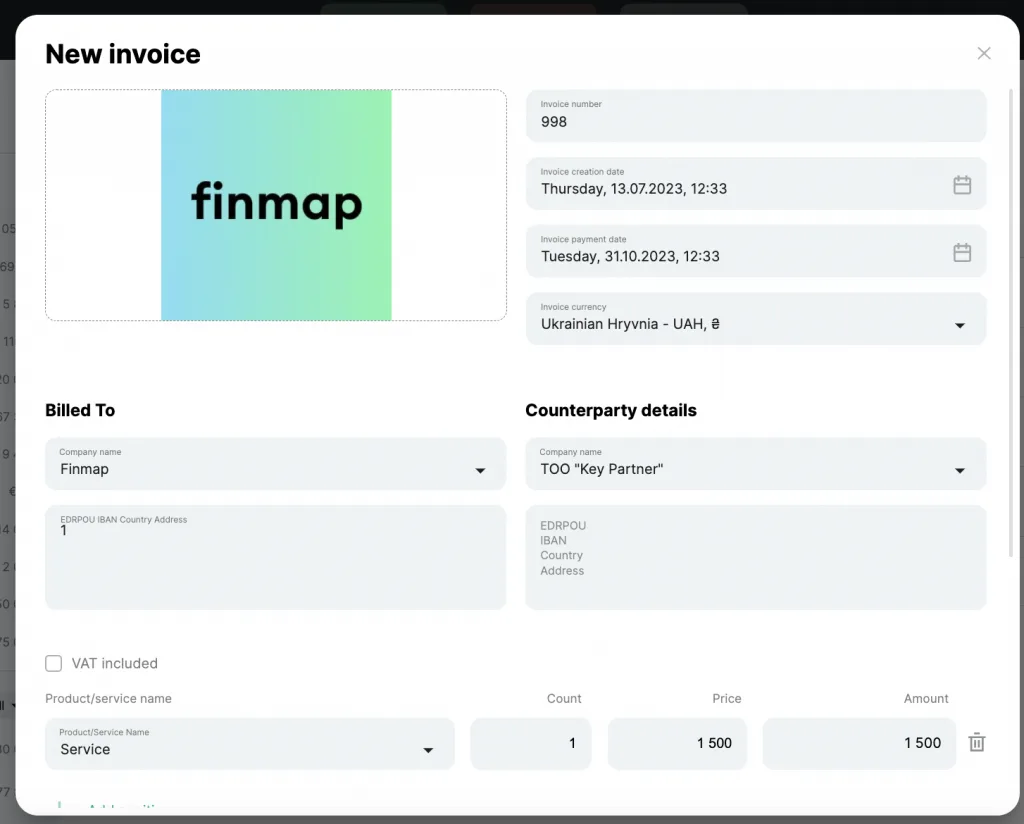
Create a new Invoice
1. Choose "+ New Invoice"

2. Enter the necessary information in the Invoice.
You can add, edit or delete data about your company, your customers, information about goods/services indicated in the Invoices in the Company Settings:
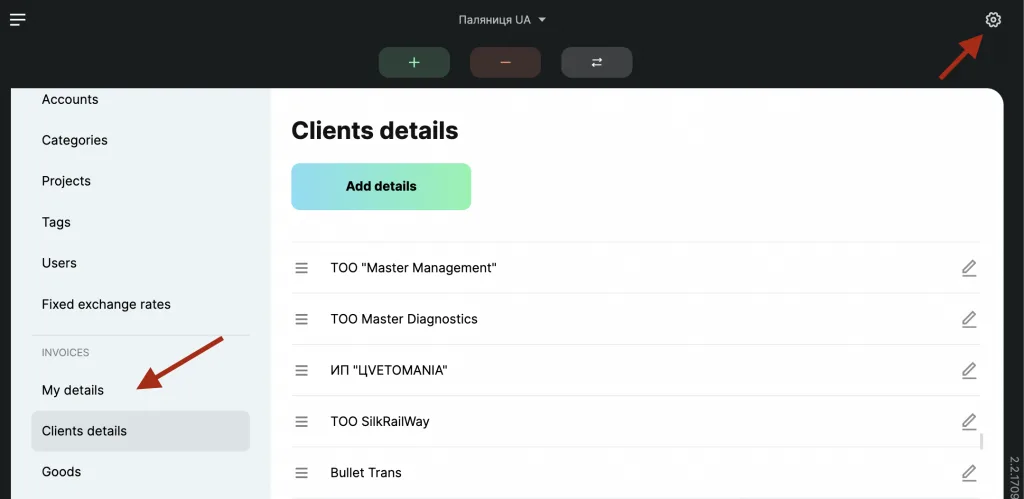
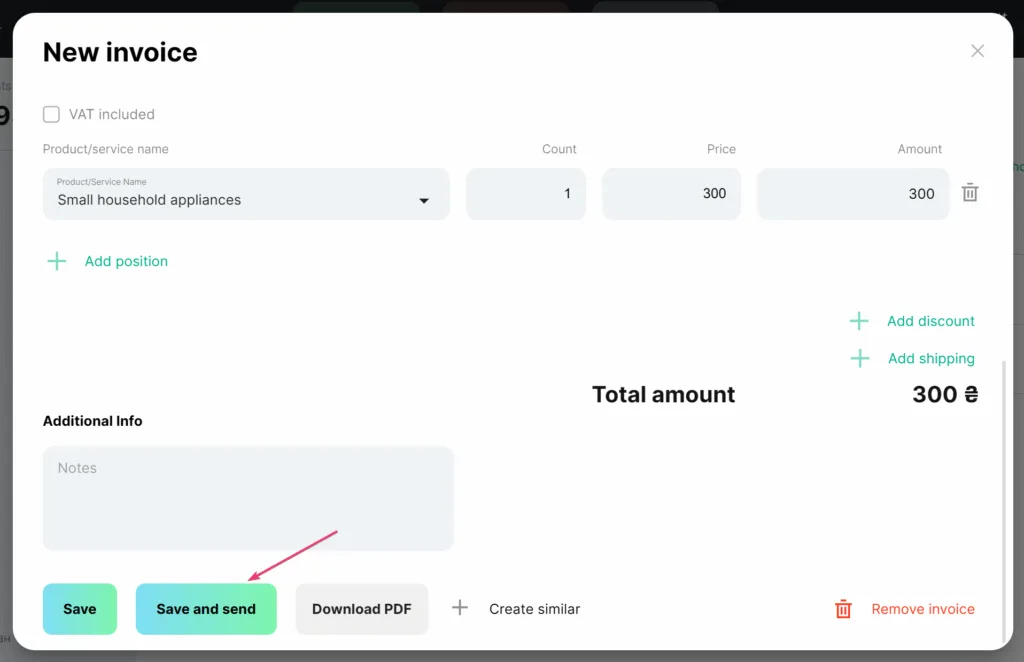
3. Save the Invoice ✅
View Invoices and their statuses
All the Invoices will be displayed in the list of this section, where you can:
- filter information by date or in an advanced filter (1)
- view the status of the Invoice (2)
- confirm or cancel the selected Invoice (3)
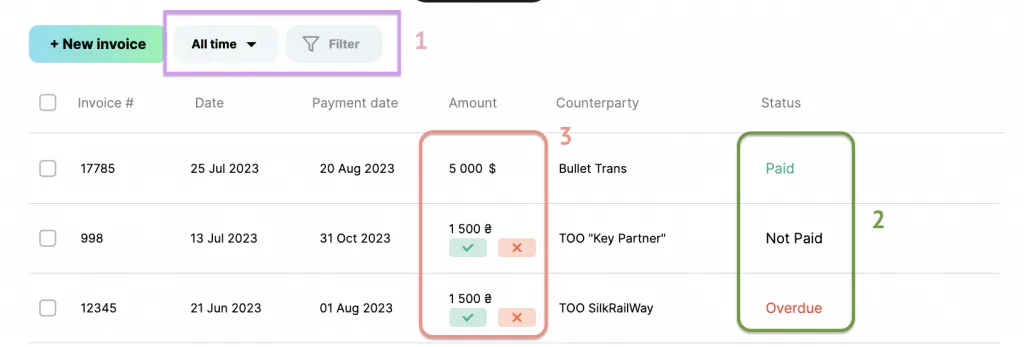
Learn more about Invoice statuses
- Paid (the user has confirmed payment on the invoice with a tick)
- Not paid (if the date of payment of the invoice is more than the actual date)
- Overdue (if the date of payment of the invoice is less than the actual date)
Downloading invoices
You can download the Invoice by clicking on "Download" ⬇️
Format: PDF

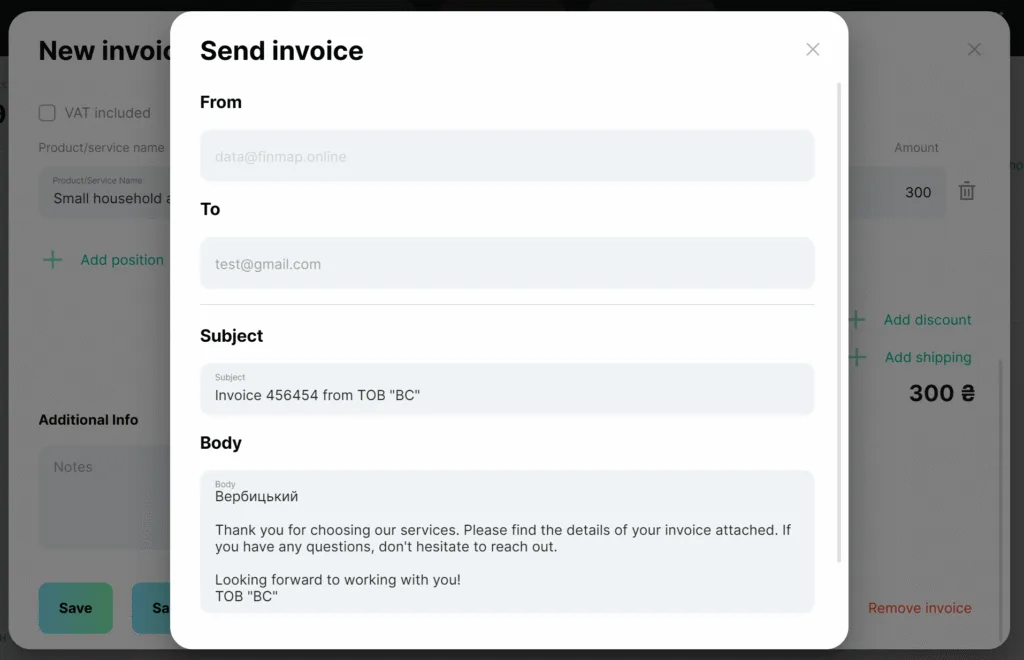
You can also send the invoice to the client directly from Finmap by clicking "Save and send".
⚙️ How to give access to Invoices to added employees
Since Invoices in the service are created without specifying an account and category, an employee must have access to the position to view them:
- the "No accounts" position
- "No category" items
- counterparties that we plan to indicate in the Invoices