


Contents
How to connect Finmap to Gemini
Work with your company's finances right in the Gemini chat via the Finmap MCP server
MCP (Model Context Protocol) is an open protocol that lets AI assistants work with data from external services. Once connected, Gemini gets access to your company in Finmap: accounts, transactions, invoices, counterparties, categories and projects. You write a request in plain language and get an answer based on up-to-date data — no exports or manual consolidation.
What to prepare before connecting
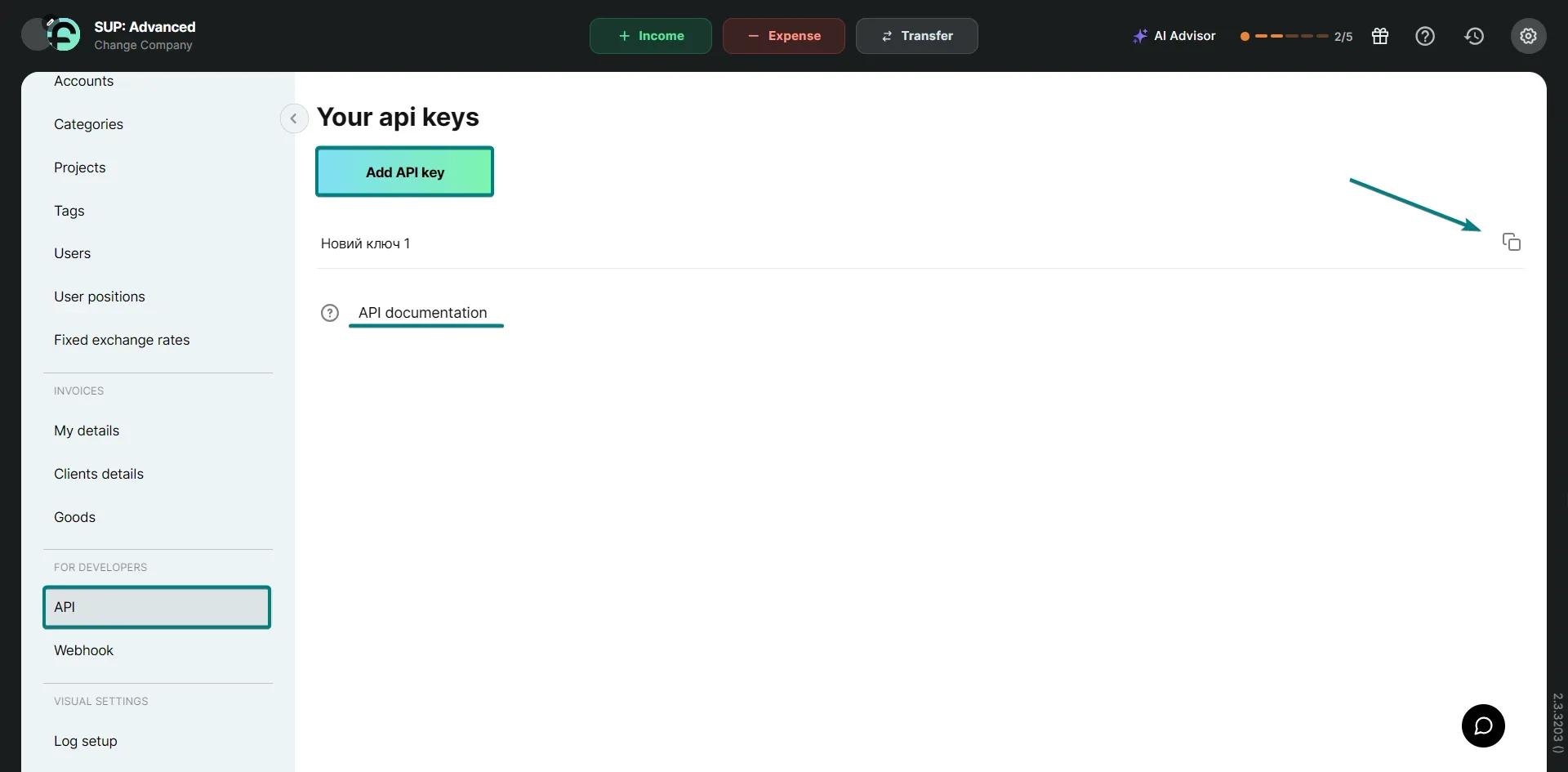
- A Finmap API key. Copy it in Settings → For developers → API.
- A personal Google account. Work and school Google accounts don't support custom MCP connections yet.
- The web version of Gemini — gemini.google.com.
How to connect Finmap to Gemini
- Open gemini.google.com. The Gemini interface must be in English.
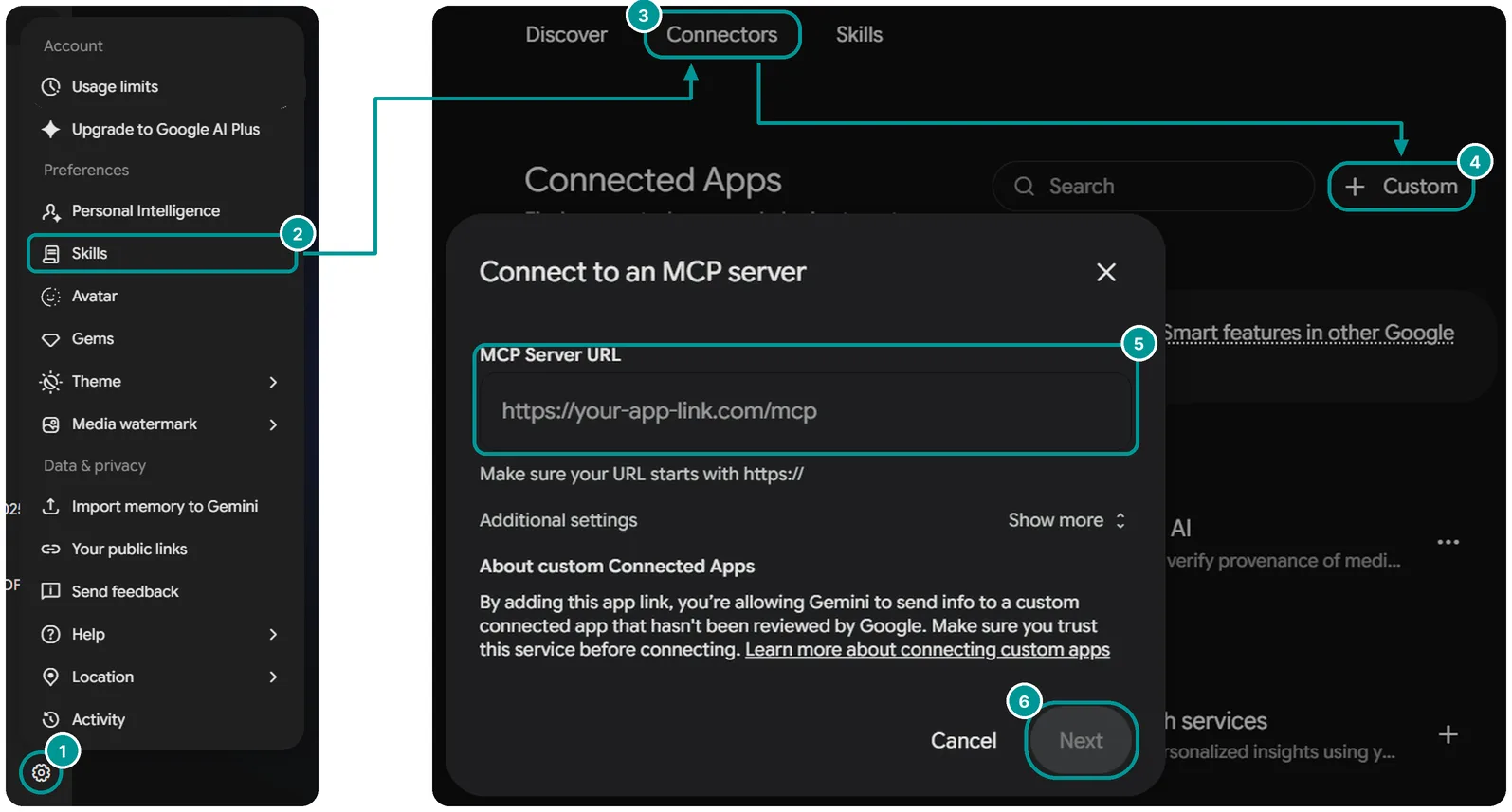
- Click the settings icon ⚙ in the bottom left corner and select «Skills».
- Go to the «Connectors» tab and click «+ Custom».
- In the «MCP Server URL» field, paste https://api.finmap.online/mcp. You don't need to fill in anything else.
- Click «Next», then «Connect».
- In the window that opens, enter your Finmap API key — Finmap will then be connected to Gemini.
What you can ask
In a new chat, type @, select Finmap and write your request. For example: «Show balances on all accounts», «How much did we spend on advertising in September», «Which invoices are still unpaid». Your API key permissions and Finmap plan limits also apply in Gemini.
Good to know
- Google is rolling out custom MCP servers gradually, and the feature may not be available in all countries. If there is no «+ Custom» button, the feature isn't available for your account yet — in that case, you can connect Finmap to Claude or ChatGPT.
- Data is loaded from Finmap at the moment of the request. If the numbers differ, the ones in Finmap are correct.
- To revoke access, turn off Finmap in the «Connectors» tab in Gemini or delete the API key in Finmap settings.