


Contents
Adding, Editing, and Deleting payments in Finmap via API
You can add the following payments via the API:
Adding payments via API ➕
You can add the following payments via the API:
- Expenses
- Incomes
- Transfers
To add a payment via the API, you need to:
1. Go to the API documentation https://api.finmap.online/
2. Log in using the API key
3. Select the type of payment you want to add, these types include:
- operations/income
- operations/expense
- operations/transfer
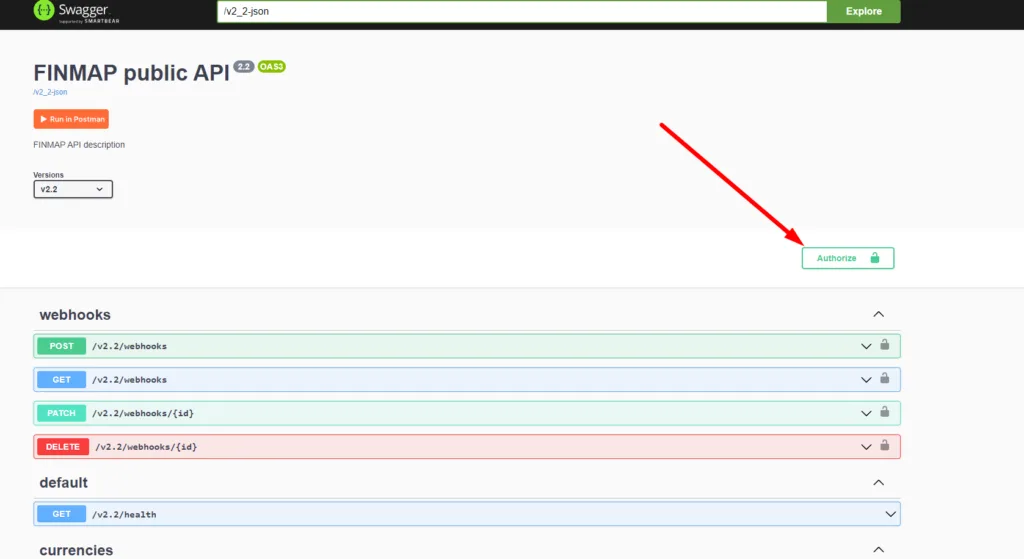
4. Click on the option POST
5. Provide the necessary data for payment
6. Click on execute request
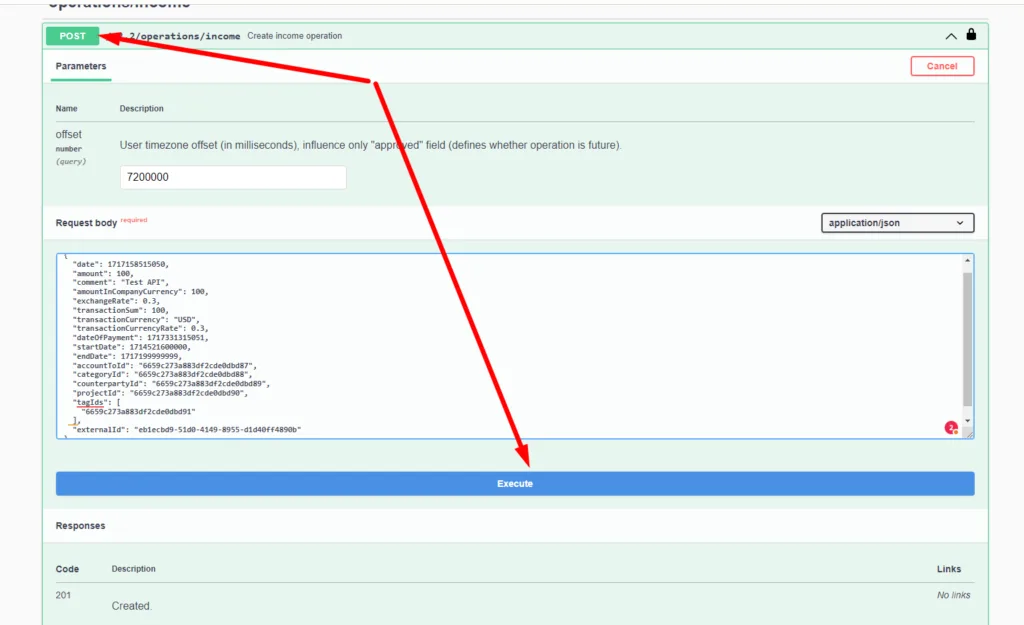
✅ As a result, a new payment will be added to the Finmap service
Parameters that can be contained in a transaction:
- "date" - Date of payment
- "amount" - Payment amount
- "comment" - Comment
- "amountInCompanyCurrency" - Amount in the company's currency (this option is useful if you are making a transaction to an account whose currency is different from the company's currency)
- "exchangeRate" - Foreign exchange rate
- "transactionSum" - Amount of payment
- "transactionCurrency" - Payment currency
- "transactionCurrencyRate" - Foreign exchange rate
- "dateOfPayment" - Date of payment accrual
- "startDate" - Start of the payment accrual period
- "endDate" - End of the payment accrual period
- "accountToId" - account ID
- "categoryId" - category ID
- "counterpartyId" - counterparty ID
- "projectId" - project ID
- "tagIds" - tag ID (you can add multiple tag IDs at once)
- "externalId" - transaction ID (you specify the id yourself, so that you can edit or delete the payment using this id)
❗ You do not need to use all the options to add a payment.
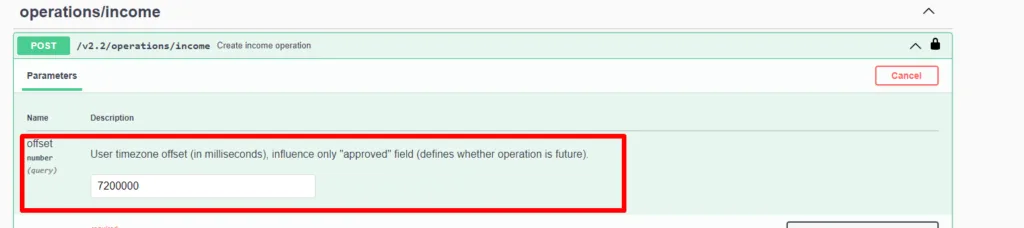
❗❗ Important: Our service operates in the UTC 0 time zone, if you need to specify a different time zone, then the offset parameter will help.
Please note that the date parameter must be specified in UNIX (milliseconds) format.
Example: "date": 1717158515050
Editing payments via API ⚙️
You can edit subsequent payments via the API:
- Expenses
- Incomes
- Transfers
To add a payment via the API, you need to:
1. Go to the API documentation https://api.finmap.online/
2. Log in using the API key
3. Select the type of payment you want to add, these types include:
- operations/income
- operations/expense
- operations/transfer
4. Click on the option PATCH
5. Select which type of payment you will edit by operationID or externalID
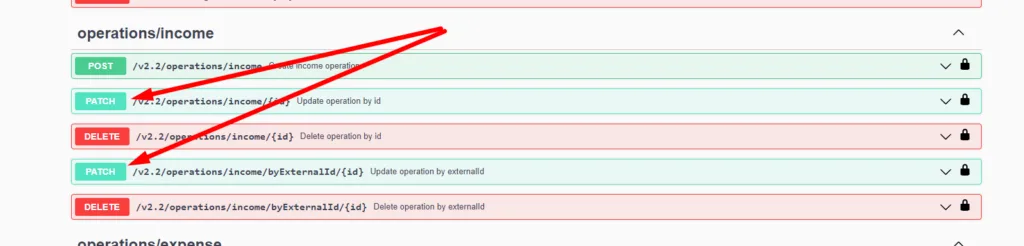
6. Specify the required ID
7. Specify the changes you want to make
8. Click on execute request
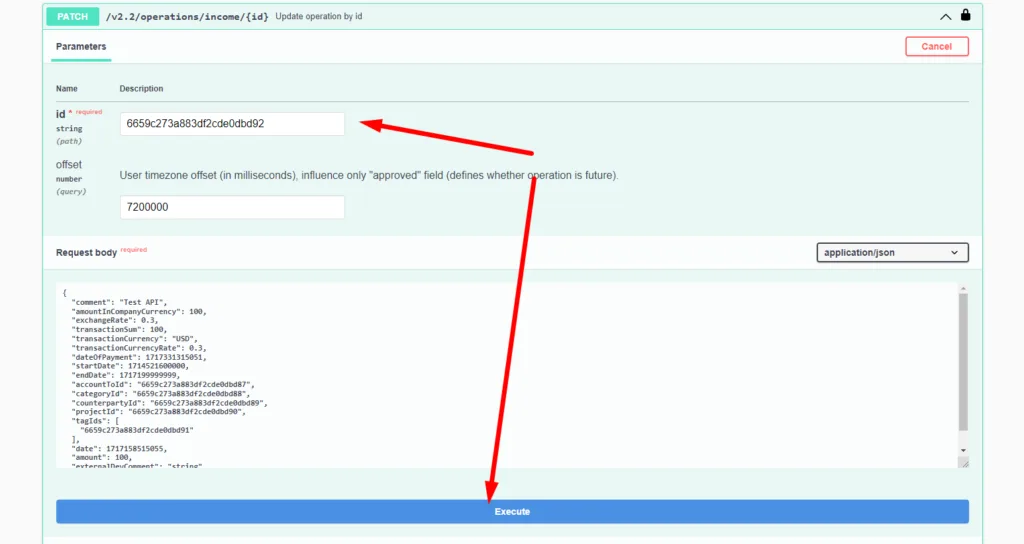
✅ As a result, the data in the transaction will be changed. You can change not all parameters, but only those you need, for example, you can change only the date (most often, changing the date is used when you need to confirm a planned payment)
Deleting payments via API 🗑️
To delete a payment via the API, you need to:
1. Go to the API documentation https://api.finmap.online/
2. Log in using the API key
3. Select the type of payment you want to add, these types include:
- operations/income
- operations/expense
- operations/transfer
4. Click on the option DELETE
5. Select which type of payment you will edit by operationID or externalID
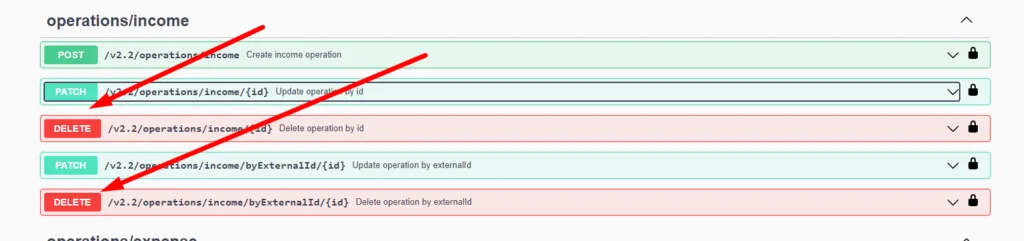
6. Specify the necessary ID
7. Click on execute request
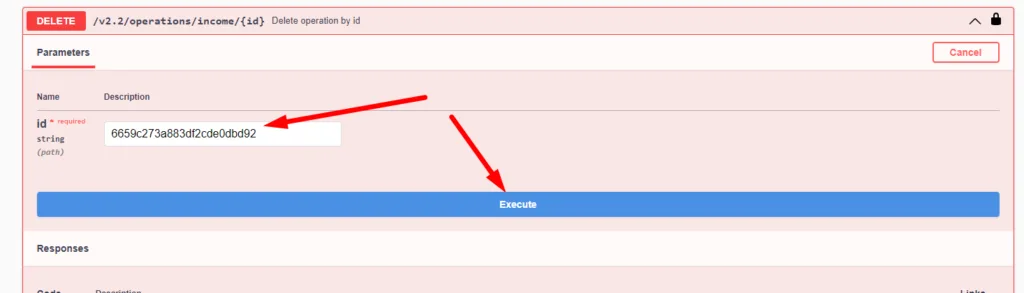
How to get the operation id 👀
You can find the operation ID in the following way:
1. Using a Webhook
2. Using developer tools
2.1 To do this, you need to open the developer tools in the browser
2.2 Go to the Network tab
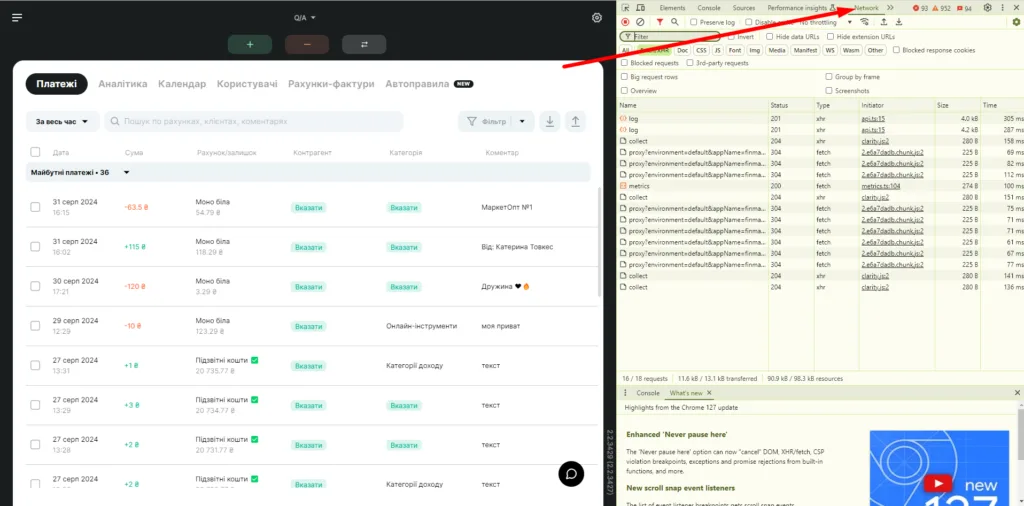
2.3 Select log (this option contains data on all payments that you have on the Finmap page)
2.4 Click on the Preview tab
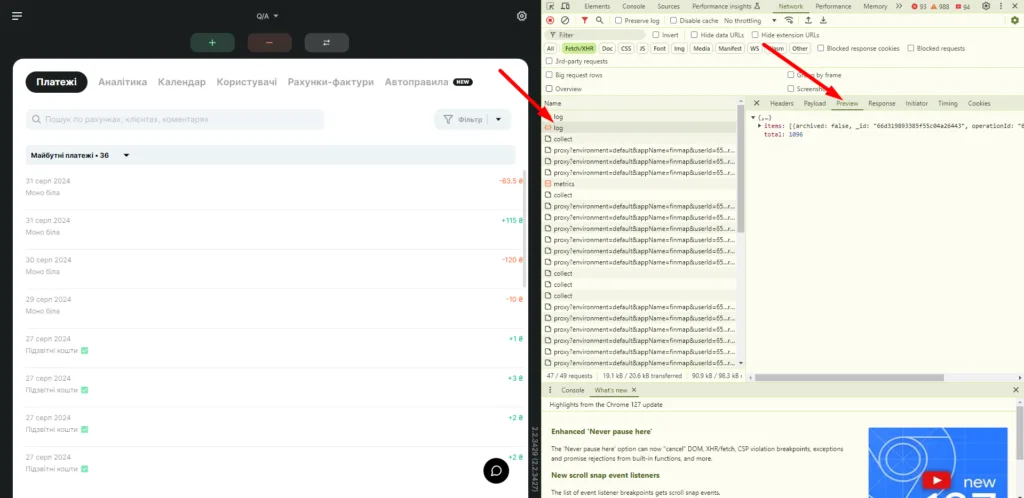
2.5 Open all payments in this tab
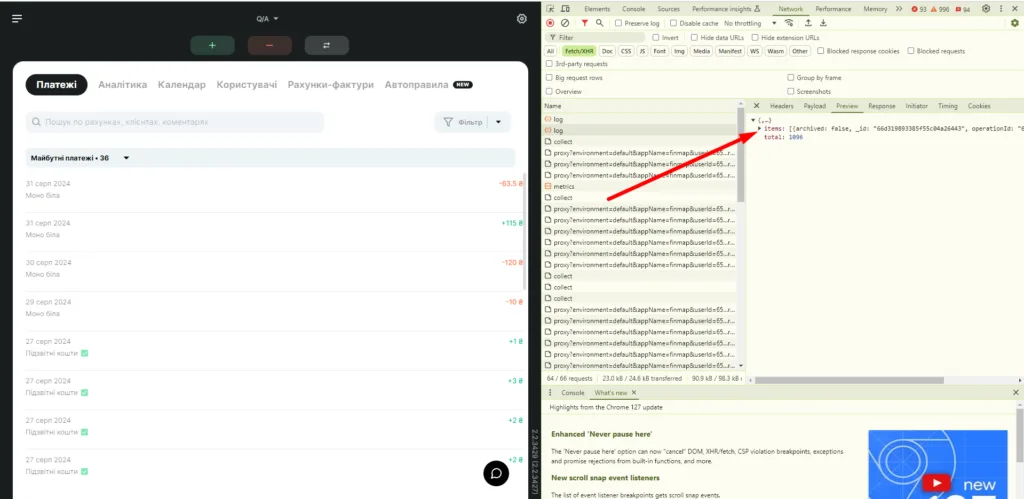
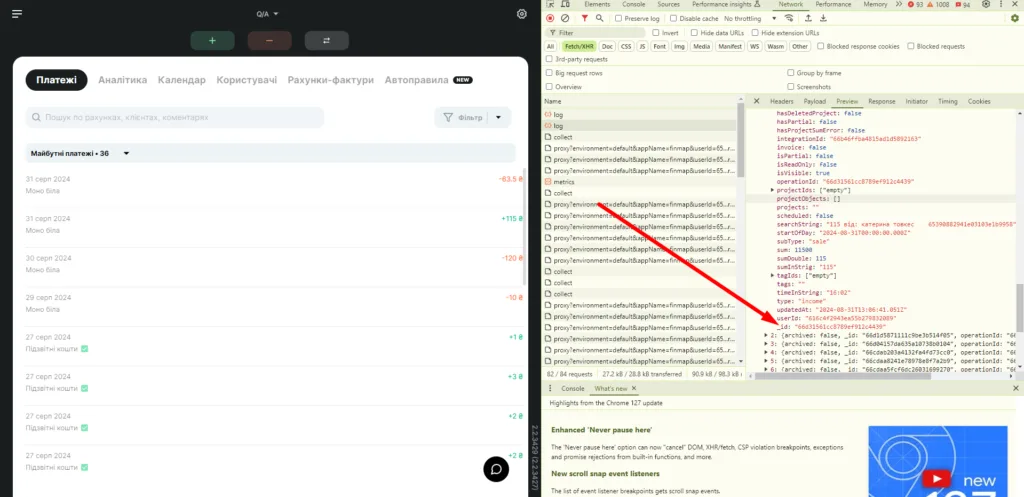
2.6 Choose the right payment
2.7 And find its id (usually located at the very end of the payment information)
If you have any questions
If you have any questions about the API documentation or have an example of a technical request that you would like to resolve, please write to us at support-team@finmap.online.
The letter should describe the following: "The request … does not work (this response appears) when you send the parameters …". Our technical specialist will review your request (requests are processed within 24 hours) and provide a qualified response.