


Contents
Integrating KeyCRM with Finmap via Apix-Drive
How to connect KeyCRM to Finmap via Apix-Drive: a step-by-step guide to setting up the automatic transfer of orders and financial transactions.
What is Apix-Drive
Apix-Drive is a no-code automation platform that lets you transfer data between different services without programming.
It works as an intermediary between two systems:
KeyCRM → Apix-Drive → Finmap
Apix-Drive tracks changes in KeyCRM (orders, clients, products and so on being created or updated) and automatically passes the required data to Finmap.
How the integration works
Once a new connection is created, you need to:
Choose the source system (KeyCRM).
Specify the event that will start the automation.
Connect your KeyCRM account.
Connect your Finmap account.
Map the fields.
Turn the automation on.
After that, all new events will be passed to Finmap automatically.
Step 1. Create a new connection
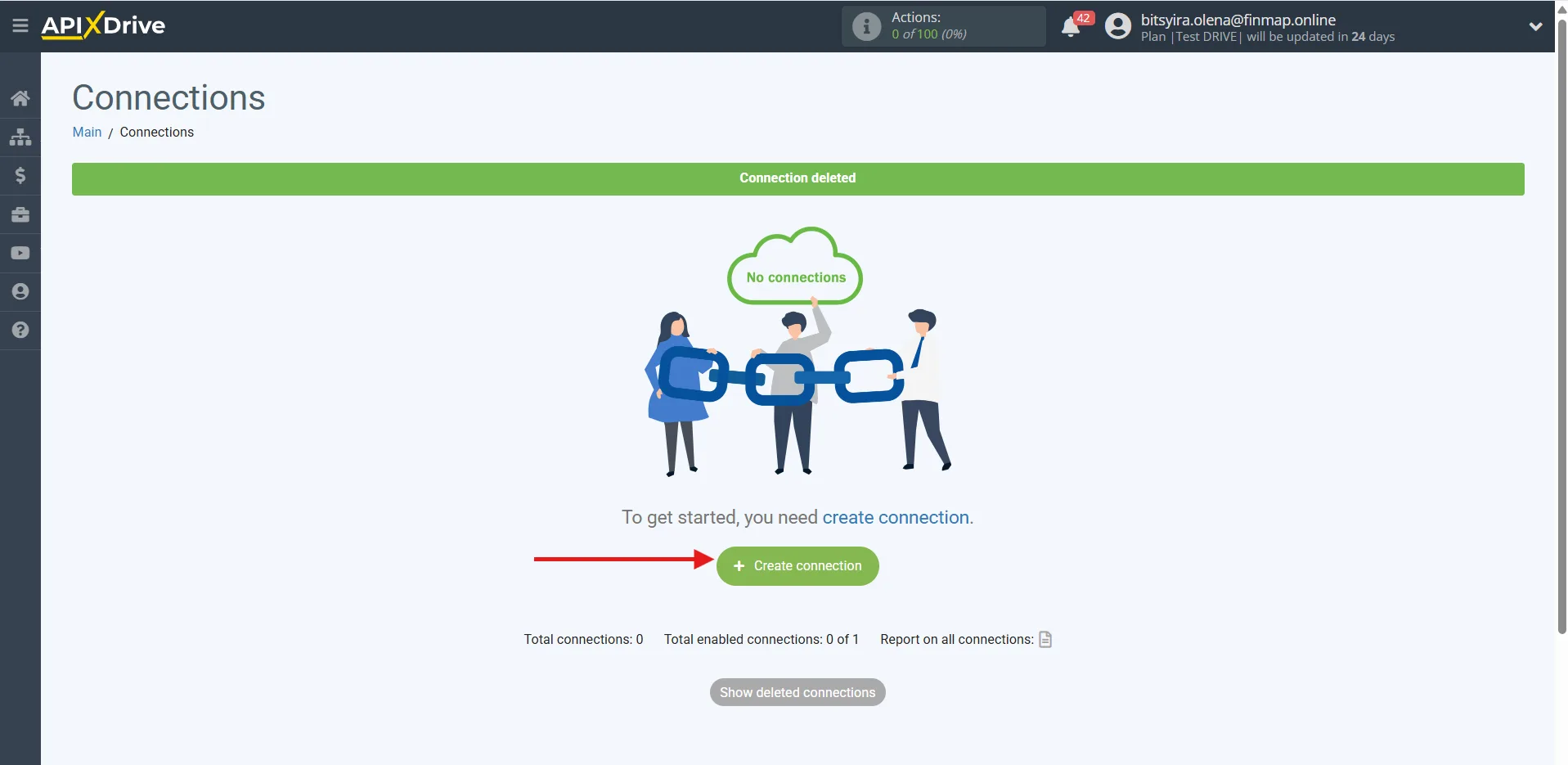
In your Apix-Drive account, click Create Connection.
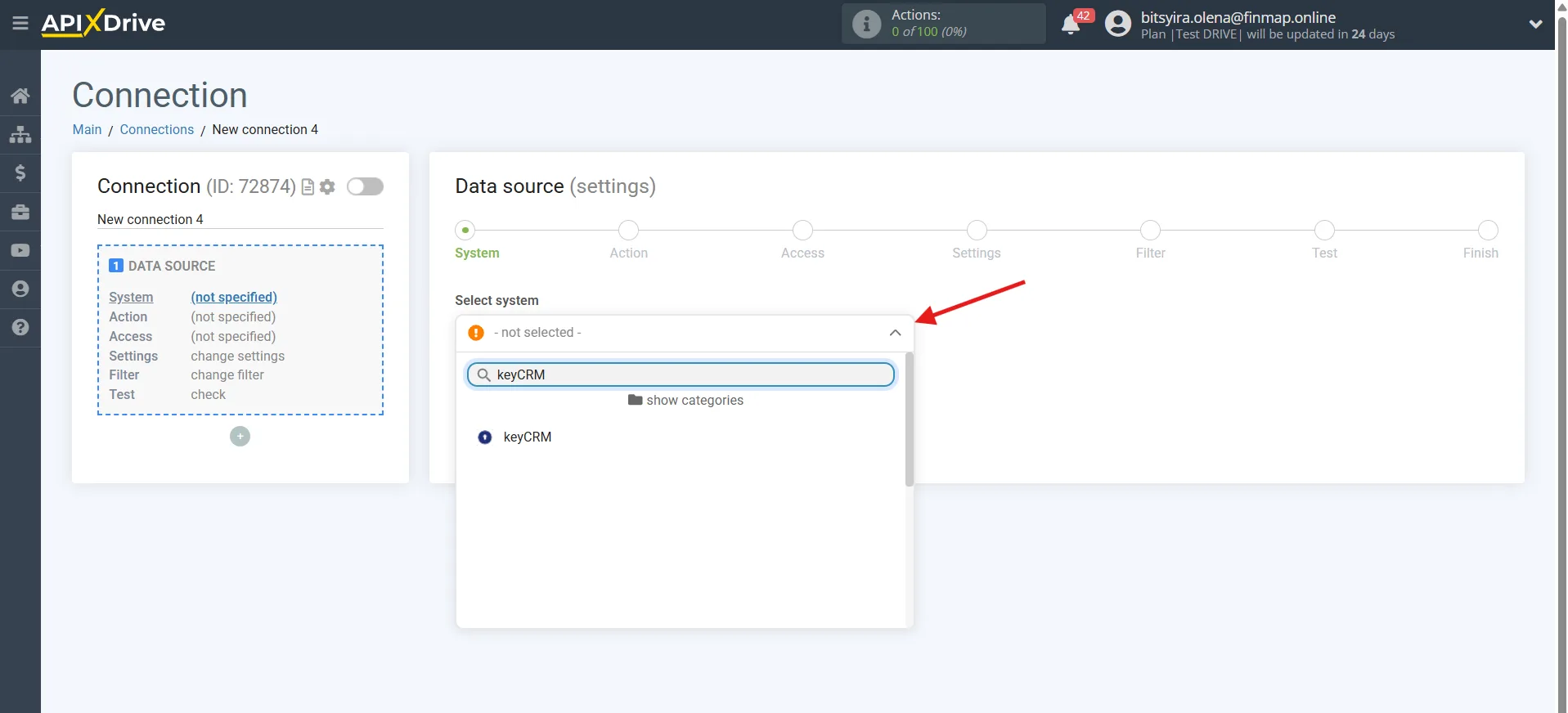
As the source system, choose:
KeyCRM
Step 2. Choose the trigger
KeyCRM lets you start the automation after the following events:
Products
Get PRODUCTS and STOCKS (new)
Get PRODUCTS and STOCKS (modified)
When to use it:
if you need to synchronize the product catalog;
usually not used for financial accounting.
Clients
Get CUSTOMERS (new)
Get CUSTOMERS (modified)
When to use it:
if counterparties need to be created automatically;
if it is important to pass client contact details.
For most Finmap scenarios this trigger is not the main one.
Orders
Get ORDERS (new)
Get ORDERS (modified)
Get ORDERS by stage (new)
These are the most useful triggers for the integration with Finmap.
It is orders that most often carry information about:
the sale amount;
the client;
the currency;
the status;
the expected payment.
Leads
Get LEADS (new)
Get LEADS (modified)
Get LEADS by stage (new)
Used when a company works through a sales funnel and wants to forecast future income.
Step 3. Connect your KeyCRM account
Once the trigger is chosen, you need to log in to KeyCRM.
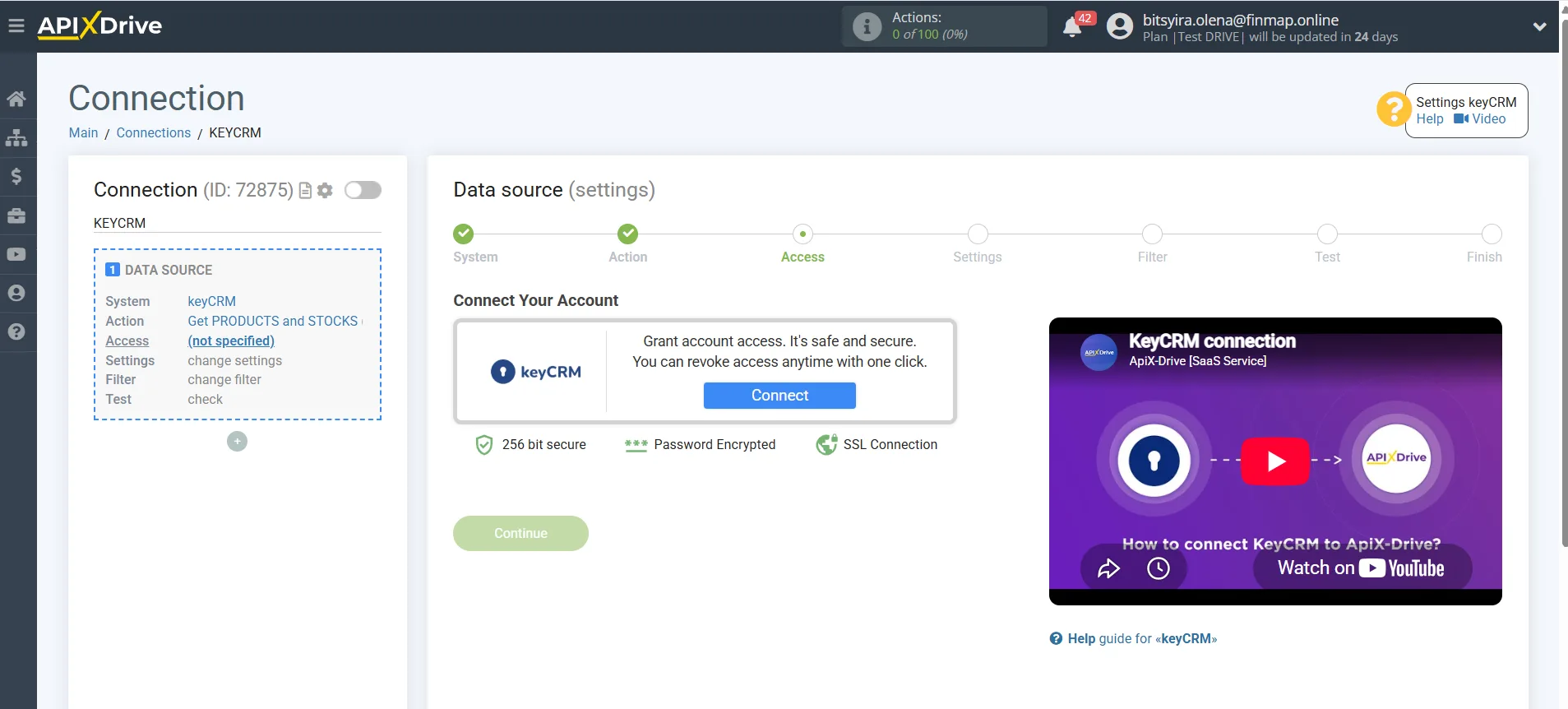
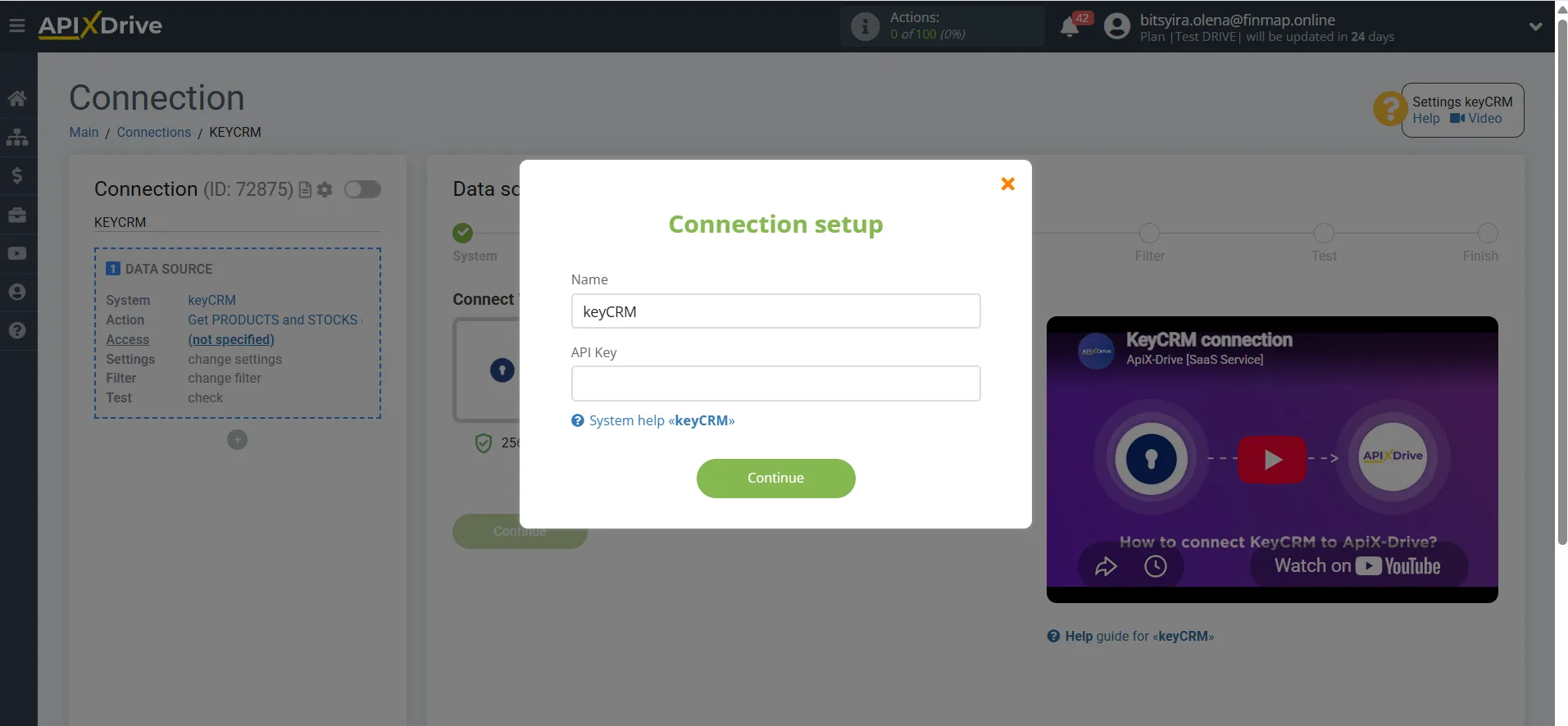
Once the connection succeeds, Apix-Drive will get access to the required data.
KeyCRM API key: https://help.keycrm.app/en/process-automation-api-and-more/where-to-get-an-api-key
Step 4. Choose the destination system
As the destination system you need to choose:
Finmap
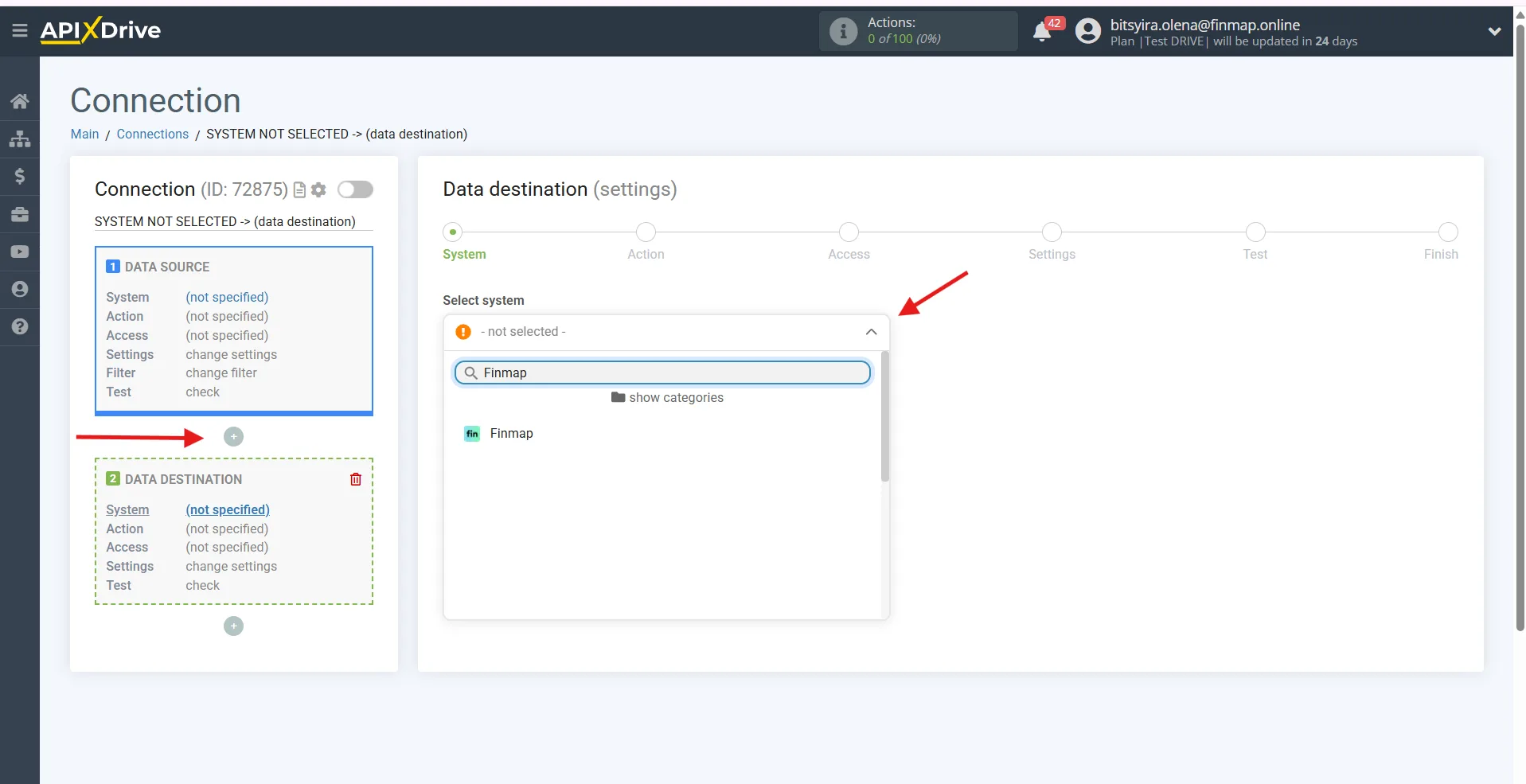
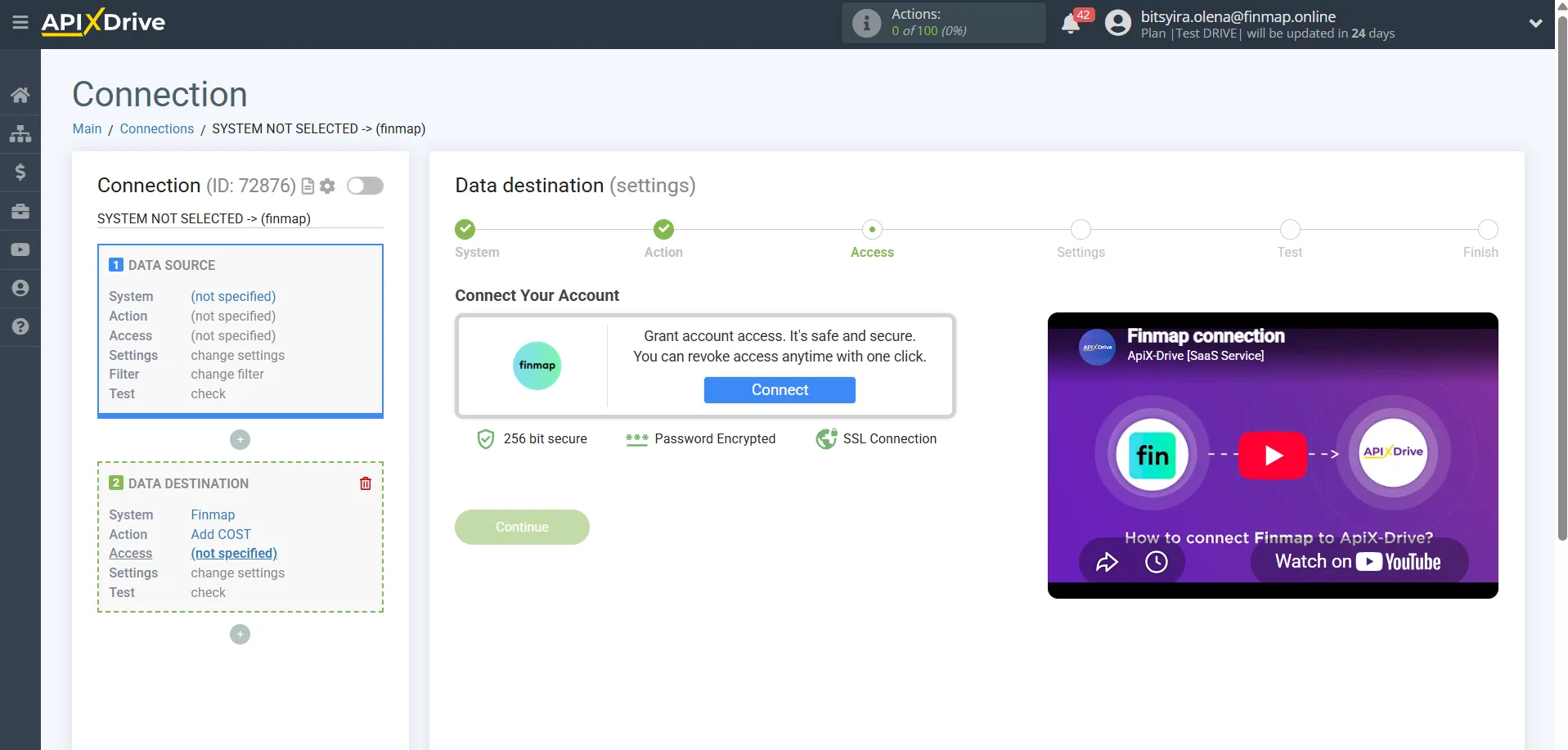
You can generate the Finmap API key here: https://my.finmap.online/settings/api
Step 5. Choose the action in Finmap
Currently three types of operations can be created through Apix-Drive:
Add RECEIPT
Creating income.
Used for:
client payments;
order payments;
revenue received.
Add COST
Creating an expense.
Suitable for:
purchases;
logistics;
refunds;
marketplace fees;
advertising costs.
Add TRANSFER
Creating a transfer between accounts.
Used when the movement of money between the company accounts needs to be recorded.
Step 6. Map the fields
At this stage you need to pass the required values to Finmap, for example:
amount;
currency;
date;
counterparty;
comment;
order number;
project;
account.
Once the mapping is done, run a test data transfer.
Step 7. Launch the integration
If the test succeeded, turn the automation on.
From now on, new events from KeyCRM will create the corresponding operations in Finmap automatically.
Recommended integration scenarios
1. New order → Income in Finmap ⭐⭐⭐⭐⭐
Trigger
Get ORDERS (new)
Action
Add RECEIPT
Suitable for companies that want sales to appear in Finmap automatically once an order is created.
2. Order moved to the "Paid" status → Income ⭐⭐⭐⭐⭐
Trigger
Get ORDERS by stage
For example:
Paid
Completed
Delivered
Action
Add RECEIPT
This is one of the best scenarios, since only orders that have actually been paid for reach Finmap.
3. Order amount changed → Financial information updated ⭐⭐⭐⭐☆
Trigger
Get ORDERS (modified)
Action
Add RECEIPT
Lets you account for changes in the order value automatically before it is paid.
Important: if this scenario is used on its own, you need to think through the logic so that duplicate operations are not created on every change to the order.
4. New lead → Planned income ⭐⭐⭐⭐☆
Trigger
Get LEADS (new)
Action
Add RECEIPT
Suitable for companies that do financial planning and want to see potential future sales.
5. Lead moved to a final status → Income ⭐⭐⭐⭐☆
Trigger
Get LEADS by stage
For example:
Won
Success
Closed
Action
Add RECEIPT
Lets you move successful deals into financial accounting automatically.
6. New client created → Financial operations control ⭐⭐⭐☆☆
Trigger
Get CUSTOMERS (new)
Action
Add RECEIPT or Add COST
Can be used if the business wants to create financial operations for a new counterparty automatically. In practice this is used far less often.
What to pay attention to
We do not recommend using several triggers that create the same financial operation at once (for example, Get ORDERS (new) and Get ORDERS (modified)) without additional checking logic — this can lead to duplicate data.
The most reliable scenario is to create income once the order moves to the «Paid» status, since that is what reflects the actual movement of money.
If KeyCRM has separate statuses for confirmation, delivery and payment, it is the payment status that should be used as the trigger for passing data to Finmap.
If a two-way integration is planned, we recommend using a unique order identifier (Order ID or External ID) to match records between the systems. This will help avoid duplication and make later synchronization easier.