Contents
Filters in Analytics: the example of using filters for analysing each employee's salary
Finmap
Finmap
Reading time of the article - 7 minutes
▶️ Watch video - 45 seconds
Let's take a look at how the service can track the amount of income for each individual sales manager and calculate the bonus that will go to the managers' salaries.
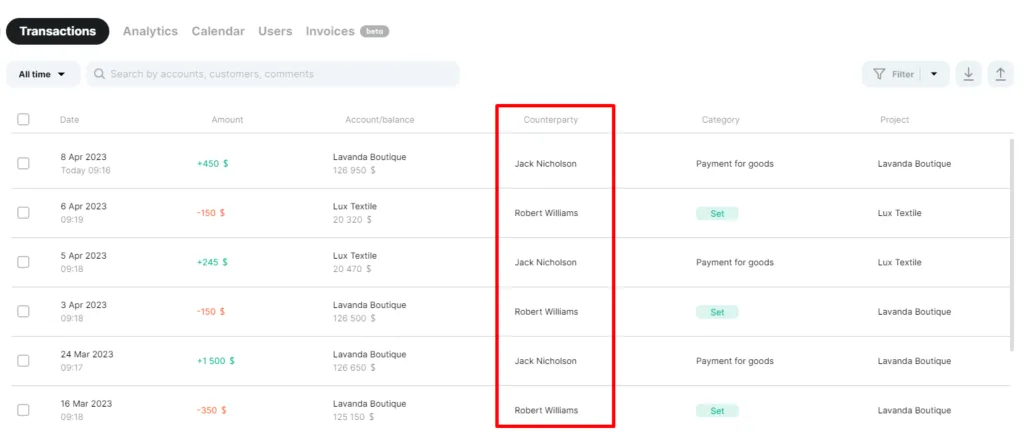
If you enter a client as a specific counterparty when entering transactions. As a rule, each of these clients is entered by name and surname:
Step 1
We can tag such transactions with the name of the manager who sold goods or services to this customer.
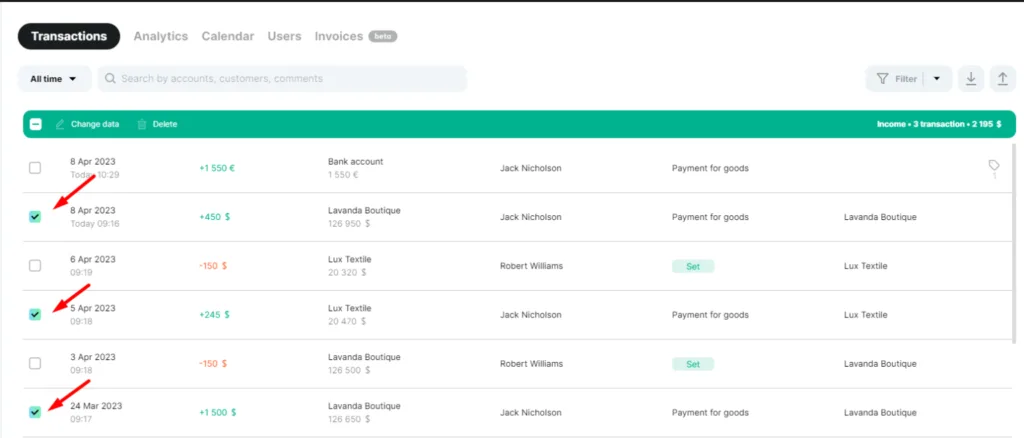
You can tag a transaction immediately in the operation as follows:
1. we mark the necessary operations with a tick:
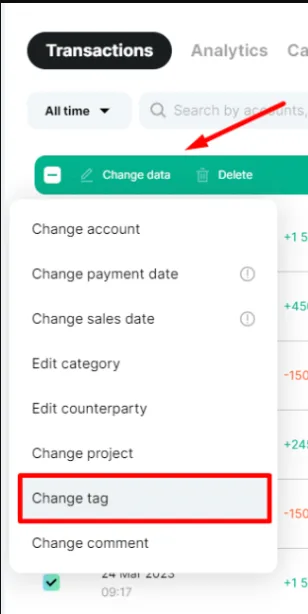
2. Click on "Change data"
In the list, select Change tag, select a tag from the ones created in the list, or you can also create a new tag immediately in this field
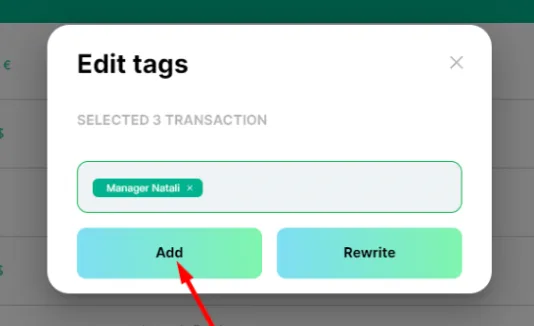
3. Save by clicking "Add"
Done! The tag has been added to all the operations we have selected
Step 2
After we have set the tags that specify the manager, we go to Analytics. Let's take the example of the Profit report
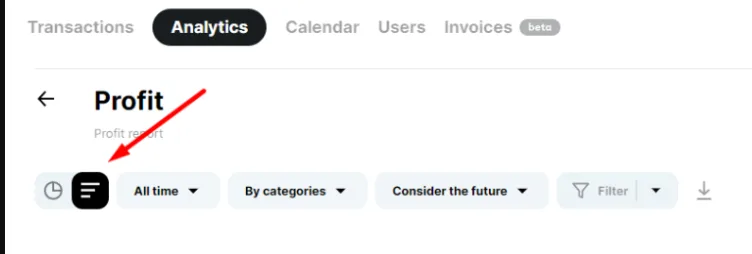
Go to the table format of the report display 👉
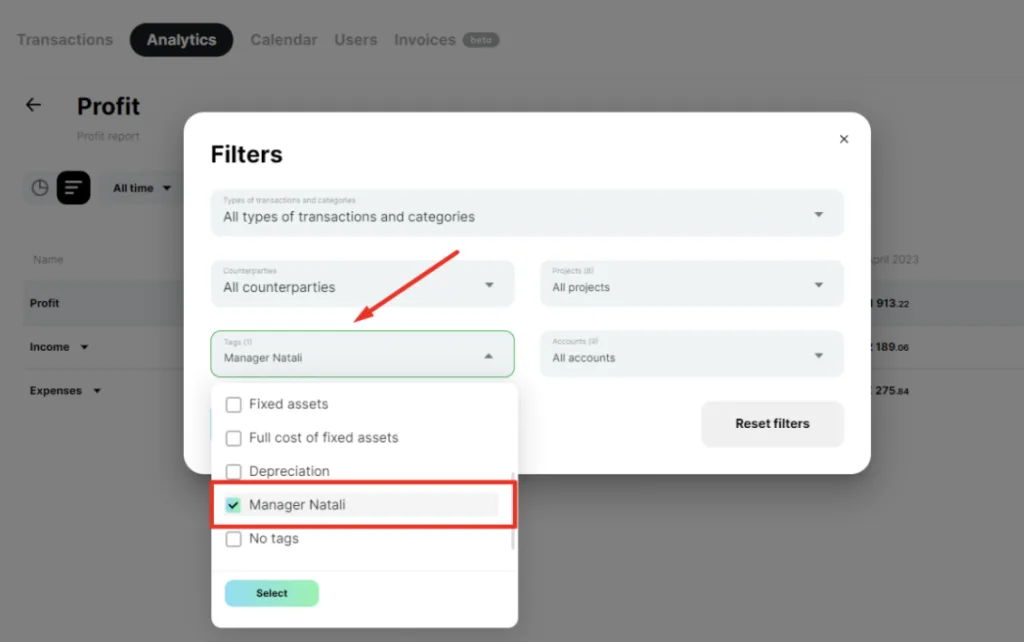
Open the advanced filter and search only for the manager Alexey tag, click Done 👉
The service will provide us with the amount of profit that Alexey has brought to our company over the entire period of time
Step 3
Now let's see, using filters, how much we pay this manager in salary for the entire time.
Specify the Salary expense category in the filter and get the amount of the manager's salary per month, as well as the total amount for the entire time:
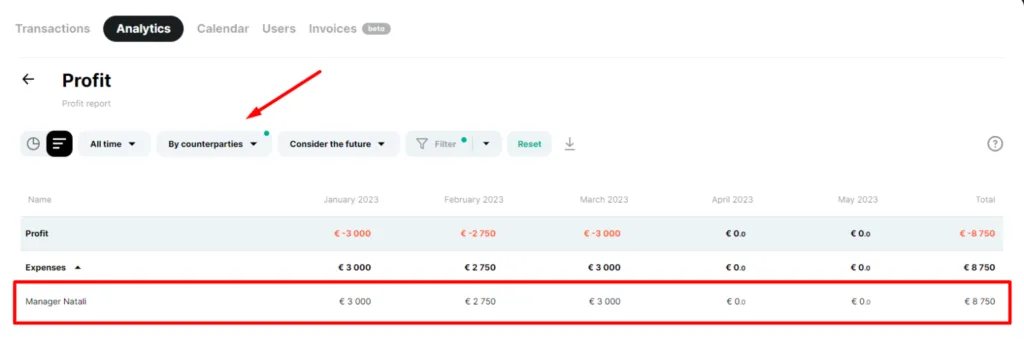
Company data may look different. Managers can be entered as counterparties. Searching by filters will follow the same logic
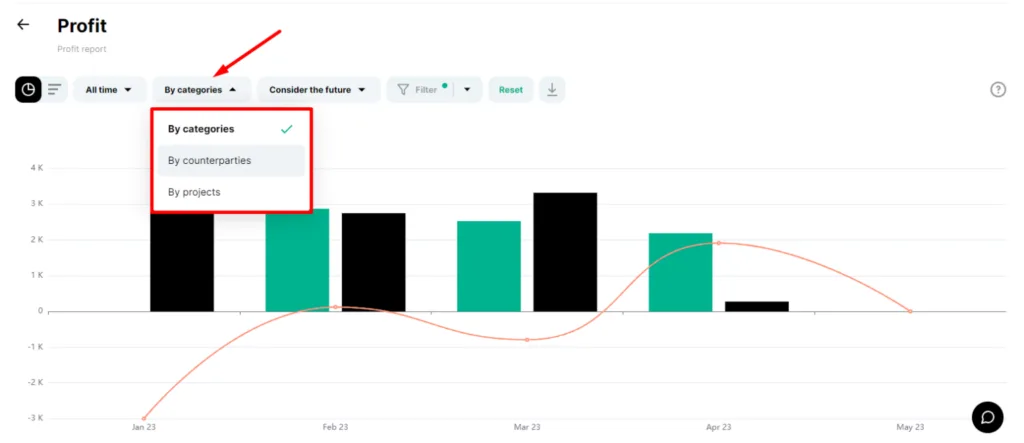
You can view reports by counterparty or, if necessary, select a specific counterparty in the advanced filter:
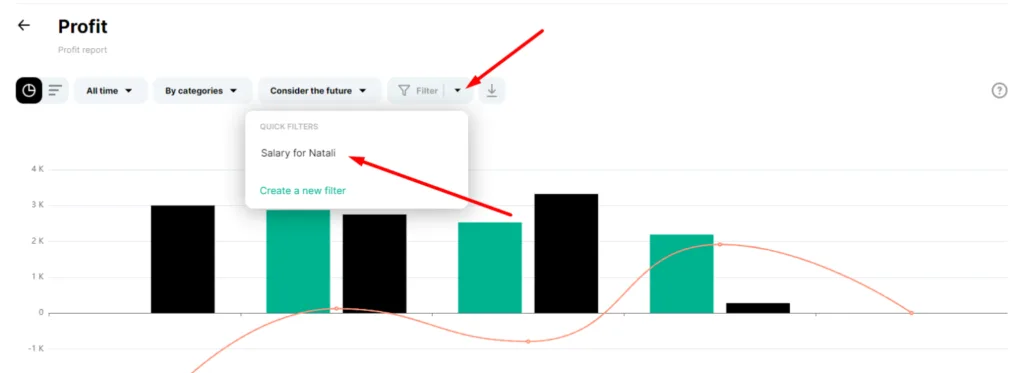
📌 By the way, you can save filters and apply them later in just a couple of clicks: