


Contents
Integrating RoApp with Finmap via Apix-Drive
How to connect RoApp to Finmap via Apix-Drive: a step-by-step guide to the automated transfer of orders, sales, and invoices.
What is Apix-Drive
Apix-Drive is a no-code automation platform that lets you transfer data between different services without writing code.
For the integration with Finmap the flow looks like this:
RoApp → Apix-Drive → Finmap
Apix-Drive tracks changes in RoApp and automatically creates the corresponding financial operations in Finmap.
How the integration works
To set up the integration you need to:
Choose RoApp as the source system.
Choose the event that will start the automation.
Log in to RoApp.
Connect Finmap.
Map the fields.
Launch the integration.
After that, new events will be sent to Finmap automatically.
Step 1. Create a new connection
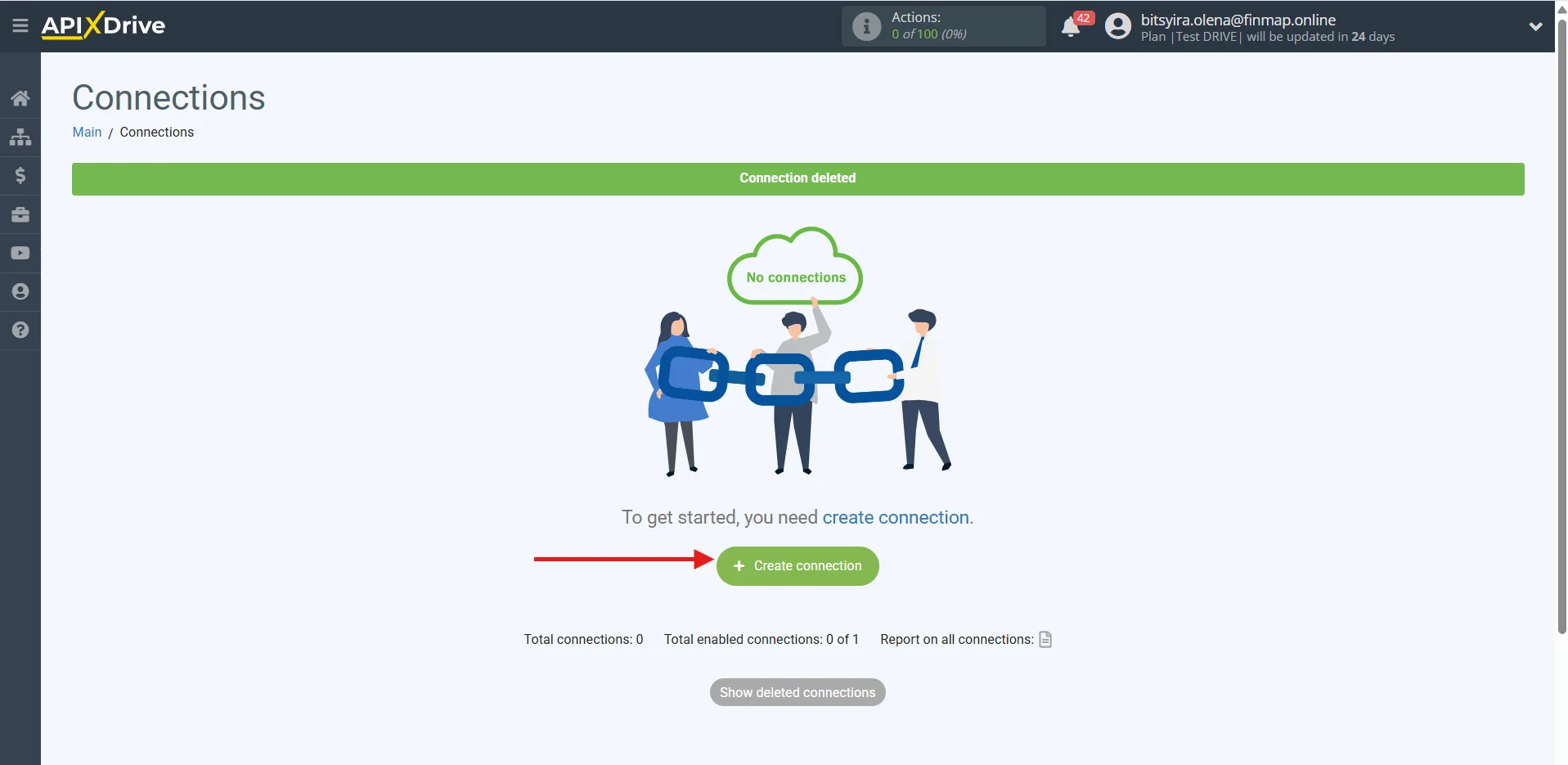
In your Apix-Drive account, create a new Connection.
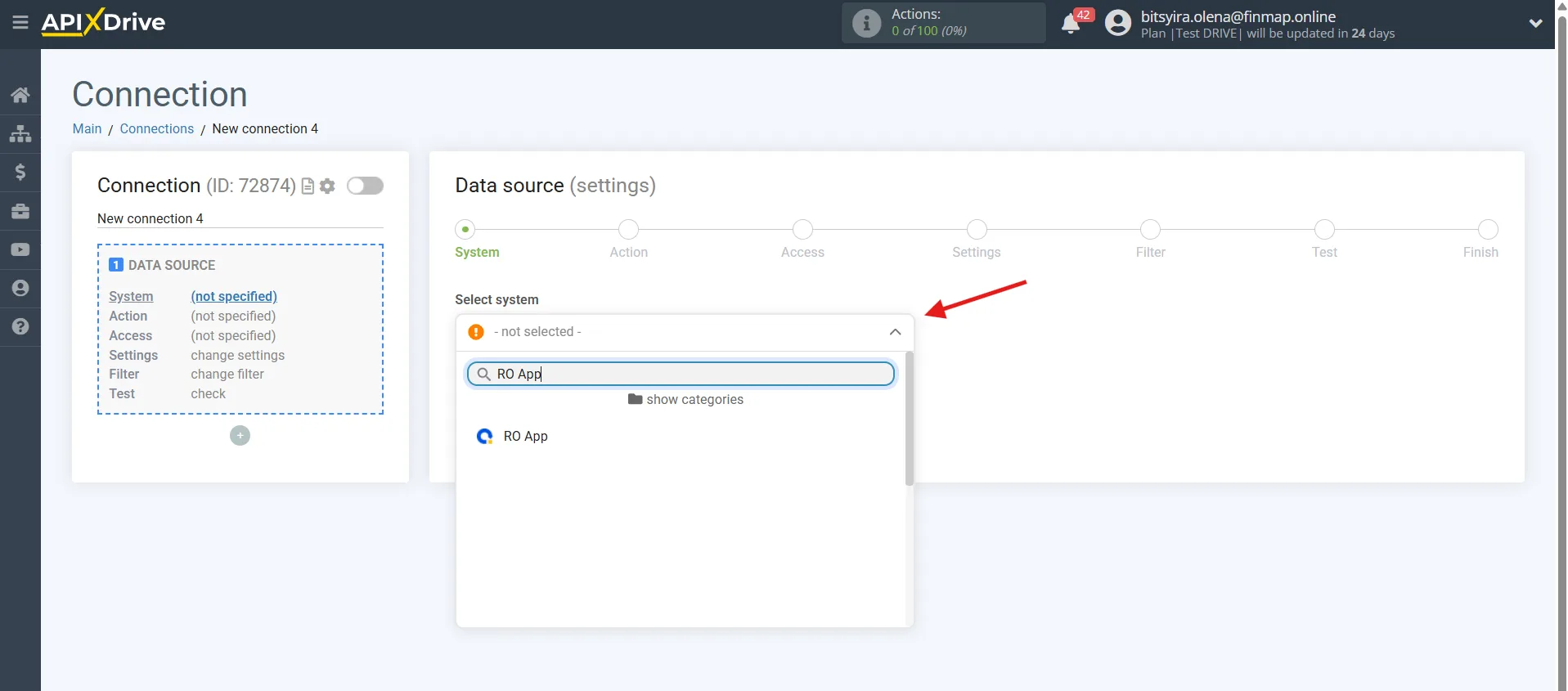
As the source system, choose:
RoApp
Step 2. Choose the trigger
RoApp supports the following events.
Get CLIENTS (new)
Fires after a new client is created.
Suitable for synchronizing the client base, but rarely used to create financial operations.
Get ORDERS (new)
Fires after a new order is created.
Used to create planned or actual income in Finmap automatically.
Get ORDERS (modified)
Fires after an order is changed.
For example:
the amount changed;
the contents of the order changed;
the terms or the fulfillment date changed.
Lets you account for changes in financial information.
Get ORDERS by stage (new)
Fires after an order moves to a certain status.
For example:
Paid
Completed
Closed
This is the most recommended trigger for the integration with Finmap, since it lets you create financial operations only once the required stage has been reached.
Get SALES (new)
Fires after a new sale is created.
This is one of the best integration scenarios, since a sale usually already means a completed commercial transaction.
Get INVOICE (new)
Fires after a new invoice is created.
Can be used to create planned income automatically if the company works on an invoice basis.
Get APPEALS (new)
Fires after a new request is created.
Usually used to automate service processes and not applied to financial accounting.
Step 3. Connect your RoApp account
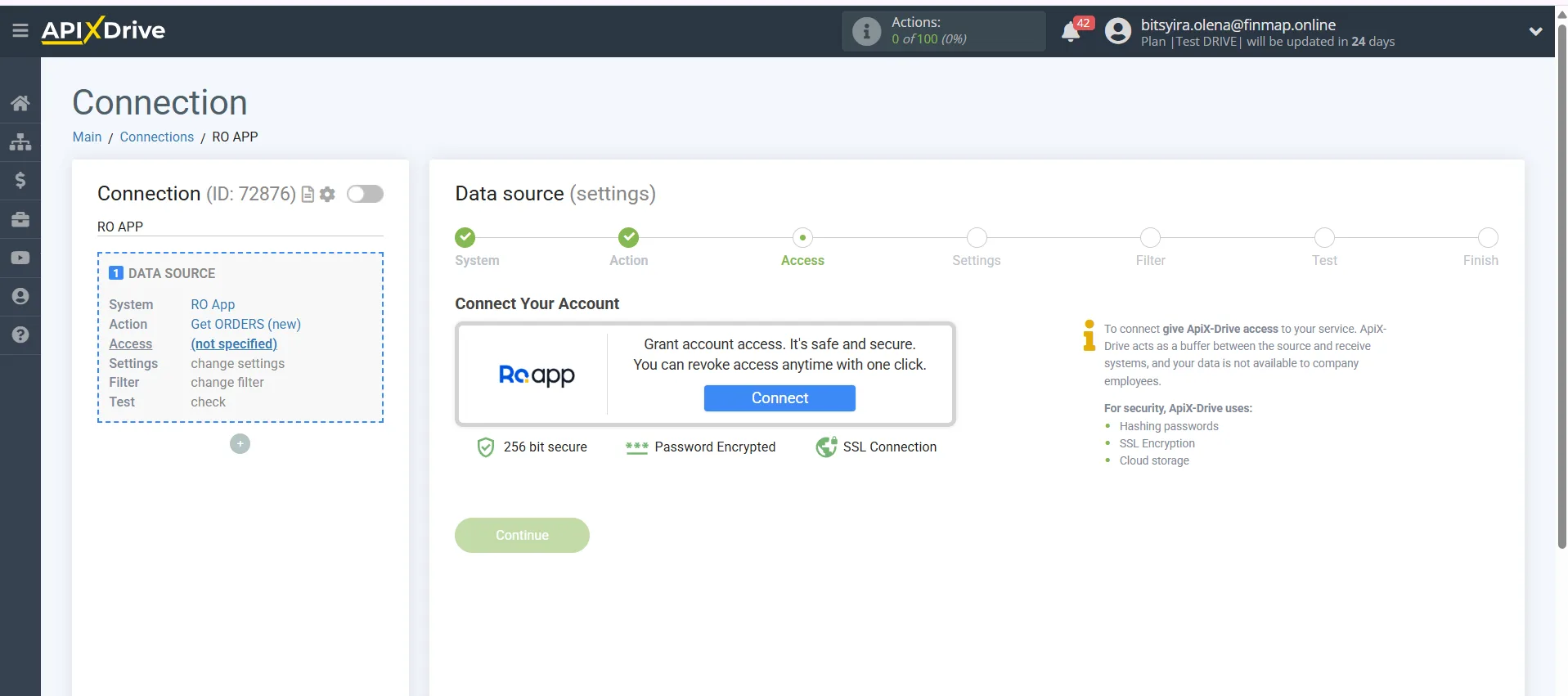
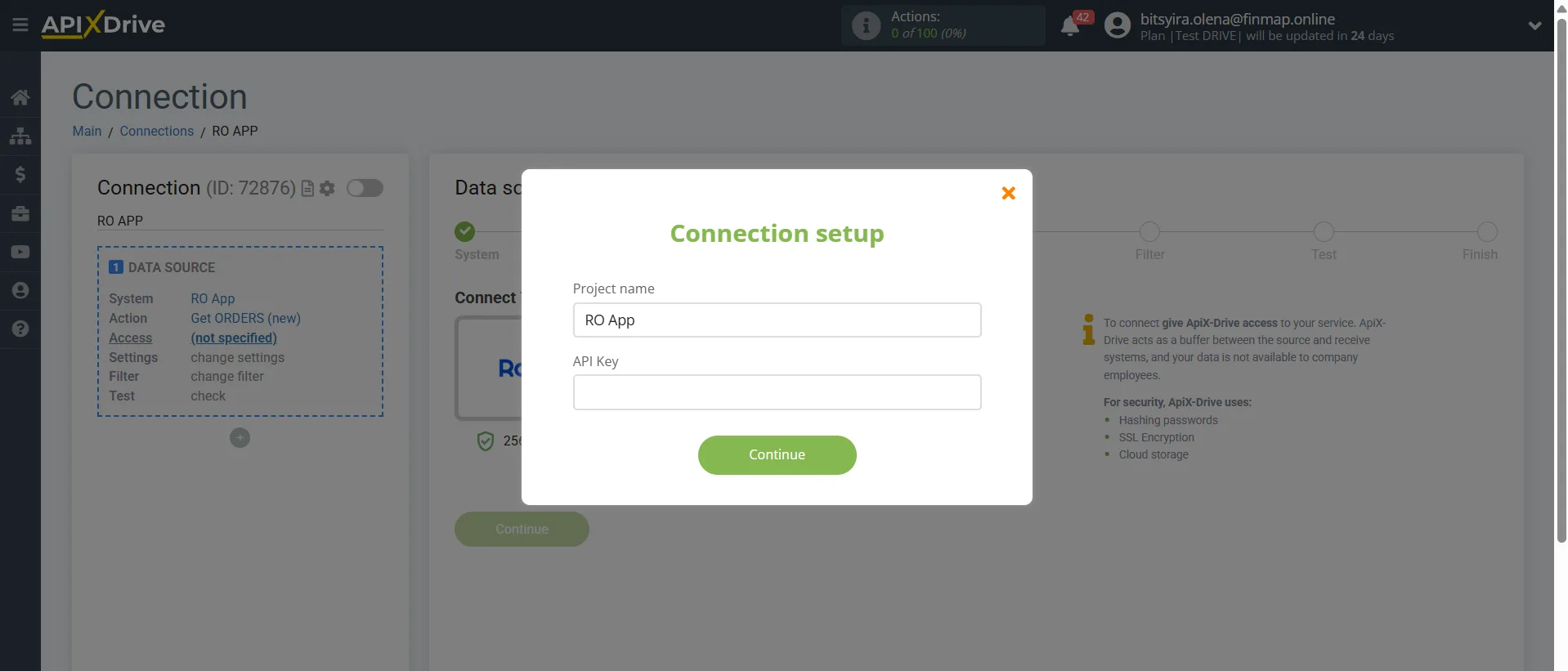
Log in to your RoApp account and grant Apix-Drive the necessary permissions.
Step 4. Choose the destination system
As the destination system, choose:
Finmap
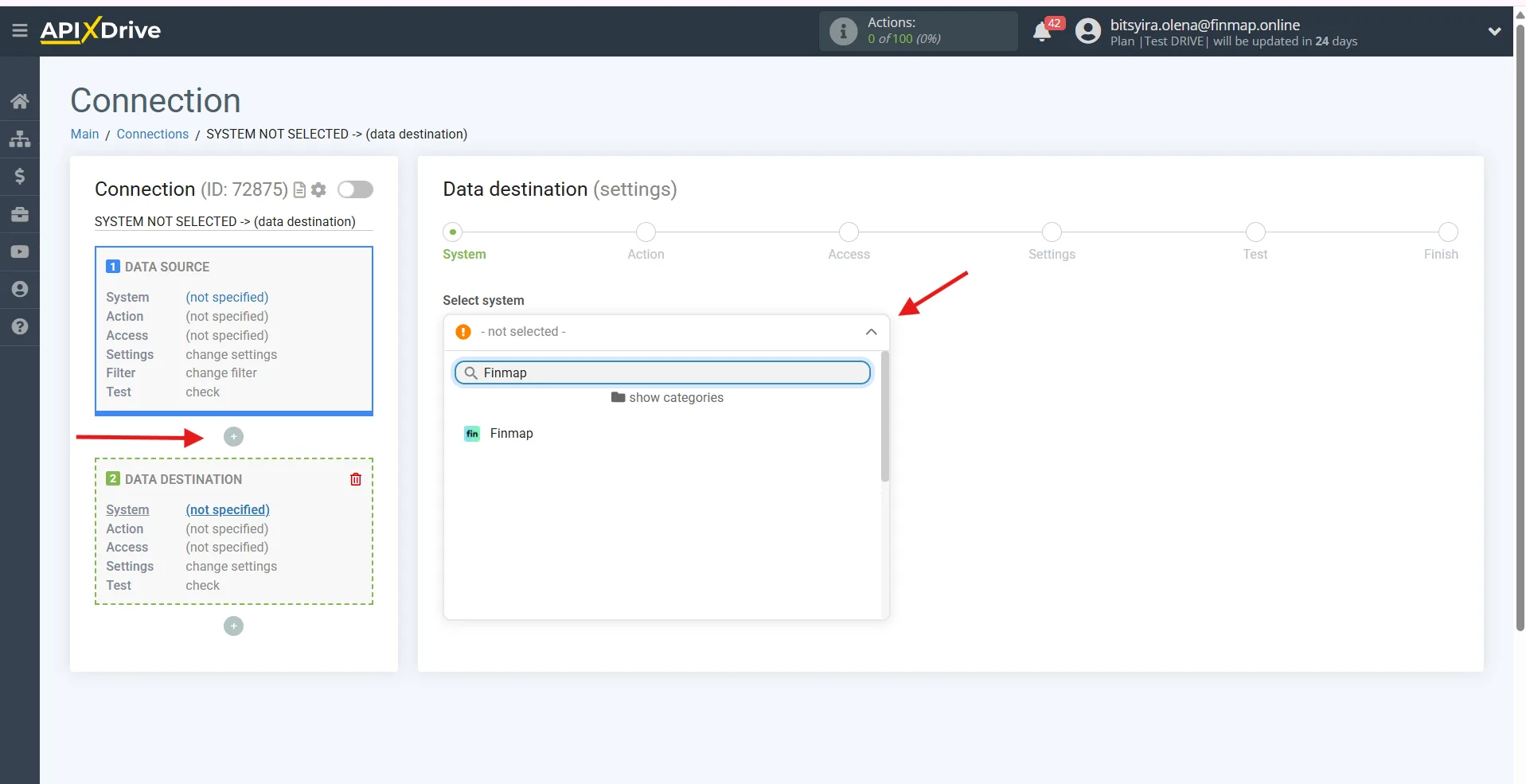
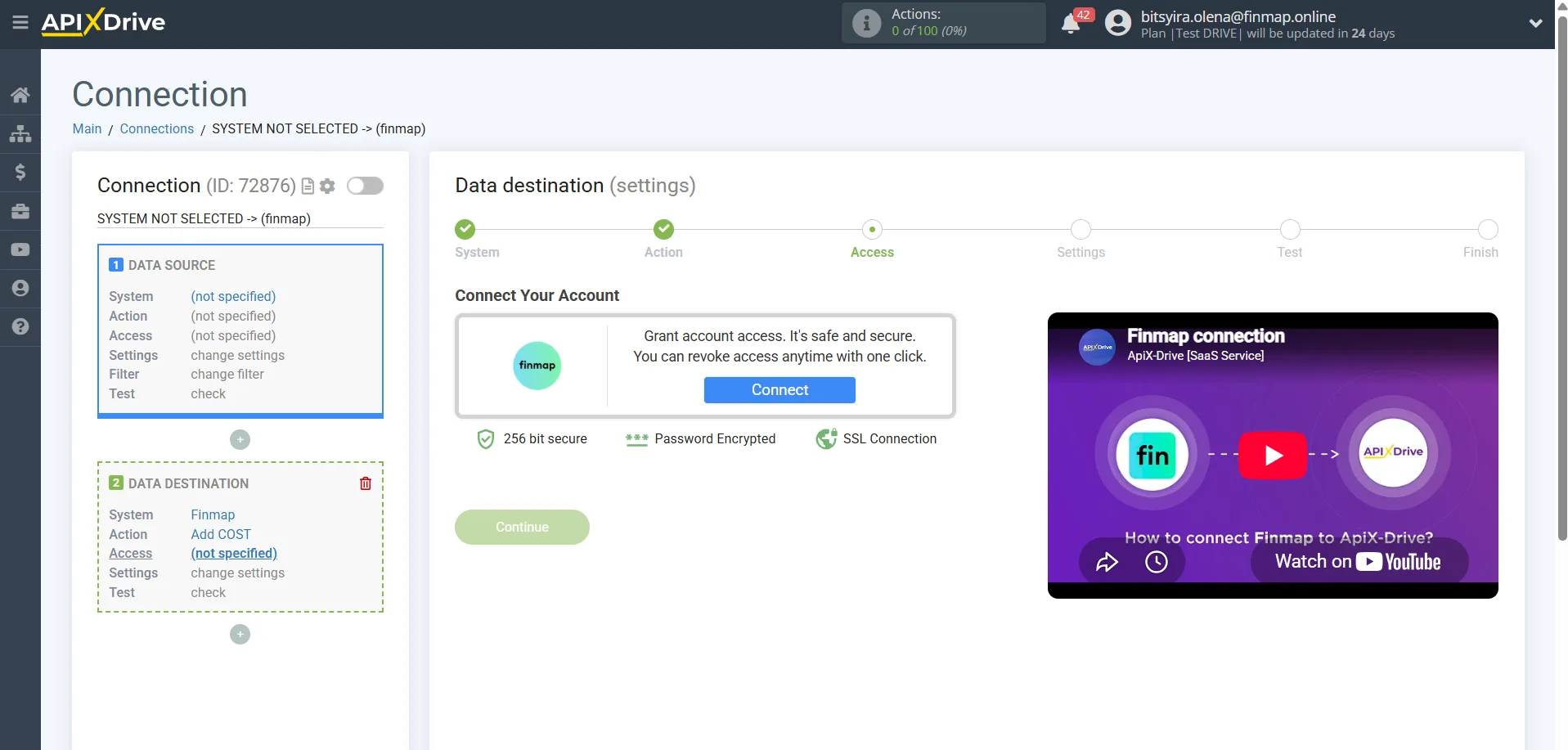
You can generate the Finmap API key here: https://my.finmap.online/settings/api
Step 5. Choose the action in Finmap
Currently three types of operations can be created through Apix-Drive.
Add RECEIPT
Creating income.
Used for:
client payments;
sales;
invoice payments;
revenue.
Add COST
Creating an expense.
Suitable for:
purchases;
fees;
service costs;
other company expenses.
Add TRANSFER
Creating a transfer between the company accounts.
Rarely used for the integration with RoApp.
Step 6. Map the fields
Pass the required data to Finmap:
amount;
currency;
date;
client;
order, sale or invoice number;
comment;
project;
account.
After that, run a test data transfer.
Step 7. Launch the integration
If the test succeeded, turn the automation on.
After that, all new events will create financial operations in Finmap automatically.
Recommended integration scenarios
1. New sale → Income in Finmap ⭐⭐⭐⭐⭐
Trigger
Get SALES (new)
Action
Add RECEIPT
The best scenario for most companies. A new sale creates income in Finmap automatically.
2. Order moved to the «Paid» status → Income ⭐⭐⭐⭐⭐
Trigger
Get ORDERS by stage (new)
For example:
Paid
Completed
Closed
Action
Add RECEIPT
A recommended scenario that lets you account only for sales that have actually been completed.
3. New order → Planned income ⭐⭐⭐⭐☆
Trigger
Get ORDERS (new)
Action
Add RECEIPT
Suitable for companies that want to see expected income before the payment arrives.
4. New invoice → Planned income ⭐⭐⭐⭐☆
Trigger
Get INVOICE (new)
Action
Add RECEIPT
The best option for businesses that work on an invoice basis. It lets you show future income and keep track of payment.
5. Order changed → Financial information updated ⭐⭐⭐⭐☆
Trigger
Get ORDERS (modified)
Action
Add RECEIPT
Lets you account automatically for changes in the value or other financial parameters of an order.
If an order can be edited several times, we recommend putting logic in place to guard against duplicate operations.
6. New client → Creating a financial operation automatically ⭐⭐☆☆☆
Trigger
Get CLIENTS (new)
Action
Add RECEIPT or Add COST
Used only in specific business processes, when financial accounting starts as soon as a new client is created.
What to pay attention to
If Get ORDERS (new), Get ORDERS (modified) and Get ORDERS by stage are used at the same time, the logic must be set up so that the same operation is not created several times.
For most companies the best option is to create income once the order moves to the «Paid» status, or to use the Get SALES (new) trigger if a sale in RoApp already means a completed financial transaction.
If the business works on an invoice basis, we recommend using Get INVOICE (new) to create planned income and, once the payment actually arrives, updating it or creating a separate actual operation according to your company's internal process.
To avoid duplication, we recommend passing a unique order, sale or invoice identifier (Order ID, Sale ID or Invoice ID) so that Finmap can match records correctly between the systems.