


Contents
Integrating ActiveCampaign with Finmap via Zapier
Automate customer communication based on financial events.
If ActiveCampaign is used for marketing automation and CRM, and Finmap is used to manage business finances, Zapier will help synchronize these processes automatically.
The integration allows you to:
launch marketing scenarios after a payment;
create scheduled payments once a deal is created;
segment clients based on financial events;
synchronize contacts between the systems.
Important. ActiveCampaign is not a financial system. It is responsible for client interaction, automation and sales. Finmap is the source of financial data, so the integration should use financial events as triggers for business processes rather than duplicate financial accounting.
How Zapier works
Zapier allows information to be transferred between different systems automatically.
Each automation consists of two parts.
Trigger
The event that starts the automation.
For example:
a new deal is created;
a contact receives a tag;
an email campaign starts;
a new contact is created.
Action
The action Zapier will perform.
For example:
create a future payment;
create a project;
update a client status;
start a new automation.
What you will need
Before you start, prepare:
a Zapier account (the free plan is enough for most scenarios);
an API Key in Finmap (Profile → API); Important! Do not delete the generated key, otherwise the integration will stop working.
the ActiveCampaign API (details - here).
Which events ActiveCampaign supports
ActiveCampaign event | When to use it | What to pay attention to |
New Deal Added or Updated | If a scheduled payment in Finmap needs to be created or updated after a deal is created or updated. | Best used only for deals at defined stages (for example, Payment Expected or Won), so that the financial forecast is not updated on every change to the deal. |
New Contact | If a new client should automatically appear in Finmap as a counterparty. | Worthwhile only when counterparties are used for analytics or to link payments to specific clients. |
New or Updated Contact | If you need to keep the same client base in both systems. | If counterparties are created automatically when operations are created in Finmap, separate synchronization is not needed. |
Tag Added or Removed From Contact | If certain tags should affect financial processes or vice versa. | For example, the tag VIP, Subscription, Partner can automatically create a project or change a client category in Finmap. |
New Campaign Starts Sending | If launching a marketing campaign should create a financial forecast. | Worth using only for large campaigns where future income needs to be forecast. |
New Campaign Open | If you need to launch additional automations after a campaign is opened. | Usually not used for integration with Finmap, since opening an email is not a financial event. |
New Campaign Link Click | If a client has shown interest in a commercial offer. | Can be used to create tasks or a financial forecast, but not to create financial operations. |
Deal Task Completed | If a financial action needs to be created after a task is completed. | For example, after completing the task "Prepare the contract", automatically create a future payment in Finmap. |
New Contact Task | If completing a task means moving to a new financial stage. | Worth using only for special business processes. |
New Contact Note / New Deal Note | Usually not used. | Notes do not affect financial accounting. |
Setting up the integration
Step 1. Create a new Zap
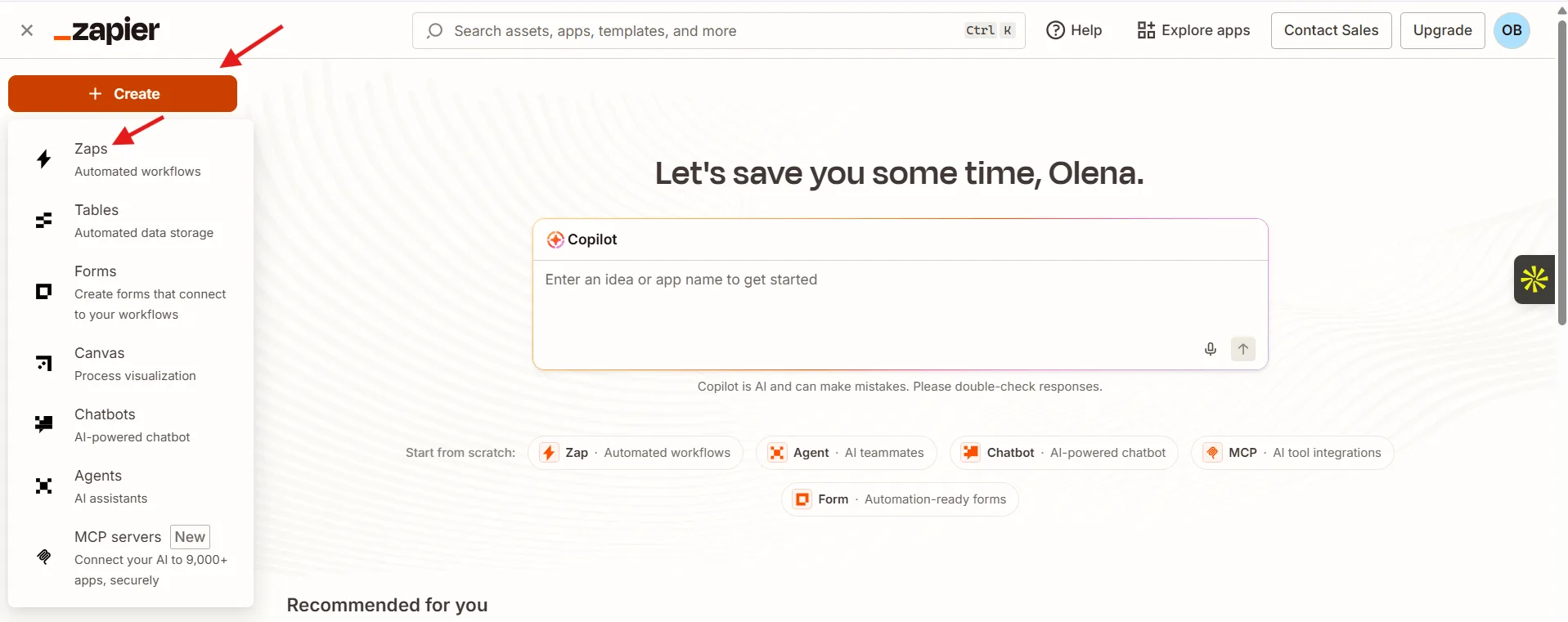
Log in to Zapier and click Create Zap.
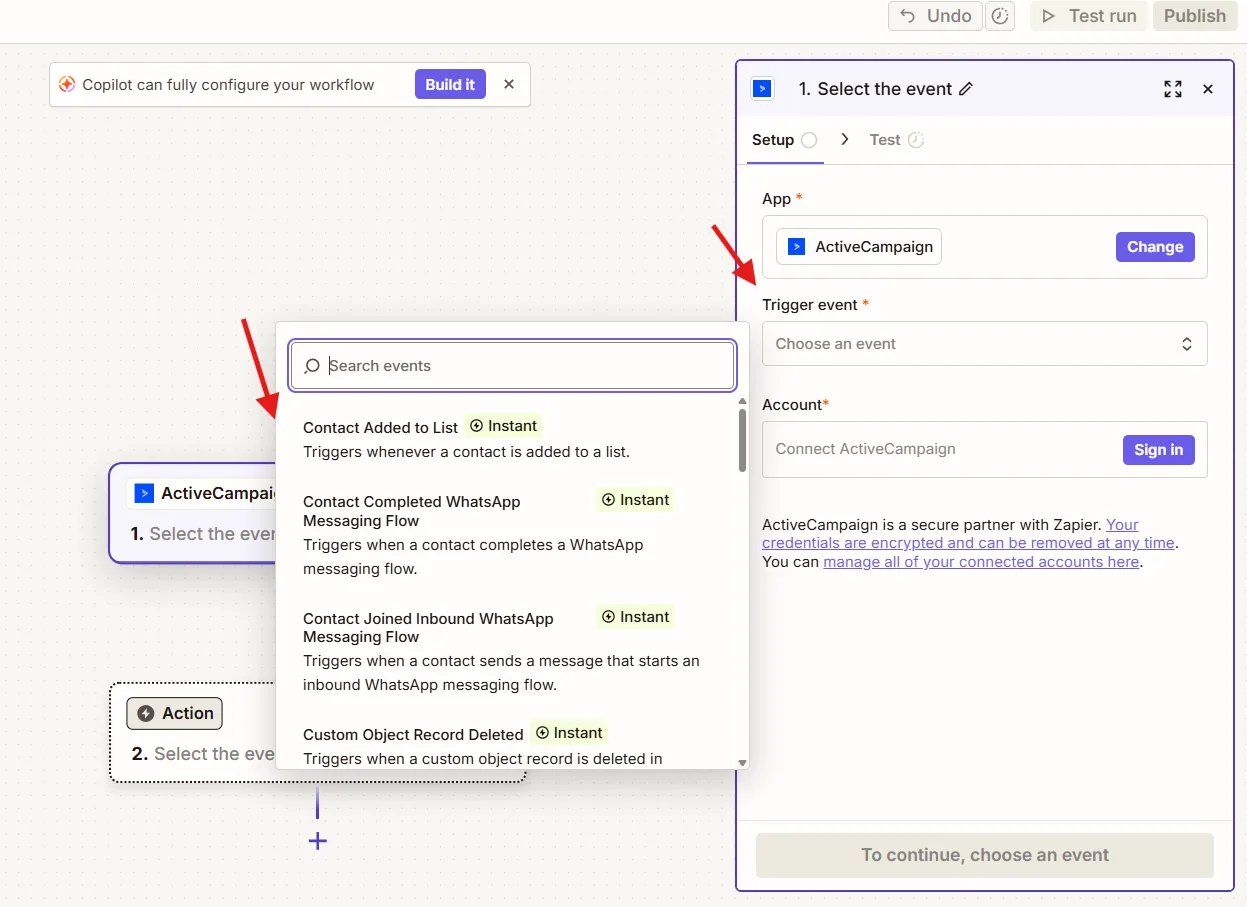
Step 2. Set up the ActiveCampaign trigger
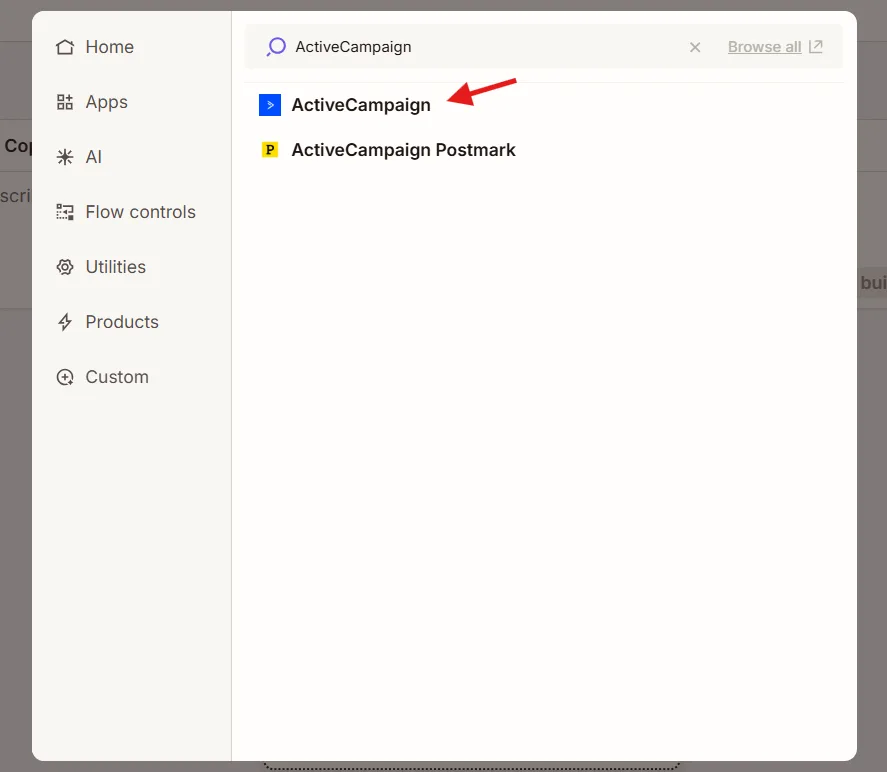
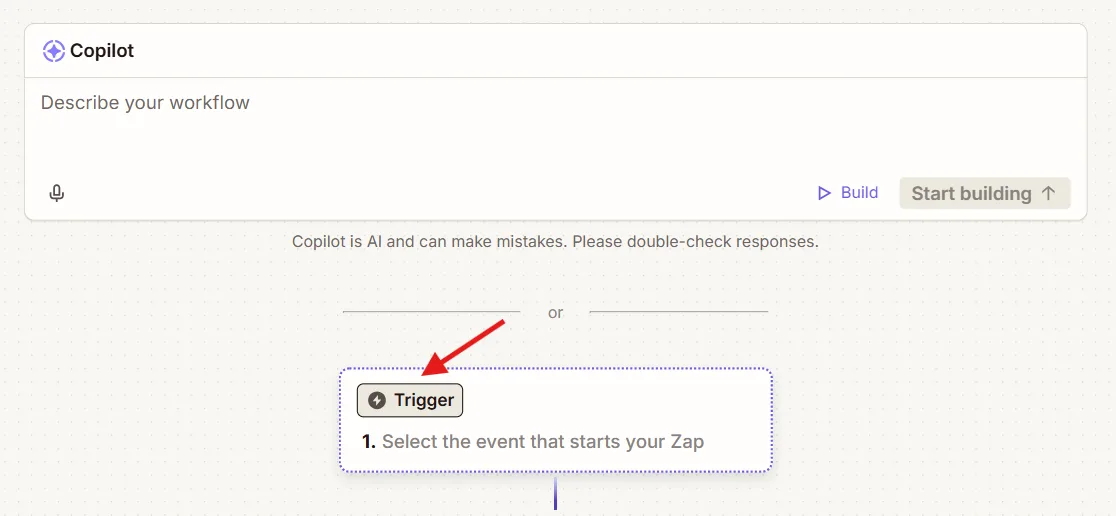
In the Trigger field, find the ActiveCampaign
app.
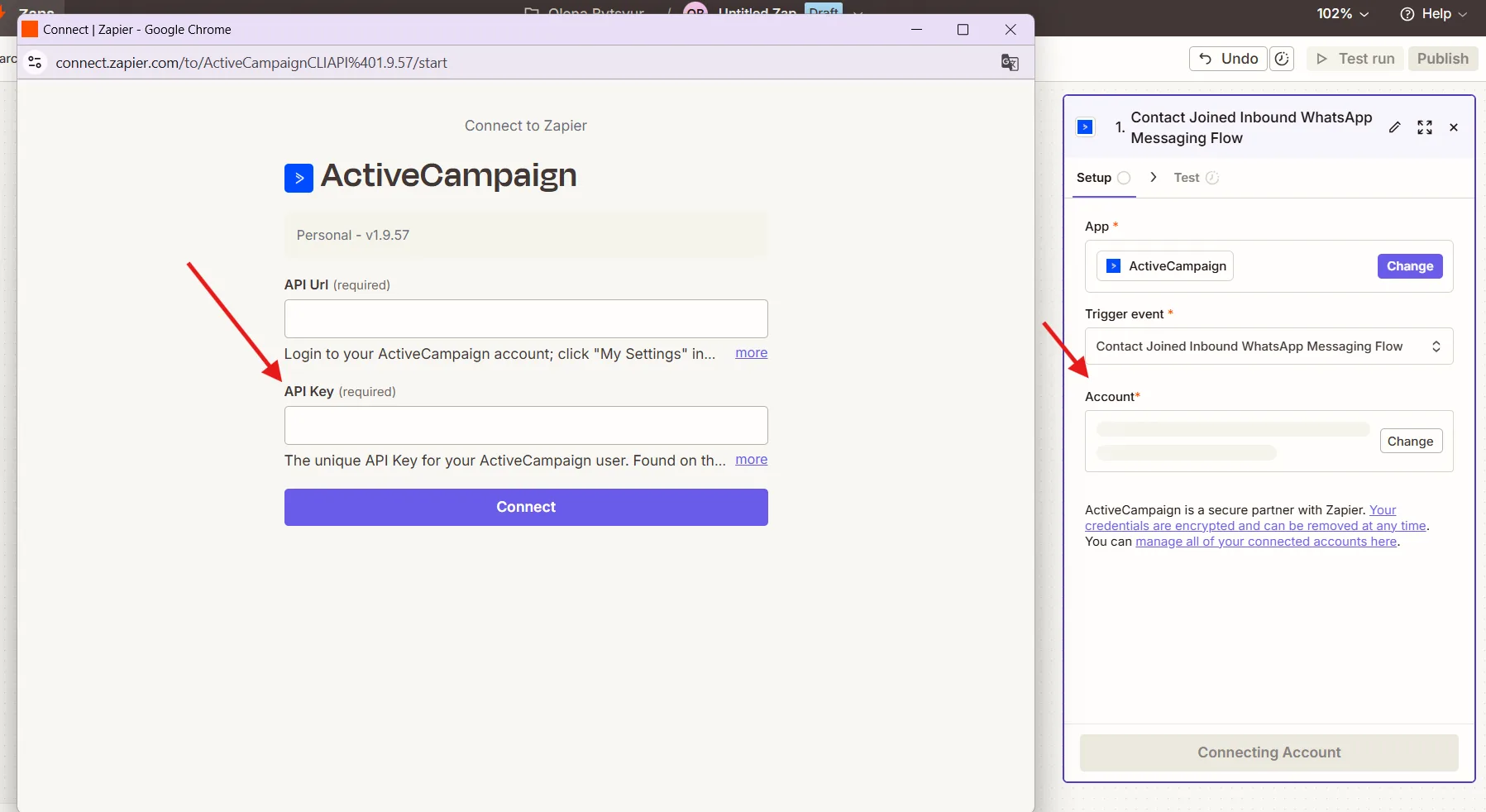
Then choose one of the recommended triggers and connect your ActiveCampaign account.
Step 3. Set up the Finmap action
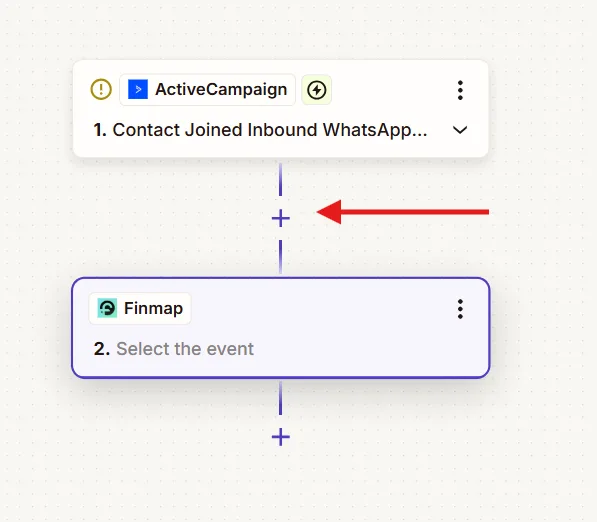
Click + under the trigger.
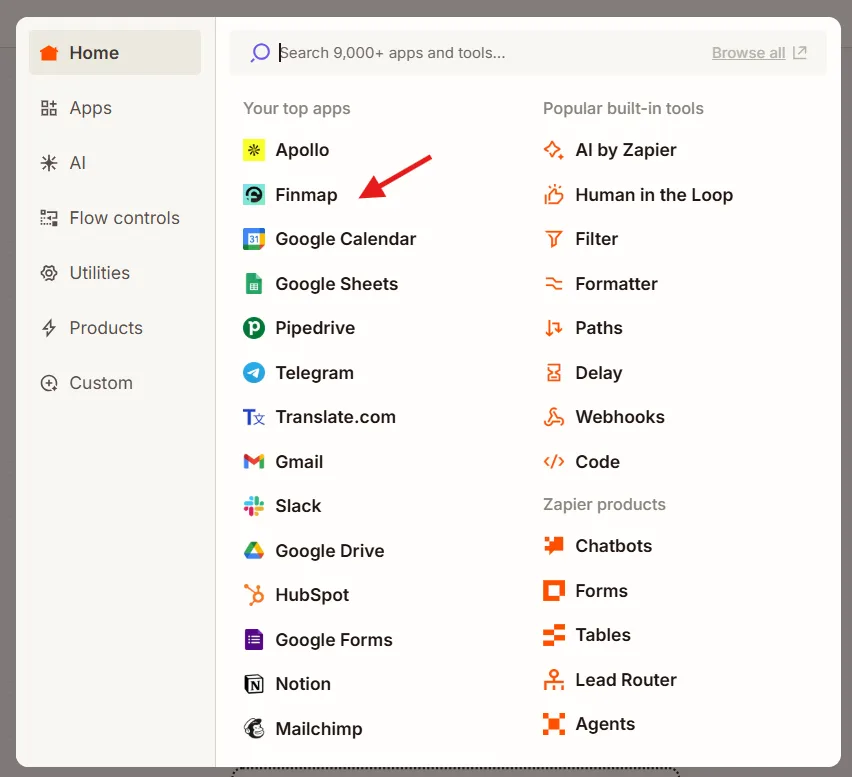
Choose the Finmap
app.
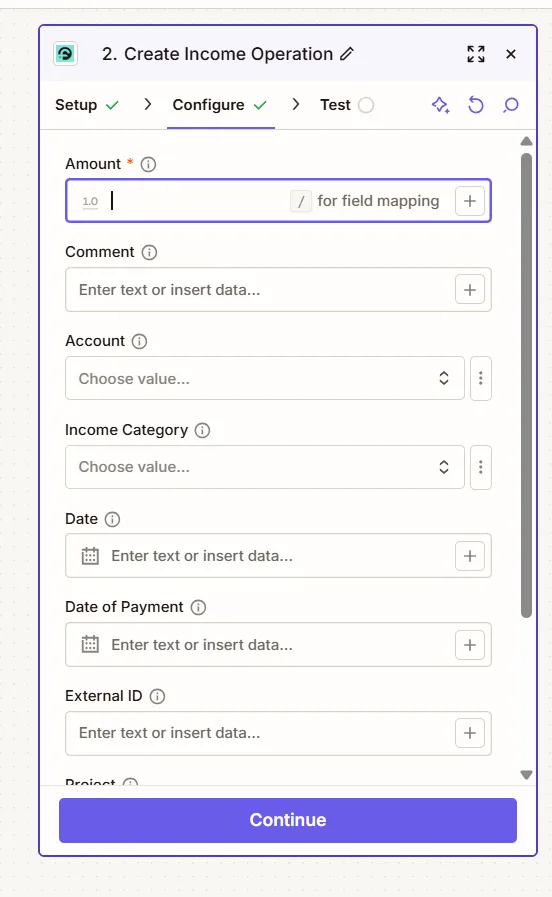
Step 4. Create the action
Choose which ActiveCampaign trigger should affect Finmap.
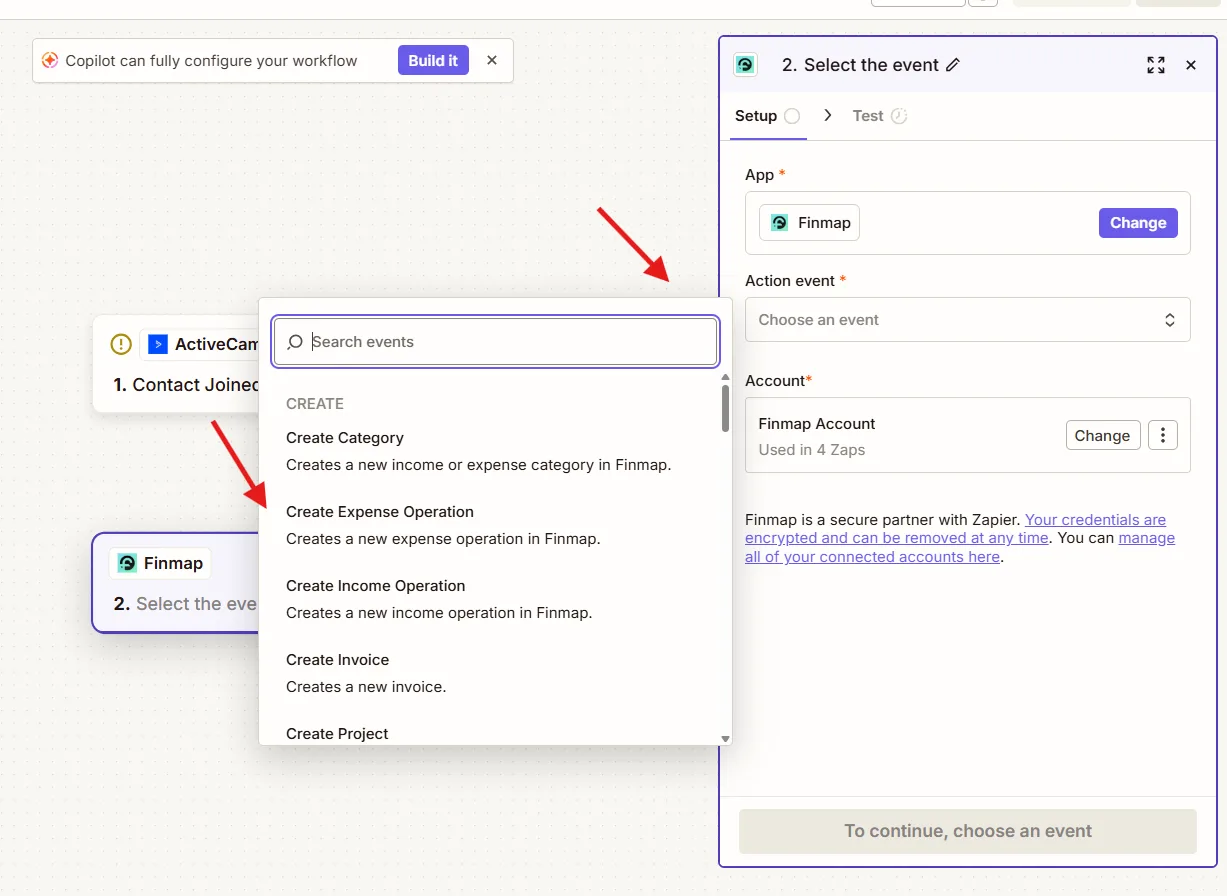
Map the fields so that ActiveCampaign passes data to the corresponding Finmap fields.
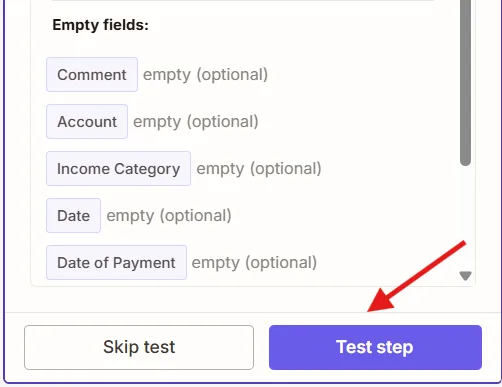
Step 5. Test the integration
Click Test Step.
Step 6. Publish the Zap
Click Publish or Turn On Zap.
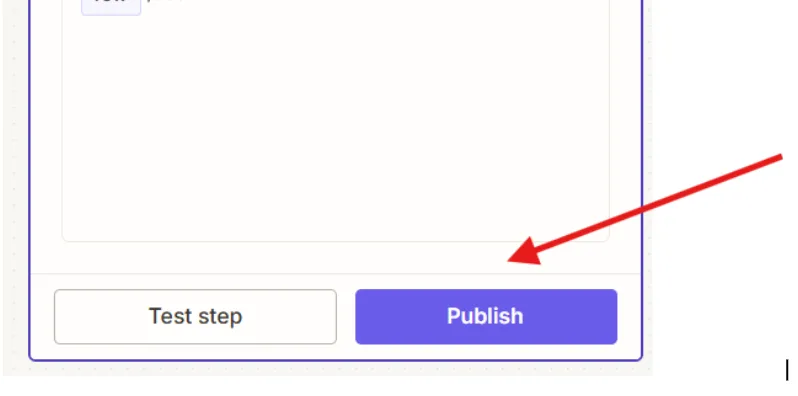
After that the integration will start working automatically.
Recommended integration scenarios
Scenario 1. Automatic creation of a scheduled payment
When to use it
If managers work in ActiveCampaign while financial planning is done in Finmap.
Use
New Deal Added or Updated
↓
Creating a future payment in Finmap.
Important
We recommend running the automation only when a deal moves to stages that indicate a high probability of payment, for example:
Payment Expected
Won
Result
Expected income is added to the Finmap payment calendar automatically.
Scenario 2. A single client base
When to use it
If you analyze financial indicators by counterparty.
Use
New Contact
New or Updated Contact
Result
Counterparties are synchronized automatically between ActiveCampaign and Finmap.
Scenario 3. Client segmentation
When to use it
If tags in ActiveCampaign are used for different financial scenarios.
For example:
Partner
VIP
Subscription
Corporate
Use
Tag Added or Removed From Contact
↓
Updating a category or project in Finmap.
Result
Clients are automatically assigned to the right management accounting category.
Scenario 4. Planning income from marketing campaigns
When to use it
If large email campaigns directly affect sales.
Use
New Campaign Starts Sending
↓
Creating forecast income or a project in Finmap.
Result
You can analyze the effectiveness of marketing campaigns together with financial results.
Reverse integration: Finmap → ActiveCampaign
This direction of integration delivers the greatest value.
Financial events can automatically launch marketing scenarios.
Business case 1. A client has paid an invoice
Finmap
↓
New Operation
↓
Find Contact
↓
Add Tag
↓
Start Automation
Result
Once the payment is received, the client automatically:
receives the Paid tag;
onboarding starts;
receives a welcome email;
stops receiving payment reminders.
Business case 2. Overdue payment
If a future payment in Finmap is overdue, or expected income was not closed on time:
Finmap
↓
Updated Operation
↓
Find Contact
↓
Start Automation
Result
ActiveCampaign can automatically:
send a reminder;
create a task for the manager;
move the client to the Overdue segment.
Business case 3. Automatic tag updates
After a certain financial event Finmap can automatically:
add the VIP tag;
remove the Trial tag;
add the Subscription Active tag;
add the Repeat Customer tag.
This way marketing automations always work based on the client's current financial status.
The key requirement
A two-way integration requires a unique identifier that makes it possible to find the same client in both systems.
This can be:
email (the most common option);
Contact ID;
External ID;
contract number;
invoice number.
Without such a parameter, Zapier will not be able to determine which contact to add a tag to or which automation to start.
How to avoid mistakes
Before setting up the integration, we recommend deciding:
Where is the financial data stored?
Finmap should remain the single source of information about cash flow.
It is not recommended to create financial operations directly from marketing events if they have not yet been financially confirmed.
Do not use early sales events
For example:
opening an email;
clicking a link;
creating a lead.
These events do not yet mean future income.
Use a shared identifier
For two-way synchronization we recommend using:
email;
Contact ID;
External ID.
Common mistakes
Creating actual income after a deal or a contact is created — this does not yet mean the money has been received.
Using an email open or a click as a trigger for financial operations — marketing activity is not a financial event.
The absence of a shared identifier between ActiveCampaign and Finmap — the right contact cannot be found automatically.
Running several automations on the same financial event — this can lead to duplicate tags, tasks or communications.
Recommendation
For the ActiveCampaign ↔ Finmap integration, the most effective approach is to use Finmap as the source of financial events, and ActiveCampaign as the system that reacts to those events. This approach makes it possible to build precise automations based not on user behavior but on real financial events: payments, overdue amounts, subscription activation or repeat purchases. It significantly increases the relevance of communication and reduces the amount of manual work for the team.