


Contents
Integrating Pipedrive with Finmap via Zapier
Integrate sales and financial accounting into a single process.
If your team works in Pipedrive while management accounting is kept in Finmap, Zapier will help transfer information between the services automatically.
The integration lets you automate the creation of projects and scheduled payments, client synchronization and financial data updates, without duplicating information manually.
Important. Pipedrive is a CRM system and is responsible for working with leads, deals and clients. Finmap is used for management accounting, Cash Flow control and financial analytics. The integration should complement the work of both systems rather than duplicate the same data.
How Zapier works
Zapier is an automation service that lets you transfer data between different systems without programming.
Any automation consists of two parts.
Trigger
The event that starts the automation.
For example:
a new deal is created;
a deal is moved to a new stage;
the deal amount is changed.
Action
The action Zapier performs once the trigger fires.
For example:
creates a project in Finmap;
creates a future payment;
updates the financial forecast;
links a payment to a deal.
Once set up, the Zap runs automatically.
What you will need to connect
Before you start, prepare:
a Zapier account (the free plan is enough for most scenarios);
an API Key in Finmap (Profile → API); Important! Do not delete the generated key, otherwise the integration will stop working.
the Pipedrive API (Personal Preferences - API).
Which events Pipedrive supports
Pipedrive event | When to use it | What to pay attention to |
New Deal | If every new deal should automatically create a project or a future payment in Finmap. | Suitable for companies that do financial planning in Finmap from the moment a deal is created. |
Updated Deal Stage | If financial actions should be triggered once a deal moves to a certain stage. | We recommend using only key stages, for example Payment Expected, Won, Contract Signed. Do not run the automation on every status change. |
Updated Deal | If a scheduled payment in Finmap needs to be updated after the amount, the expected close date or other financially important parameters change. | Recommended only for deals that are already at a defined stage of the funnel (for example, Payment Expected or Won). This helps avoid constantly updating the financial forecast for unconfirmed deals. |
New Lead | If you need to build a preliminary financial forecast or reserve potential income. | In most cases not recommended, since a Lead is not yet a confirmed deal. |
New Organization | If organizations are used as counterparties in Finmap. | If counterparties are created automatically when financial operations are created, separate synchronization is not needed. |
New Person | If contact persons are used in your automations or financial analytics. | For most companies, synchronizing organizations is enough. |
New Project | If projects are used in Pipedrive and Finmap at the same time. | Allows a single project structure to be maintained in both systems. |
New Activity | If certain activities should start a financial process or the creation of a scheduled payment. | Worth using only for special business processes. |
New Note | Usually not used. | Notes do not affect management accounting. |
Setting up the integration
Step 1. Create a new Zap
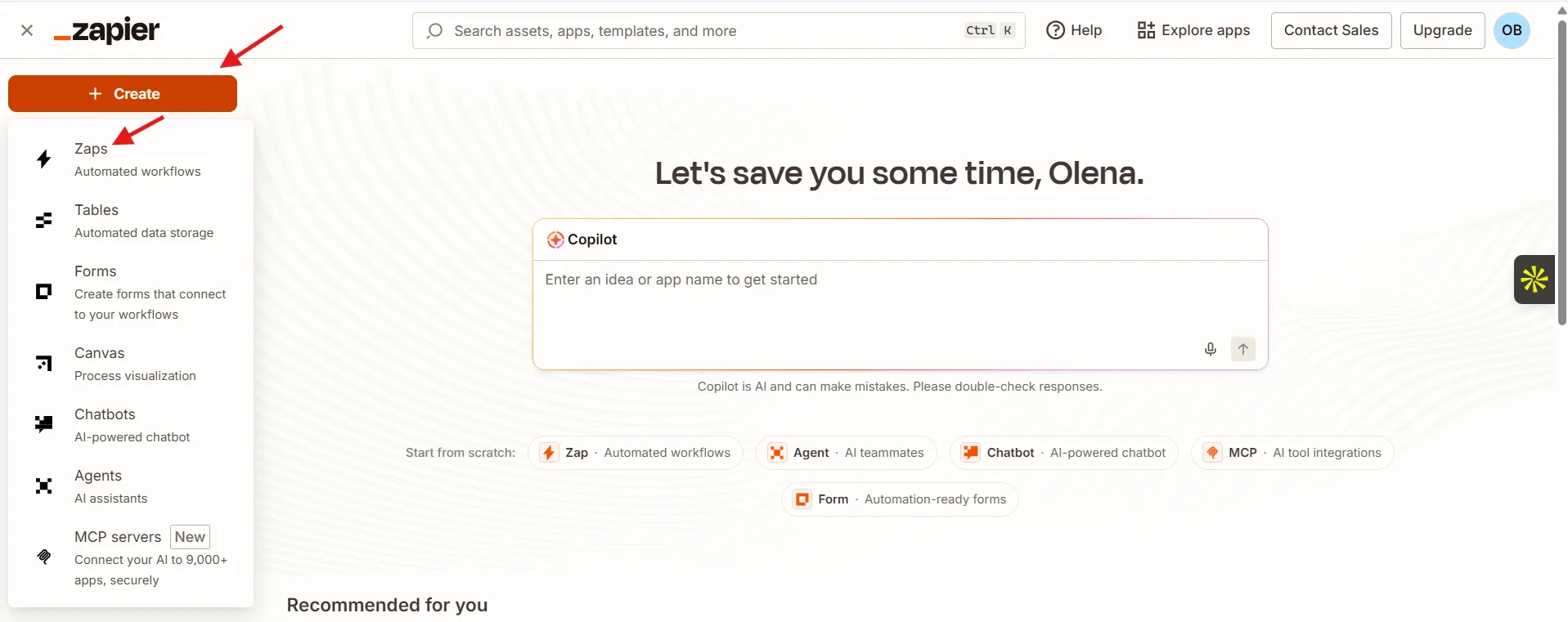
Log in to Zapier and click Create Zap.
Step 2. Set up the Pipedrive trigger
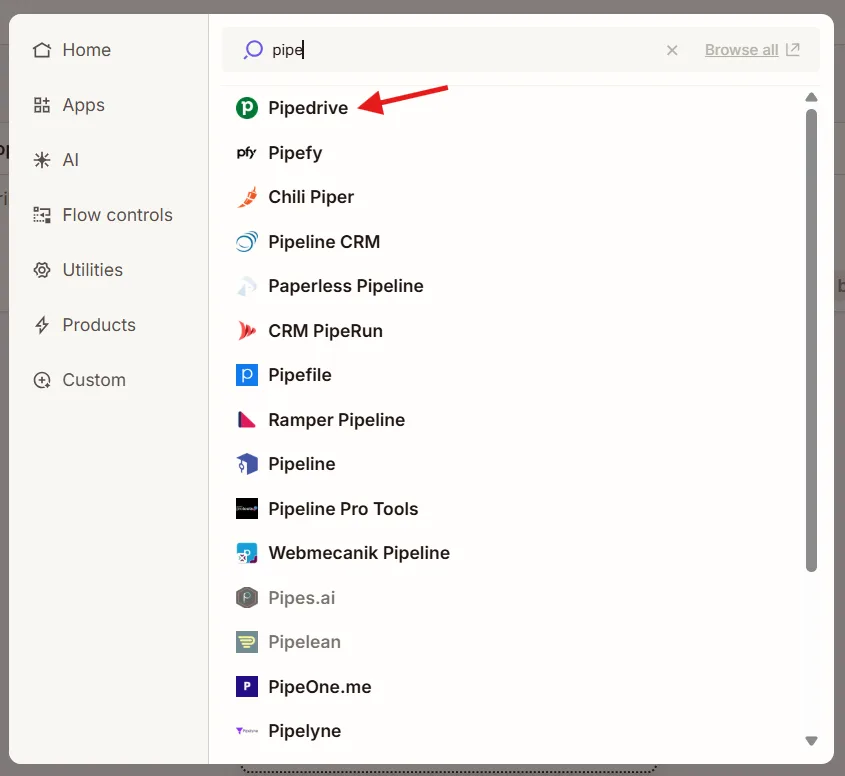
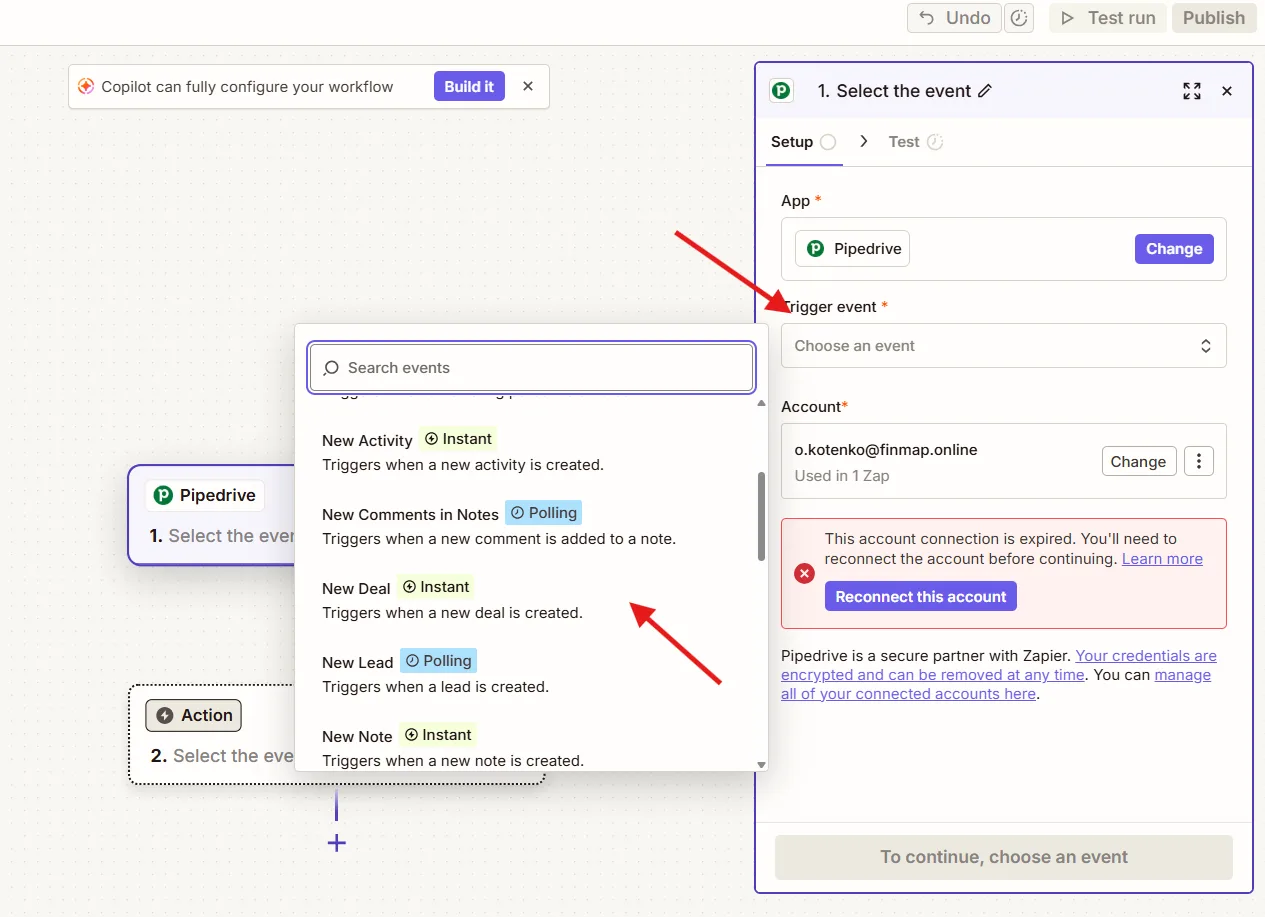
In the Trigger field, find the PipeDrive app.
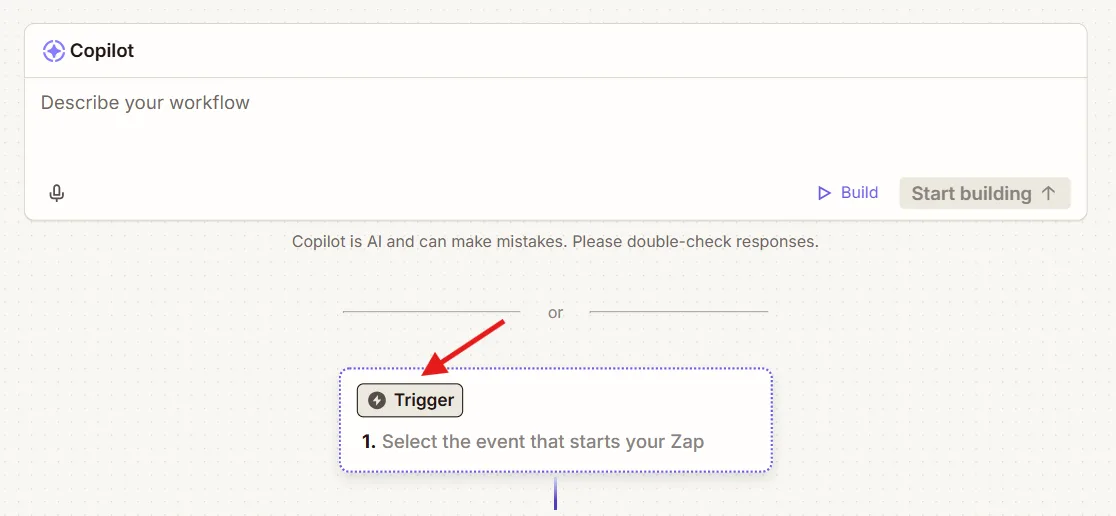
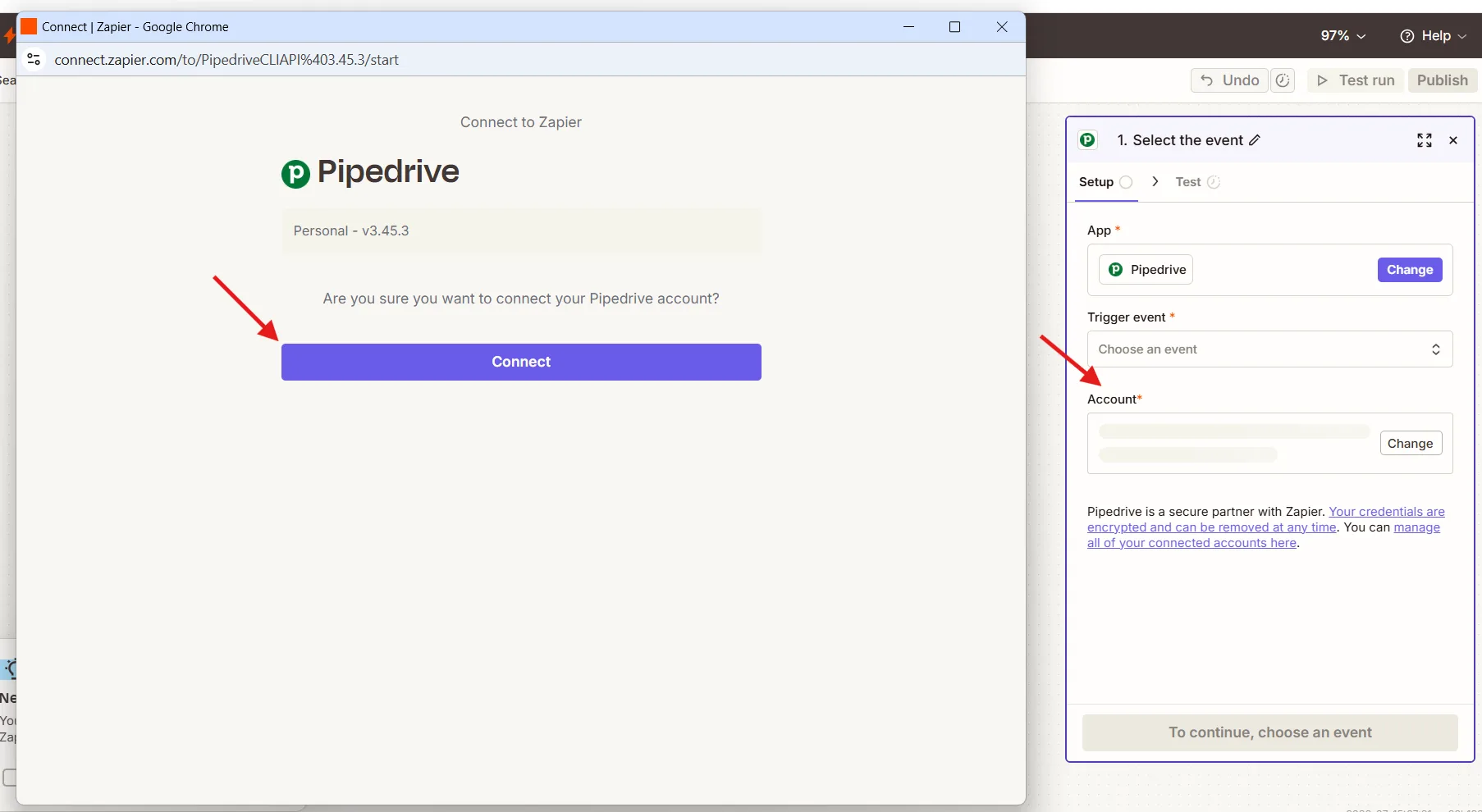
Then choose one of the recommended triggers and connect your Pipedrive account.
Step 3. Set up the Finmap action
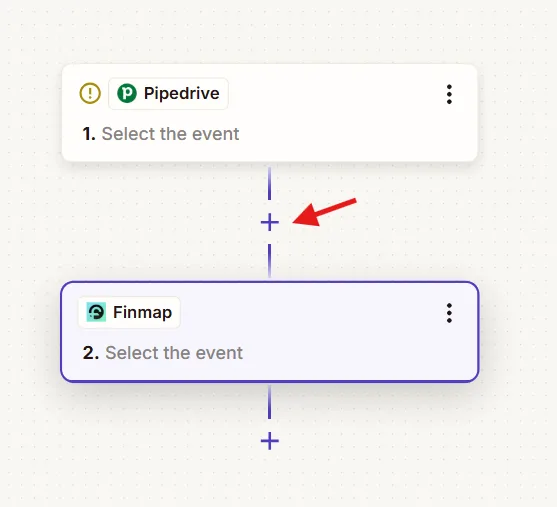
Click + under the trigger.
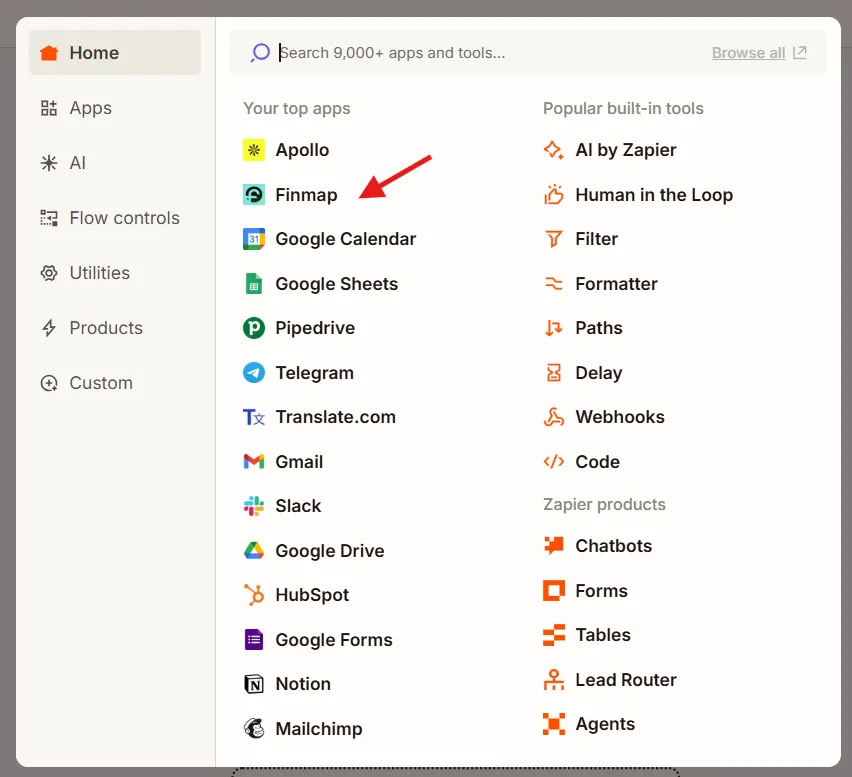
Choose the Finmap app.
Step 4. Create the action
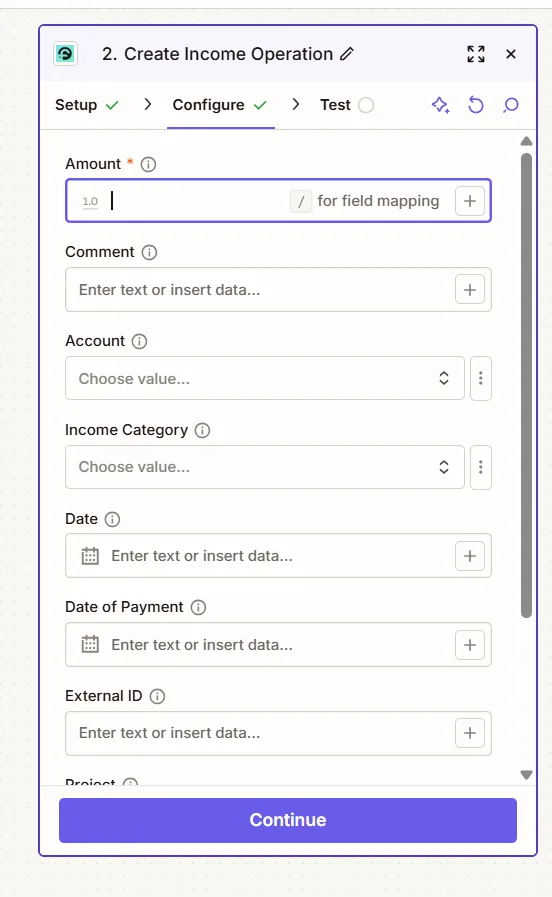
Choose how the Pipedrive trigger should affect Finmap.
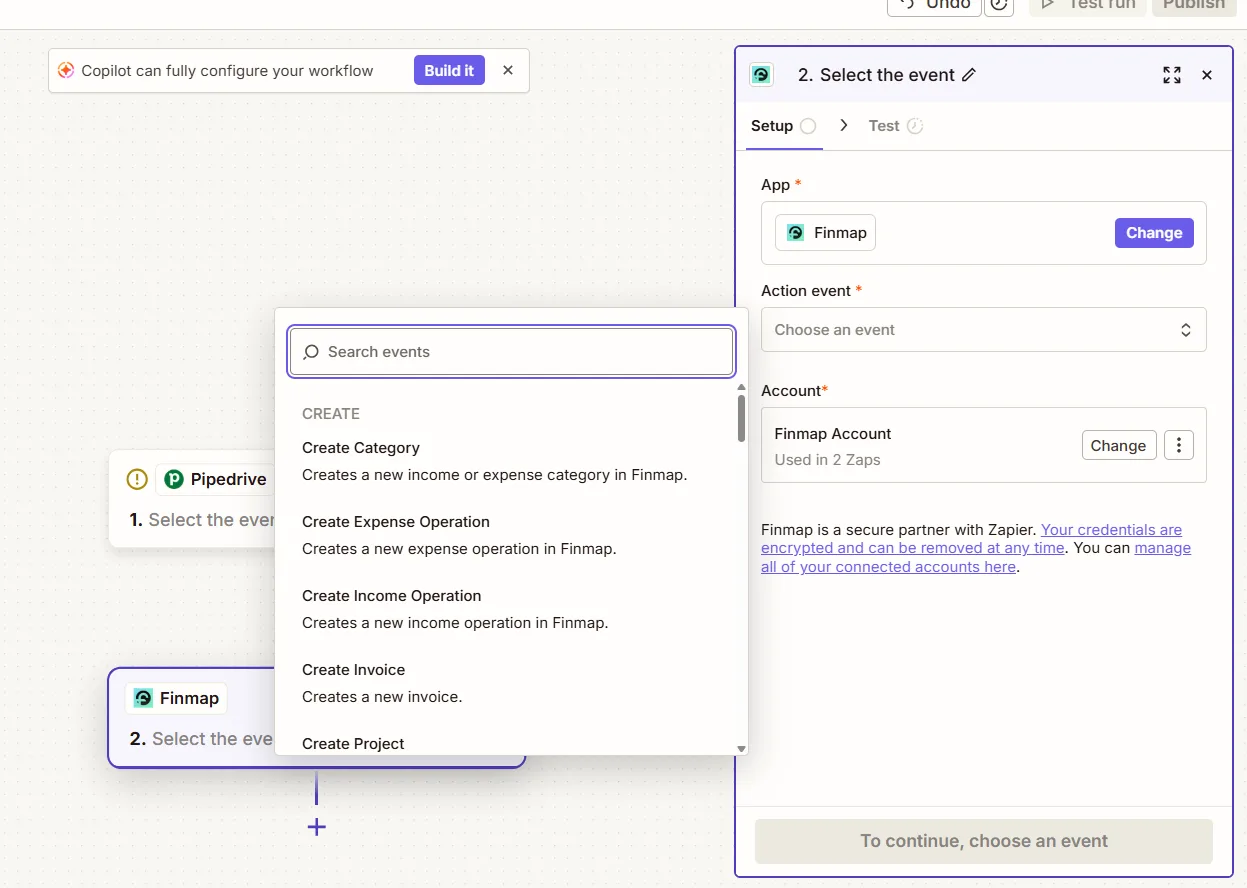
Map the fields so that Pipedrive passes data to the right places in Finmap.
Step 5. Test the integration
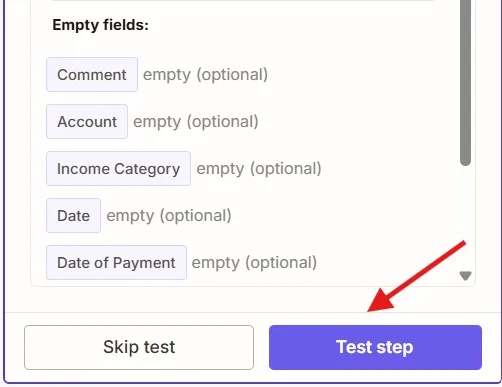
Click Test Step.
Step 6. Publish the Zap
Click Publish or Turn On Zap.
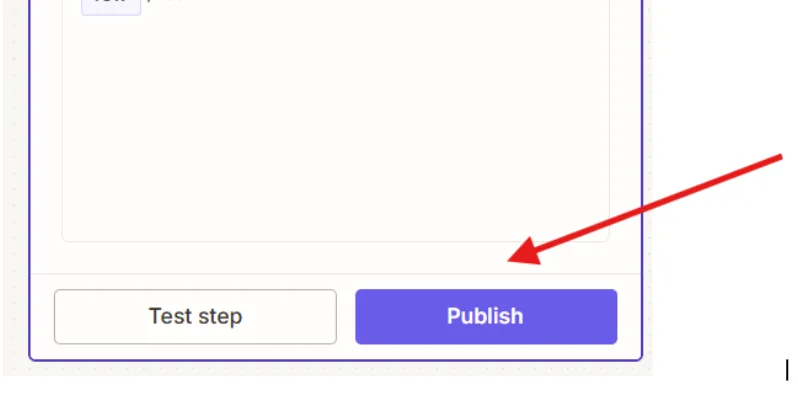
After that the integration will start working automatically.
Recommended integration scenarios
Scenario 1. Automatic creation of a project or a scheduled payment
When to use it: If financial planning needs to start immediately after a new deal is created.
Use: New Deal - creating a project or a future payment in Finmap.
Result: You can plan income and expenses related to the new deal straight away, even before the first payment arrives.
Scenario 2. Automatic creation of financial events after a stage change
When to use it: If a particular funnel stage means it is time to plan or expect payment.
For example:
Payment Expected — the client has been invoiced and payment is expected.
Won — the deal has been closed successfully.
Use: Updated Deal Stage - creating or updating a future payment in Finmap.
Result: Cash Flow automatically accounts for expected income based on the current deal status.
Scenario 3. Automatic update of the financial forecast
When to use it: if, after the deal moved to the final stage, the manager changed:
the deal amount;
the expected payment date;
other parameters that affect the financial forecast.
Use:
Updated Deal
↓
Updating the future payment in Finmap.
Important
We recommend using this scenario only for deals that are already at defined stages, for example Payment Expected or Won. This helps avoid unnecessary changes to the financial forecast for deals that are still at early sales stages.
Result: the financial forecast in Finmap always matches the current CRM data.
Scenario 4. Synchronizing directories
When to use it: if you analyze financial indicators by client or by project.
Use
New Organization
New Project
Result: the structure of counterparties and projects will be the same in Pipedrive and Finmap, which makes management reporting easier to build.
Reverse integration: Finmap → Pipedrive
Besides transferring information from Pipedrive to Finmap, the reverse scenario can also be set up.
The most common example is automatically linking a payment from Finmap to the matching deal in Pipedrive.
Business case
Once the money arrives, the manager does not need to open the CRM manually and mark that the client has paid the invoice.
Zapier can automatically:
update the deal status;
record the amount of the payment received;
record the date of the last payment;
move the deal to the next stage.
How it works
A new operation is created in Finmap, or an existing one is changed.
Zapier finds the matching deal in Pipedrive.
The payment data is written into the CRM automatically.
The key requirement
This scenario is only possible when a unique parameter exists between the operation in Finmap and the deal in Pipedrive that allows them to be matched.
This can be:
Deal ID;
contract number;
invoice number (Invoice Number);
order number;
external ID;
any other unique field present in both systems.
Without such a parameter, Zapier will not be able to determine which deal the payment should be linked to.
Example
In Pipedrive every deal has an Invoice Number field.
When an operation is created in Finmap, this value is also written into the comment or into a separate custom field.
Once the money arrives, Zapier:
finds the deal by Invoice Number;
updates the payment information;
moves the deal to the next stage if needed.
Result
The manager always sees the current payment status without updating the CRM manually.
How to avoid mistakes
Before launching the integration, we recommend deciding:
Which system is the main one?
Pipedrive — the source of information about sales.
Finmap — the source of information about financial operations.
Do not create the same financial event in both systems at once.
Use a unique identifier
For two-way synchronization we recommend using one shared field:
Deal ID;
Invoice Number;
Contract Number;
External ID.
It is by this value that Zapier will be able to find the right deal and update it.
Do not create duplicate scheduled payments
If a future payment was already created in Finmap when the deal was created, we recommend running Match between the planned and the real operation once the money actually arrives, rather than creating a new record.
Common mistakes
Creating a financial operation automatically after every deal stage change — this can lead to duplicate scheduled payments.
Using Updated Deal for all deals regardless of stage — the financial forecast will keep changing because of sales that are not yet confirmed.
The absence of a shared identifier between Pipedrive and Finmap — Zapier will not be able to find the right deal to update.
Creating actual income right after a Deal is created — a deal is not yet a guarantee that the money will arrive.
The absence of a Match between the planned and the actual payment — the same deal can affect financial reporting twice.