


Contents
Integrating Finmap with Google Sheets via Zapier
Automate financial data transfer without manual exports.
If you regularly export operations from Finmap to Google Sheets, build your own reports or use spreadsheets as an intermediate step for other automations, Zapier will help you do this automatically.
Once the integration is set up, every new or updated operation in Finmap will be transferred to Google Sheets automatically. This removes manual copying of data and helps keep your reporting up to date.
What the integration solves
The integration is useful if you want to:
build your own financial reports automatically;
build dashboards in Google Sheets or Looker Studio;
send data to your accountant without exporting to Excel;
accumulate a history of all operations;
use Google Sheets as an intermediate step for other automations.
How Zapier works
Zapier is an automation service that connects different systems to each other.
Any automation consists of two parts:
Trigger — the event that starts the automation.
For example:
A new operation is created in Finmap.
Action — what Zapier does once the trigger fires.
For example:
Adds a new row in Google Sheets.
So you set the automation up once, and after that it works without your involvement.
Which events Finmap supports
At the time of writing, the Finmap app for Zapier supports three triggers.
Event | When it fires | What it can be used for |
New Operation | a new operation is created | adding a new row in Google Sheets |
Updated Operation | an existing operation is changed | updating information in the spreadsheet |
Deleted Operation | an operation is deleted | deleting or flagging a record |
In this guide we will look at the most common scenario — automatically creating a new row in Google Sheets after a new operation is created in Finmap.
What you will need
Before you start, prepare:
a Zapier account (the free plan is enough for most scenarios);
an API Key in Finmap (Profile → API); Important! Do not delete the generated key, otherwise the integration will stop working.
a Google account with access to Google Sheets.
Before you start
Step 1. Prepare the Google spreadsheet
Create a new Google spreadsheet, or open an existing one that operations from Finmap will be sent to.
Recommendation. If this spreadsheet is used only for the integration, create a separate file. It will be easier to maintain the structure and to avoid accidental changes.
Step 2. Create a separate sheet
In the spreadsheet, create a sheet where Zapier will write the operations.
For example:
Operations
Transactions
Finmap Data
Step 3. Create the column names
Before connecting Google Sheets to Zapier, you need to create all the columns that will be used.
For example:
| Operation ID | Date | Type | Amount | Currency | Account | Category | Counterparty | Comment |
Why this is needed
On the first connection, Zapier automatically reads the first row of the spreadsheet and uses it as the structure for the future data.
It is these column names that will be shown at the field mapping stage (Field Mapping).
Important. If you add or rename columns after the integration is set up, Zapier may not see the changes. In that case you will need to update or reconfigure the Google Sheets step.
Step 4. Add an Operation ID column
We recommend creating an Operation ID column right away, even if it is not used at the moment.
In the future it will allow you to:
avoid duplicate operations;
update existing records;
quickly find the right row during other automations.
Setting up the integration
Step 1. Create a new Zap
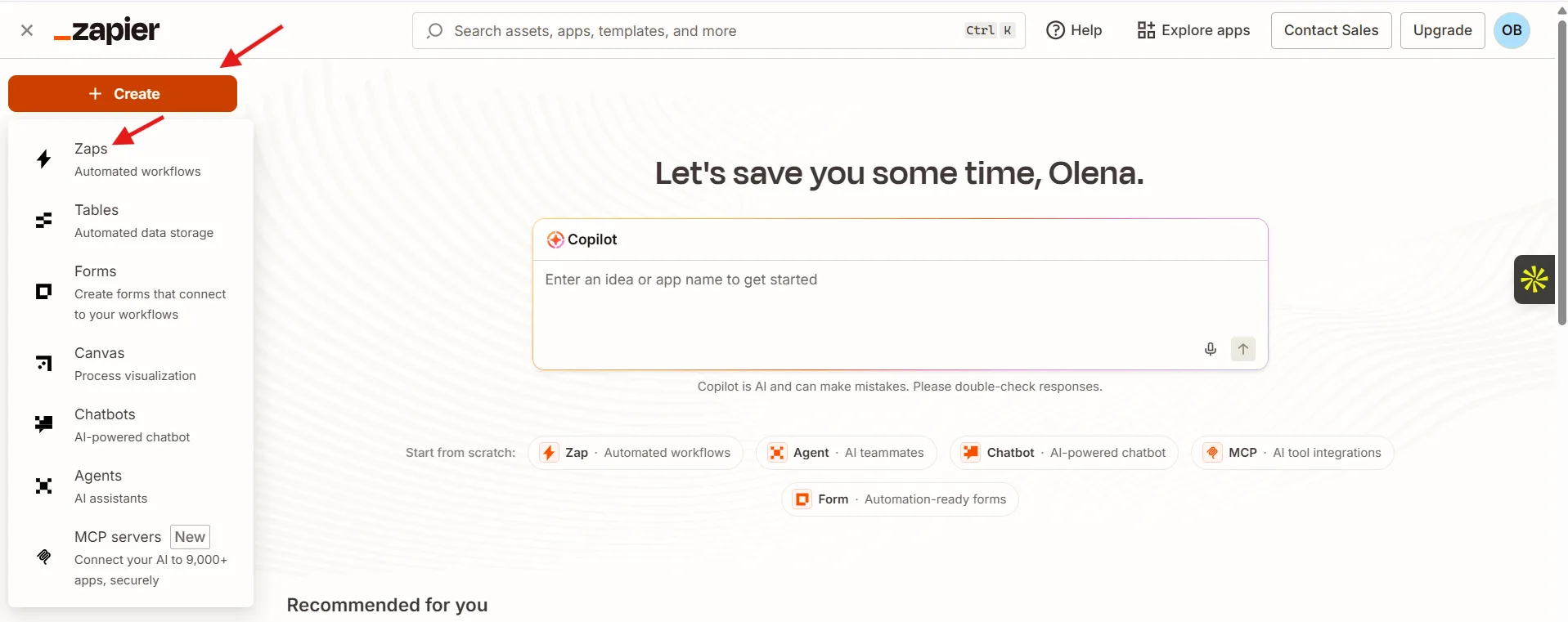
Log in to Zapier and click Create Zap.
Step 2. Set up the Finmap trigger
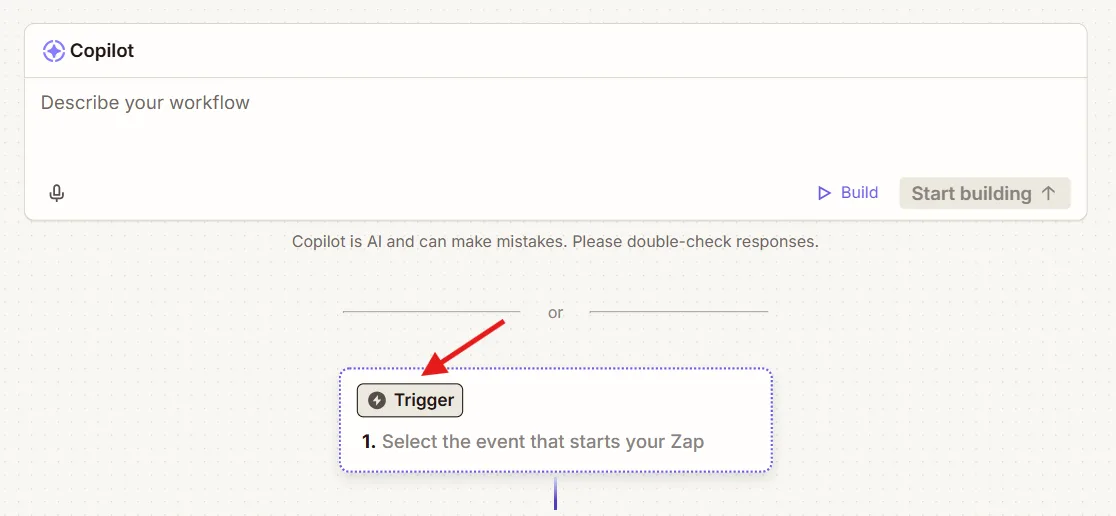
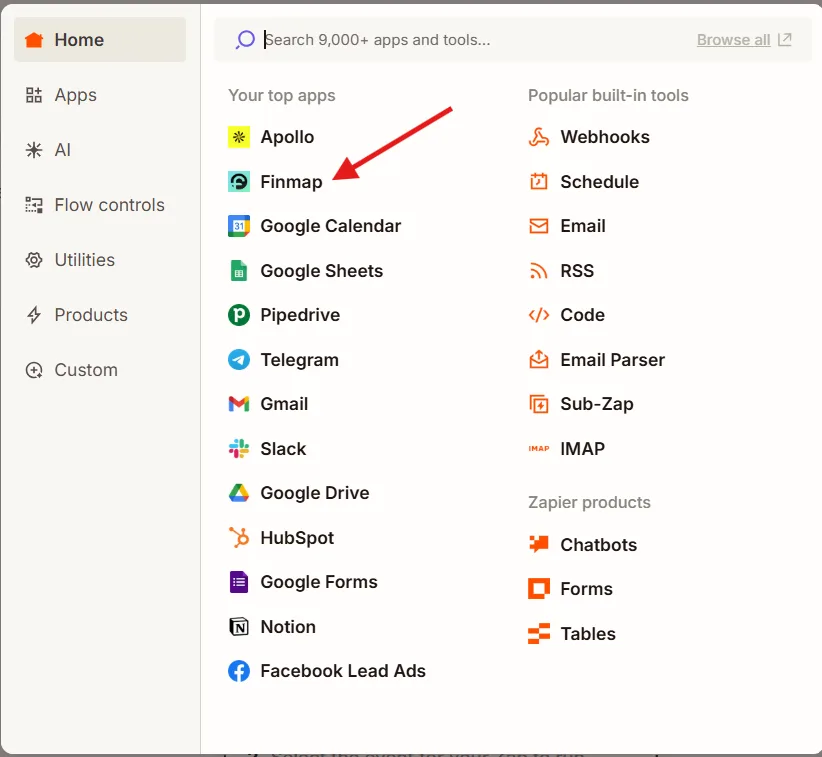
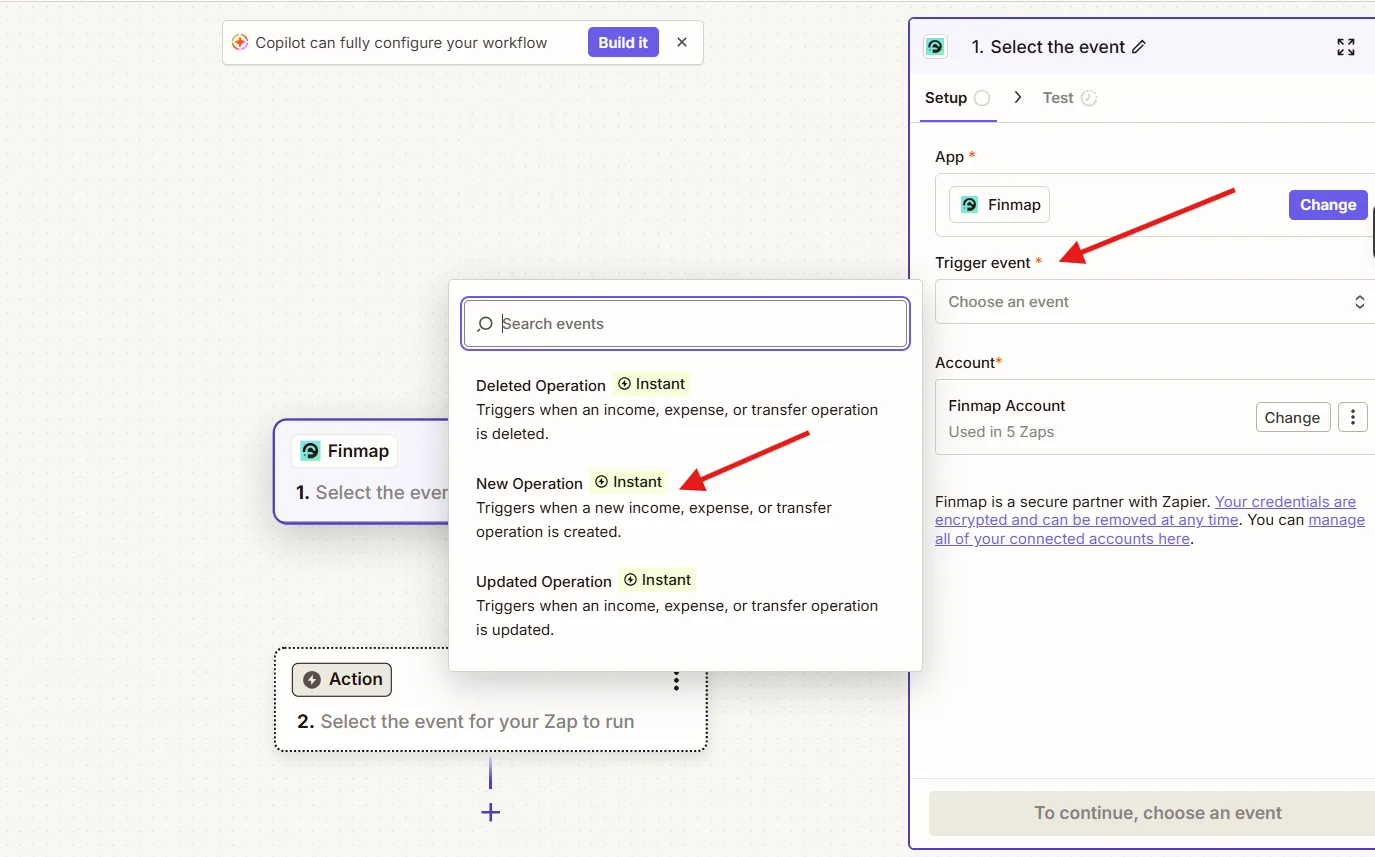
In the Trigger field, find the Finmap app.
As the event, choose:
New Operation
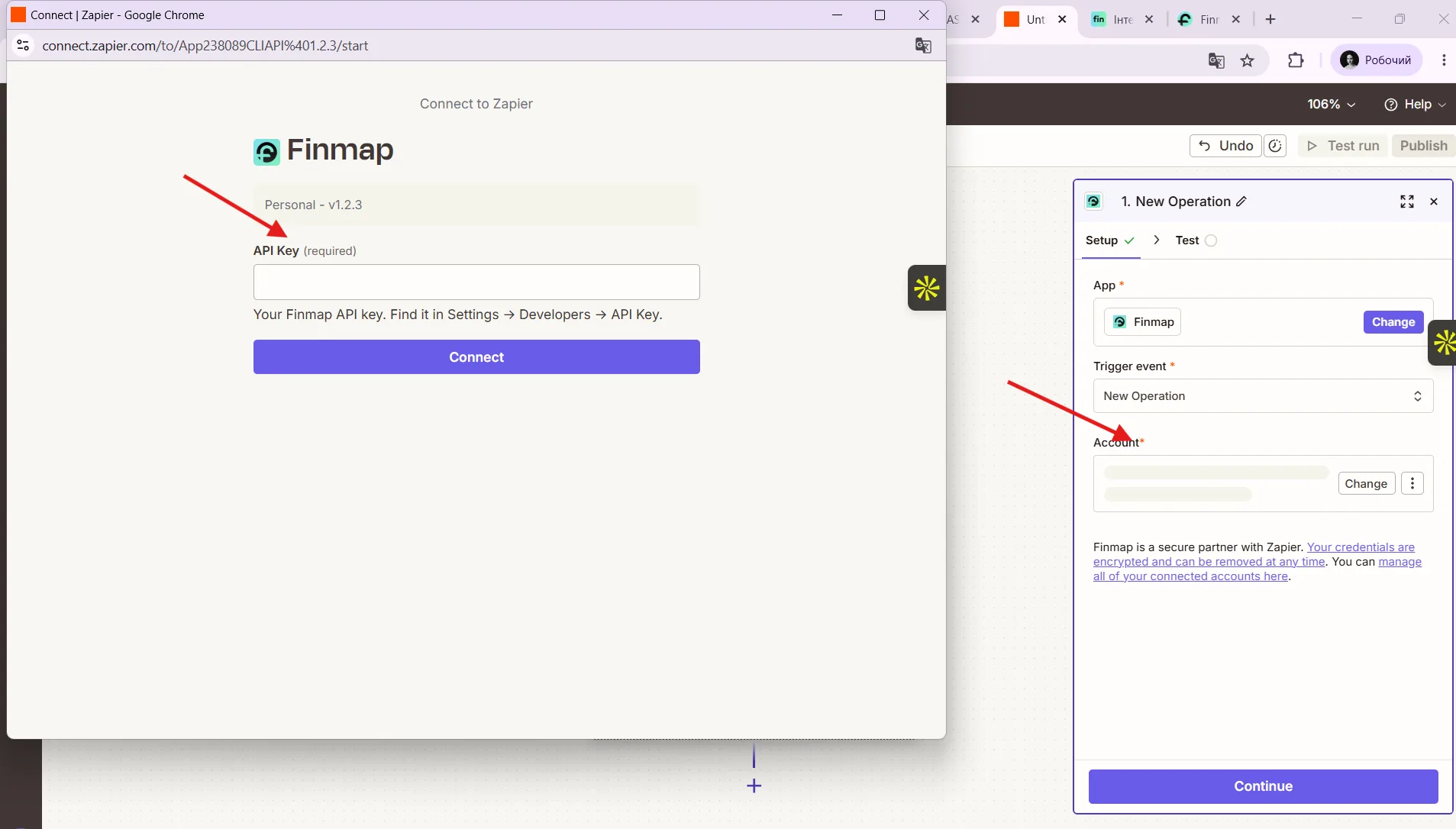
Click Sign In and paste the API Key from Finmap.
Once connected, click Test Trigger.
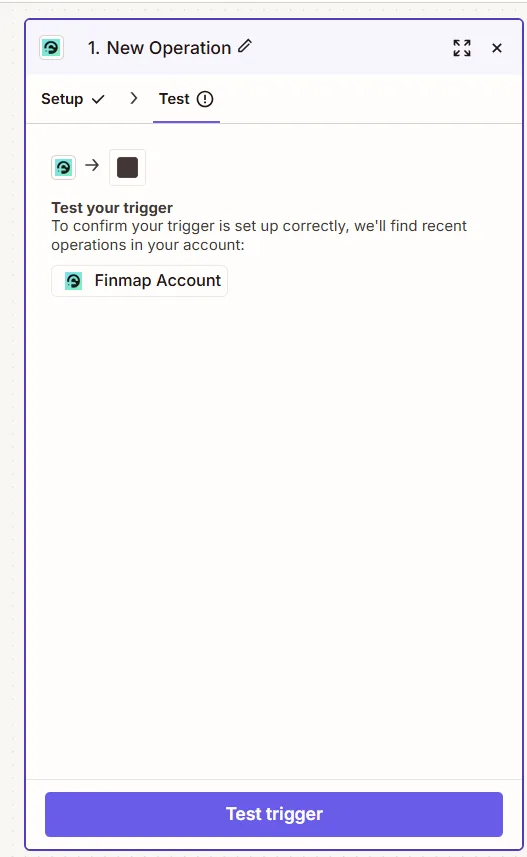
Why the test is needed
The test lets you make sure that:
the connection was successful;
Zapier sees your operations;
all available fields are passed correctly to the next steps.
Step 3. Add Google Sheets
Click + under the trigger.
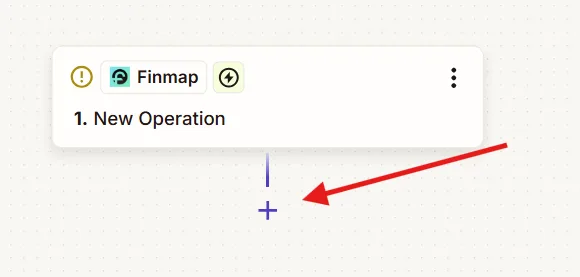
Choose the Google Sheets app.
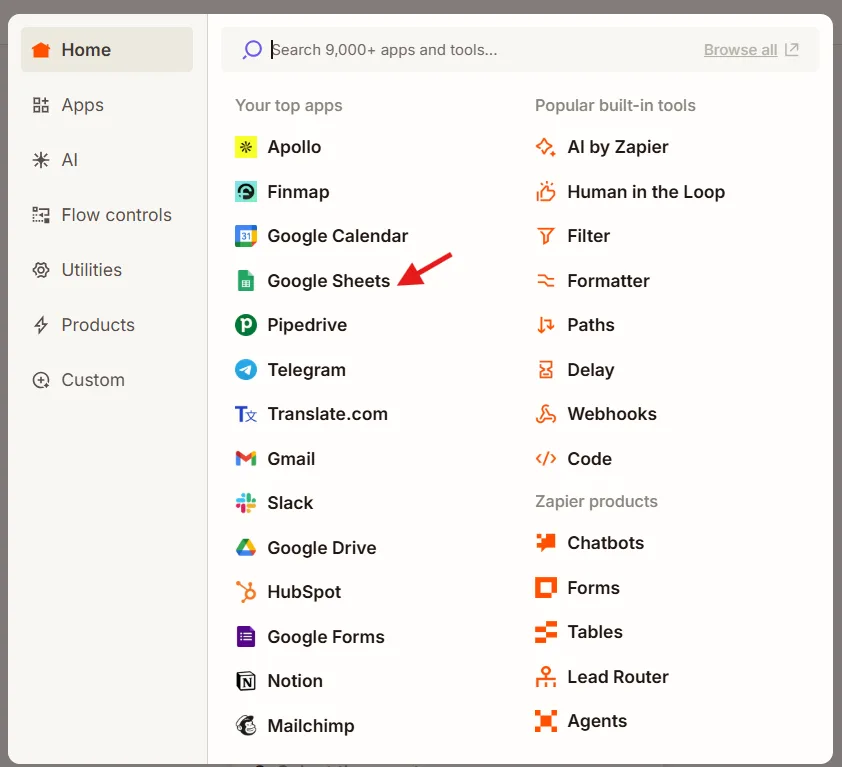
As the action, choose:
Create Spreadsheet Row
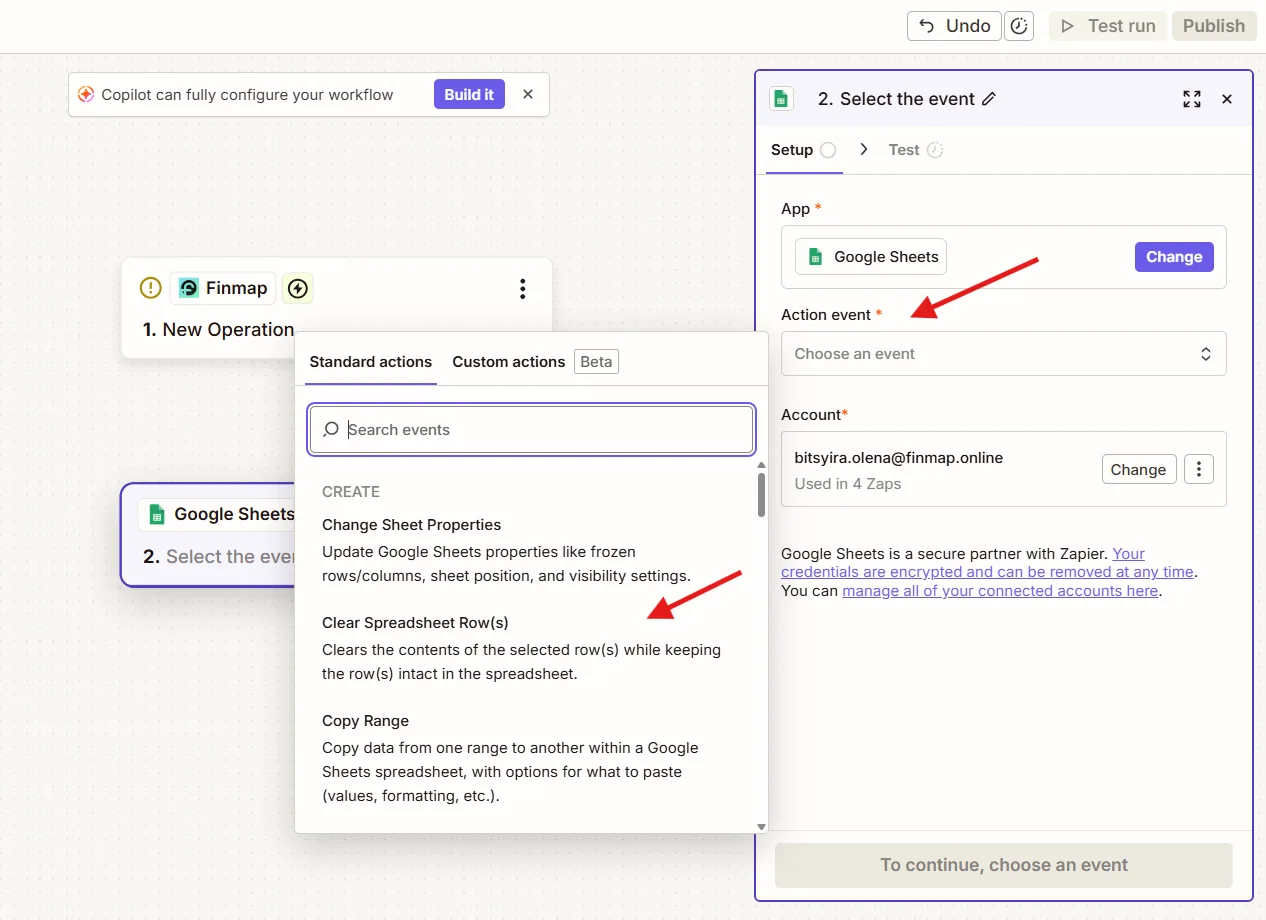
What this action does
After every new operation in Finmap, Zapier will automatically create a new row in the selected Google Sheets sheet.
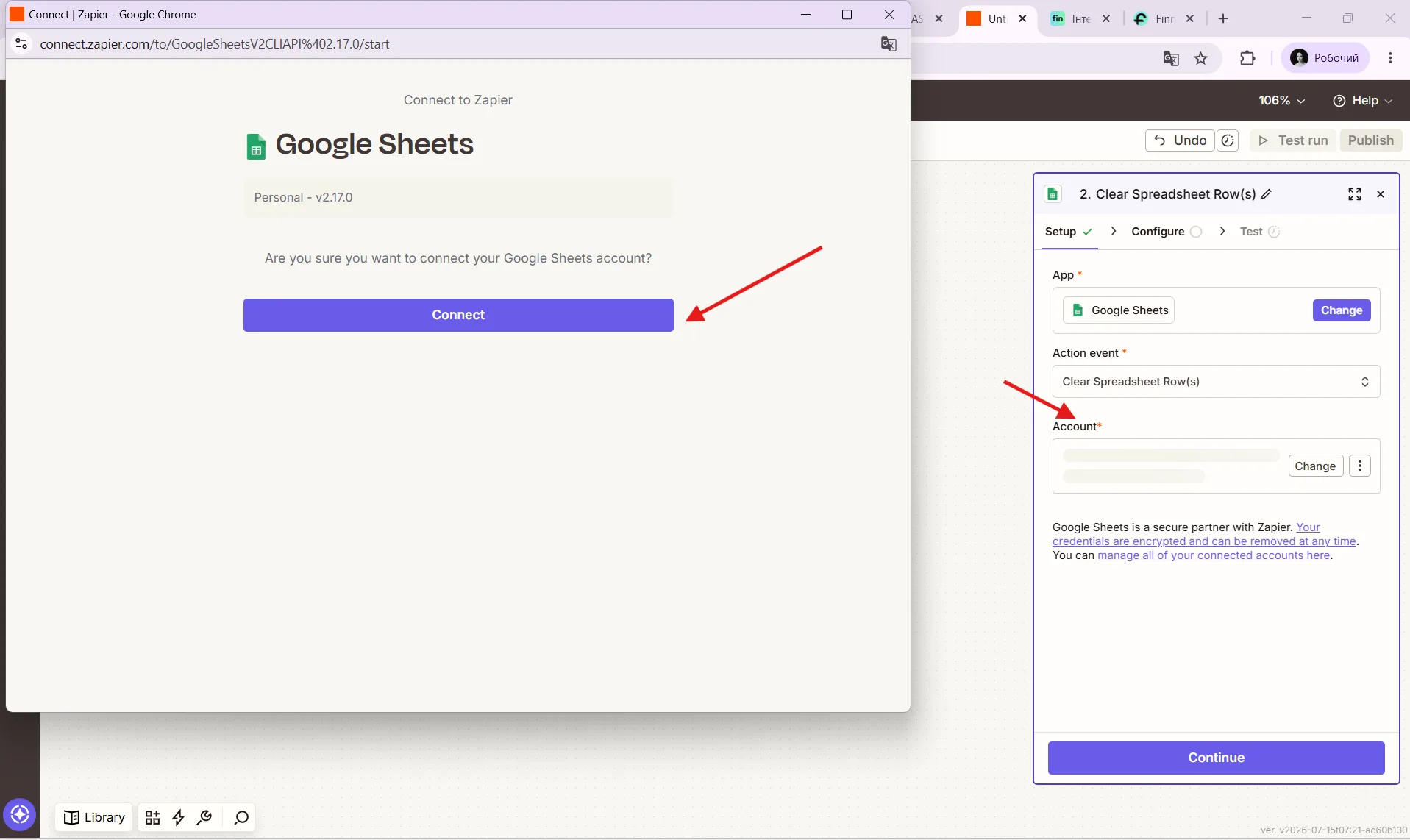
Step 4. Connect your Google account
Click Sign In and log in to your Google account.
Step 5. Choose the spreadsheet and the sheet
Choose the drive
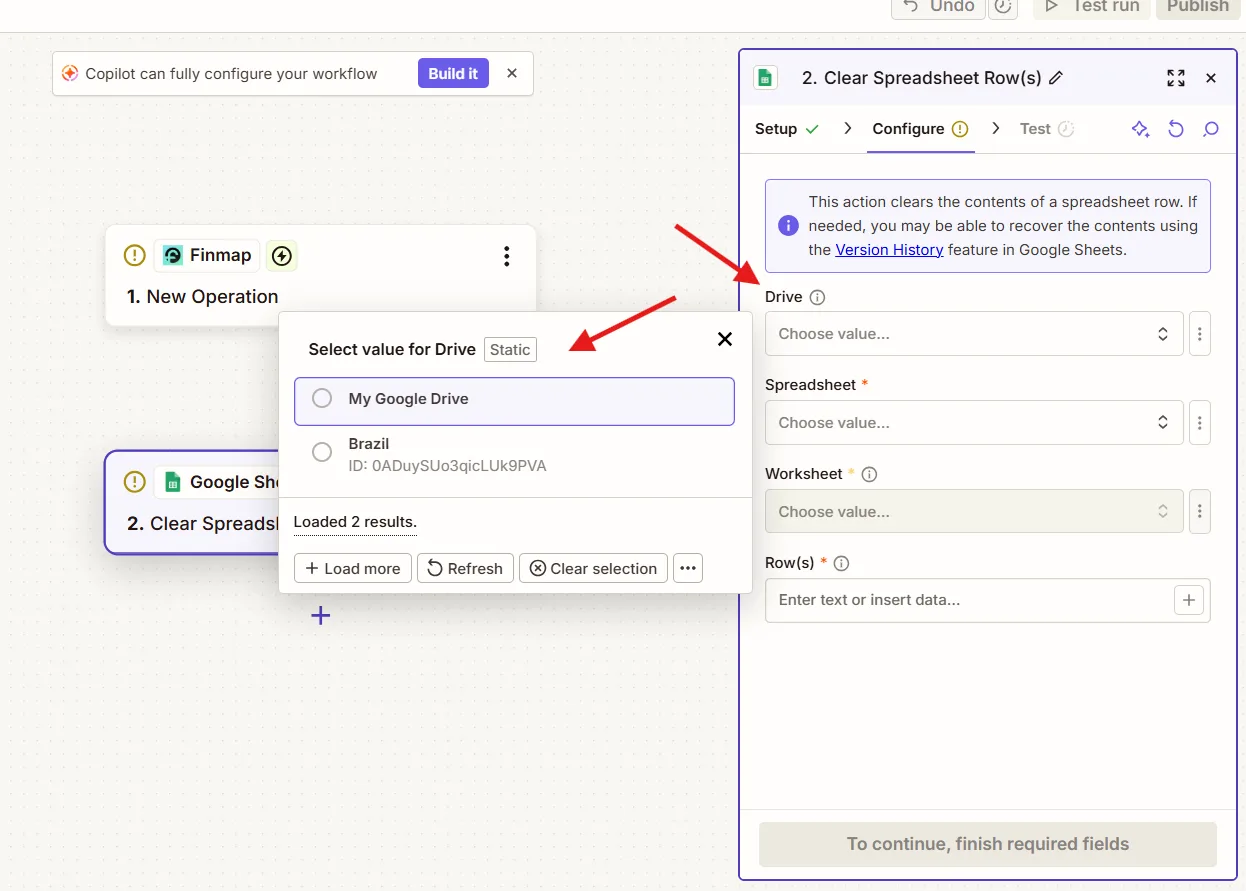
In the Spreadsheet field, choose the Google Sheets file.
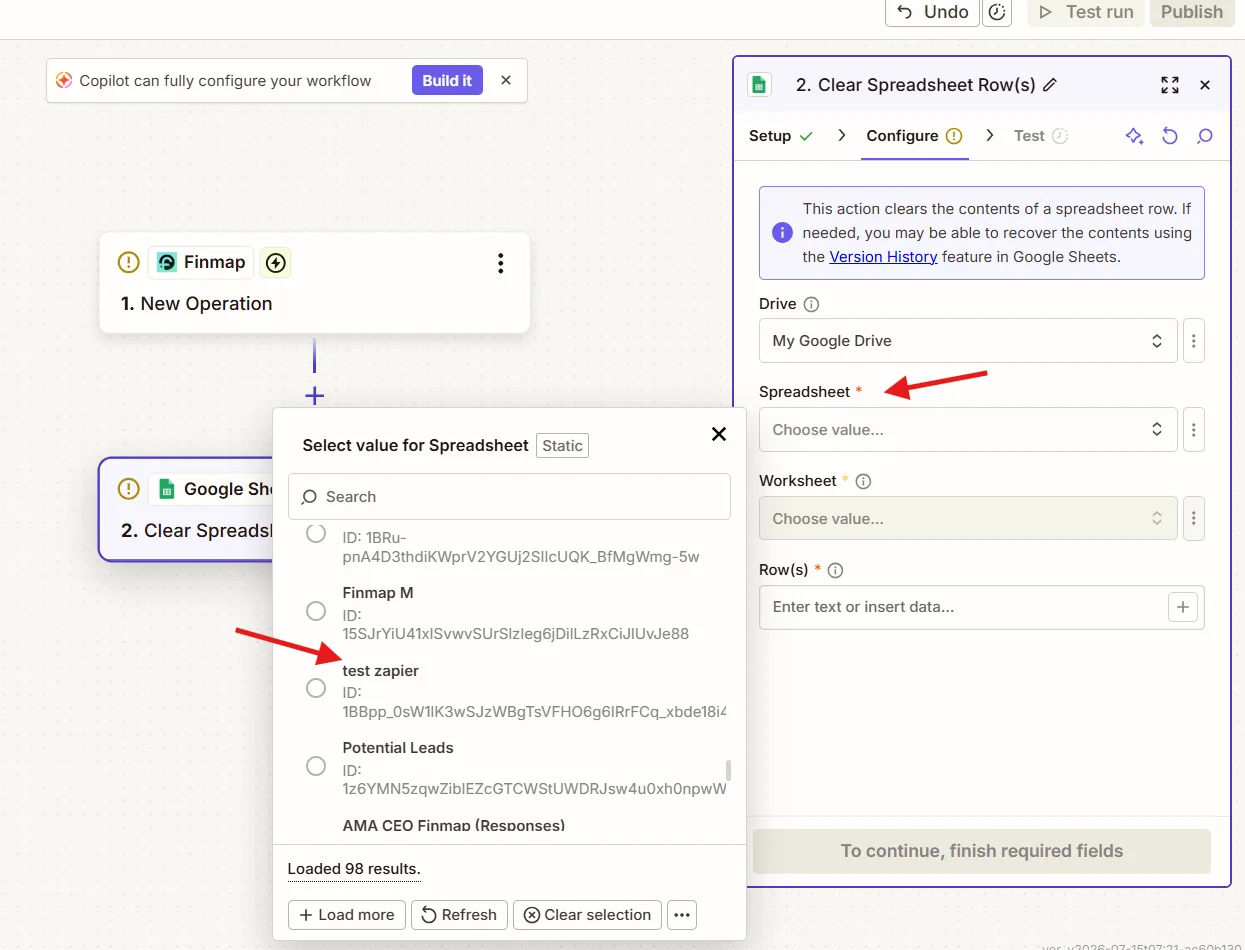
After that, in the Worksheet field, choose the sheet the operations should be written to.
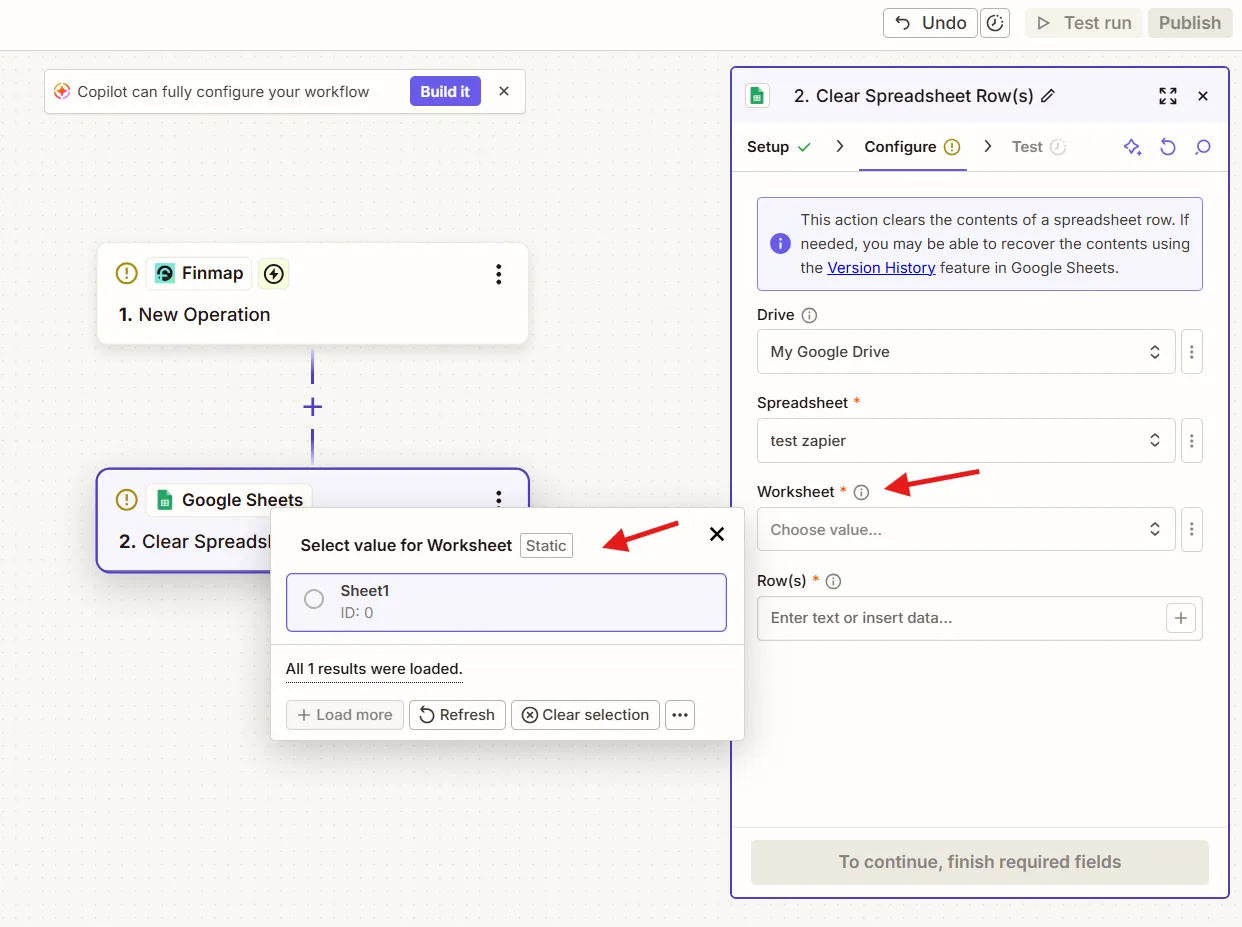
Important. It is exactly after the sheet is chosen that Zapier reads the column names from the first row. If the columns have not been created yet, they will not appear at the next stage.
Step 6. Map the fields (Field Mapping)
Once the spreadsheet is selected, Zapier will show all the columns you created.
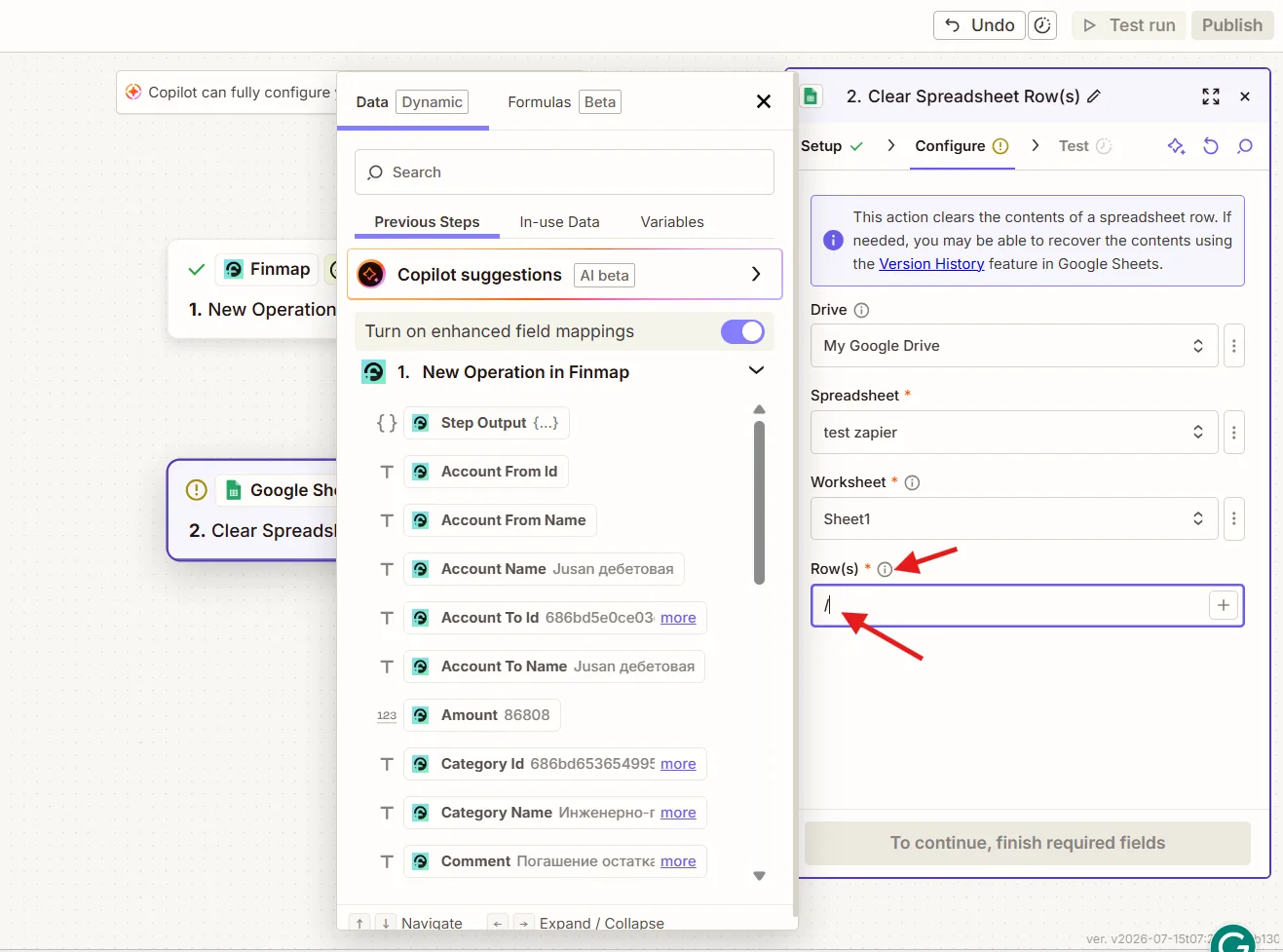
For each of them you need to choose the corresponding field from Finmap.
For example:
Google Sheets | Finmap |
Operation ID | ID |
Date | Date |
Type | Type |
Amount | Amount |
Currency | Currency Symbol |
Account | Account Name |
Category | Category Name |
Counterparty | Counterparty Name |
Comment | Comment |
Why this is needed
At this stage you define exactly which data from Finmap will be written into each Google Sheets column.
For example, if for the Amount column you accidentally choose the Comment field, the spreadsheet will store the comment text instead of the amount.
Step 7. Test the integration
Click Test Step.
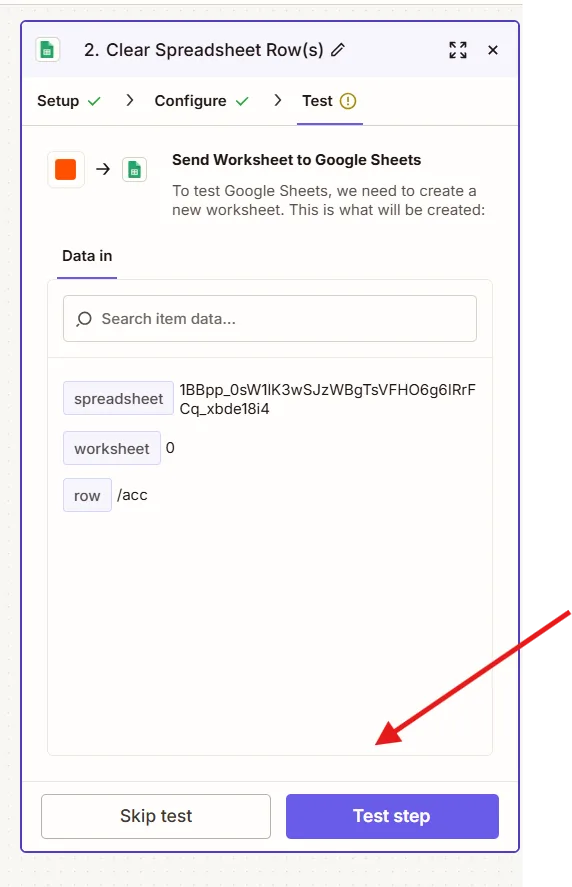
Zapier will create a test row in Google Sheets.
Make sure that:
the new row was created successfully;
all values were written into the correct columns;
the data matches the information in Finmap.
Step 8. Publish the Zap
Click Publish or Turn On Zap.
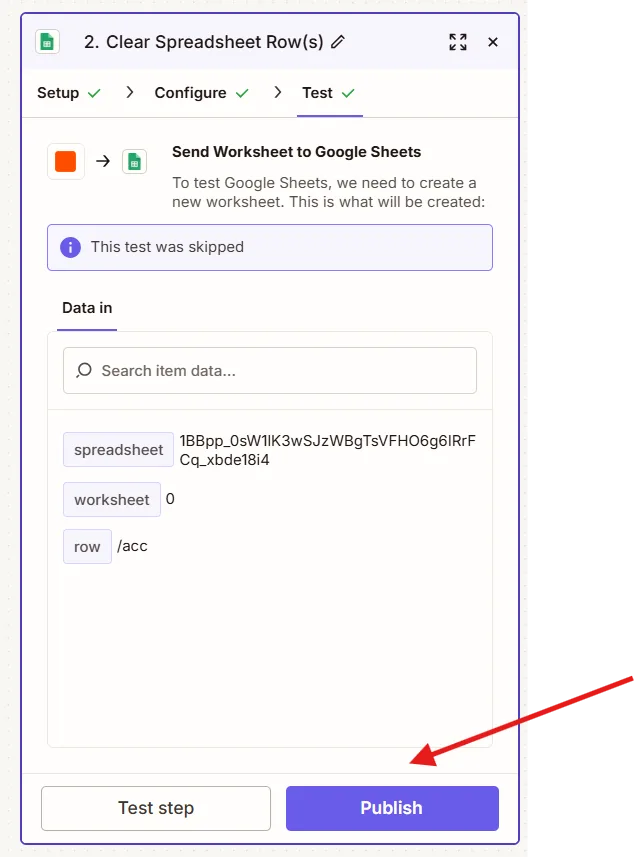
After that the integration will start working automatically.
Every new operation in Finmap will create a new row in Google Sheets.
Result
Once the integration is set up, you get automatic data synchronization between Finmap and Google Sheets.
This allows you to:
stop exporting to Excel manually;
keep your spreadsheets always up to date;
build your own reporting based on Finmap data;
use Google Sheets as a data source for other services and automations.
If the integration does not work
Zapier does not see new operations
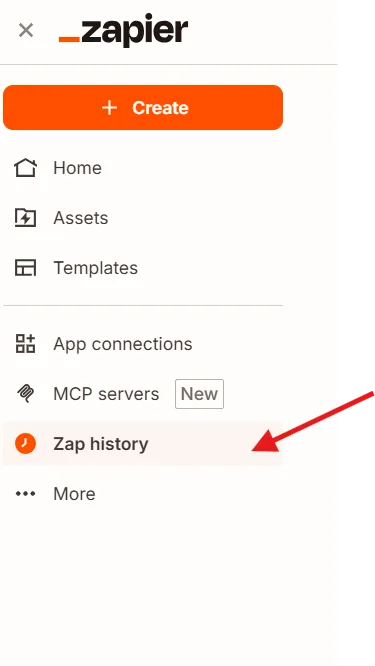
Check Zap History. This section shows every run of the automation and any errors.
Data is not written into Google Sheets
Make sure that:
the correct Spreadsheet is selected;
the correct Worksheet is selected;
the column names were created before the integration was set up.
The webhook does not fire
When a Zap is created, the Finmap app automatically registers a webhook to send new events to Zapier. In most cases no additional setup is needed.
If the webhook is temporarily unavailable or was not created, Zapier will automatically switch to polling — checking for new data periodically. Depending on your plan, this check may run roughly every 5–15 minutes.
Advanced scenario: Google Sheets → Finmap
Important. The standard Finmap app in Zapier is intended mainly for sending data out of Finmap. If you want to create operations in Finmap automatically based on data from Google Sheets, use Webhooks by Zapier and the Finmap API.
When this may be needed
This scenario is useful if Google Sheets is the main data source for your company.
For example:
managers keep the budget in Google Sheets;
another system builds the payment spreadsheet automatically;
a CRM or ERP exports information only to Google Sheets;
you use spreadsheets to upload operations in bulk.
In such cases Google Sheets becomes the data source, and Finmap becomes the system this data is automatically sent to.
How the scenario works
A new row appears in Google Sheets.
Zapier receives its data.
The Webhooks by Zapier step builds an API request to Finmap.
Based on the received data, a new operation is created in Finmap automatically.
For this scenario you will need:
the Finmap API Key;
the Finmap API documentation;
a configured Webhooks by Zapier step (a POST request passing the required fields).
Recommendation. Use this scenario only when Google Sheets really is the main source of financial data. If operations are already created in Finmap, there is no need to duplicate them through Google Sheets — this can lead to records being created twice.