


Contents
QuickBooks Integration with Finmap via Zapier
Automate Data Transfer Between Accounting and Management Records
If you manage your accounting in QuickBooks and use Finmap for management accounting and cash flow analysis, Zapier will help automatically transfer events between services.
This helps avoid double data entry, update information faster, and maintain up-to-date management records.
Important. QuickBooks and Finmap serve different functions. QuickBooks is an accounting system, while Finmap is designed for business financial management, Cash Flow analysis, and management decision-making. Before setting up the integration, we recommend determining which system will be your primary source of financial data.
How Zapier Works
Zapier is an automation service that connects different systems without the need for programming.
Any automation (Zap) consists of two parts.
Trigger
An event that starts the automation.
For example:
a new bank transaction is created in QuickBooks;
a customer invoice is created;
a payment is recorded.
Action
The action Zapier will perform after the trigger fires.
For example:
create a transaction in Finmap;
create a planned payment;
update the counterparty directory;
trigger another automation.
Once set up, the Zap runs automatically.
What You Need to Connect
Before getting started, prepare the following:
a Zapier account (the free plan is sufficient for most scenarios);
API Key in Finmap (Profile → API); Important! Do not delete the generated key — the integration needs it.
QuickBooks API (How to generate it — see here.
QuickBooks Supported Events
At the time of writing, the QuickBooks app in Zapier supports many events. Below are those that may be useful for integration with Finmap.
QuickBooks Event | When to Use | What to Keep in Mind |
New Bank Transaction | If the bank account is not connected directly to Finmap. In this case, QuickBooks can serve as a source of bank transactions for management accounting. | If the bank is already synced with Finmap, do not use this trigger. Otherwise, the same transaction will be created twice: via the bank integration and via QuickBooks. |
New Payment | If payments are first recorded in QuickBooks and do not reach Finmap by other means. This allows automatically transferring actual receipts or deductions. | If payments are already imported via the Finmap bank integration, using this trigger will lead to duplicate transactions. |
New Deposit | If you need to display deposit transactions in Finmap. | We recommend creating a separate deposit account in Finmap. This will separate deposit funds from operating funds and make the Cash Flow more accurate. |
New Expense | If QuickBooks records expenses that do not go through bank accounts, such as cash expenses or expenses from unconnected corporate cards. | If expenses are already created in Finmap or come through the bank integration, do not use this trigger to avoid duplication. |
New Invoice | If you need to automatically create future income entries in Finmap. This allows planning Cash Flow before payment is received. | An Invoice does not mean that funds have already been received. We recommend creating a planned payment based on it, and after actual receipt of funds, performing matching with the real transaction in Finmap. |
New Bill | If you need to automatically create future expenses or scheduled payments to suppliers. | A Bill is not an actual expense. Create a planned payment in Finmap based on it, and after payment, match it with the actual transaction. This will help maintain an accurate plan-vs-actual analysis. |
New Bill Payment | If you need to create actual expenses in Finmap after paying a supplier invoice. | This scenario is recommended instead of New Bill if you do not plan payments in Finmap and only want to reflect actual cash movement. |
New Customer | If you use projects, tags, or counterparties in Finmap for analytics and want to maintain a unified client directory in both systems. | If counterparties are created automatically during transaction import or are not used for separate analytics, this scenario does not need to be set up. |
New Product | Usually not used. | Finmap does not manage inventory or stock records, so syncing products does not affect management accounting and provides no practical value. |
New Project | If projects are used simultaneously in QuickBooks and Finmap and are an important part of financial analytics. | If projects are managed in only one system, separate synchronization is not needed. |
Updated Bill | If you use planned payments in Finmap created based on a Bill. | Allows automatically updating the amount or date of a planned payment in Finmap. If the payment has already been made and matched with an actual transaction, Bill changes should no longer affect it. |
Setting Up the Integration
Step 1. Create a New Zap
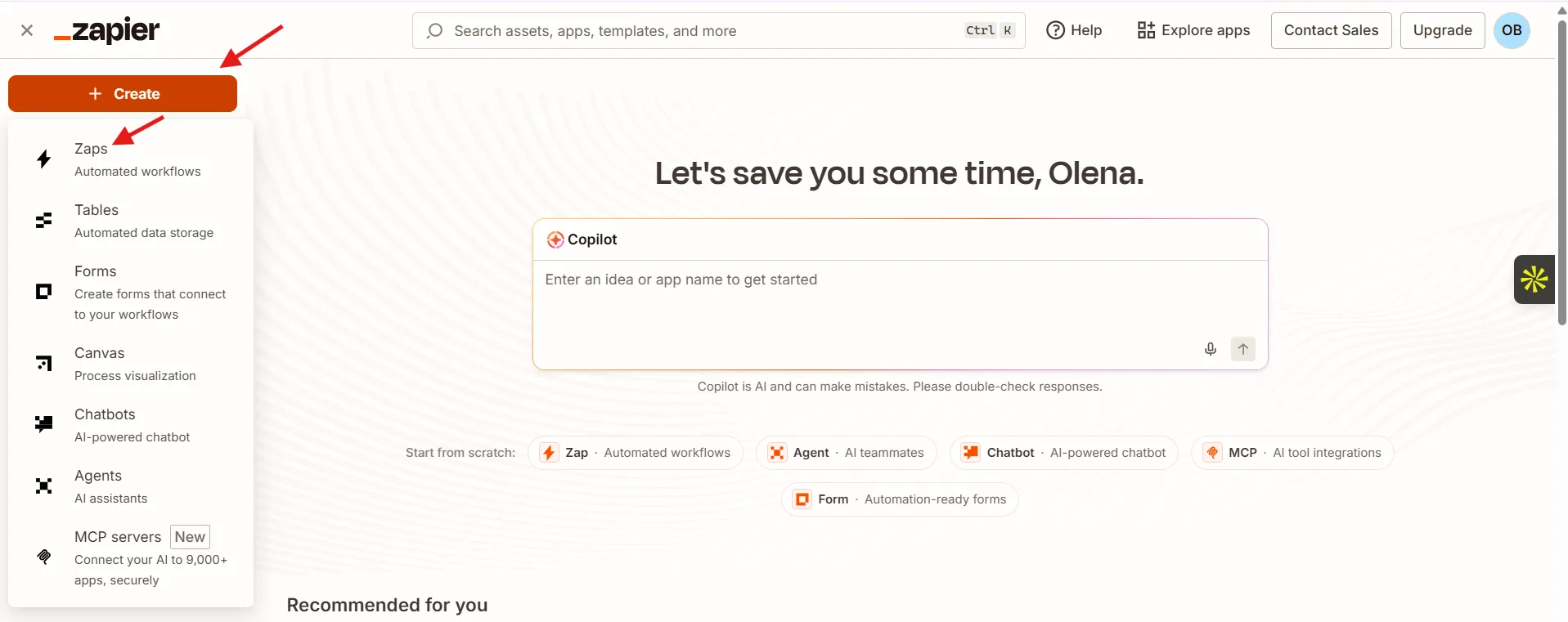
Log in to Zapier and click Create Zap.
Step 2. Set Up the QuickBooks Trigger
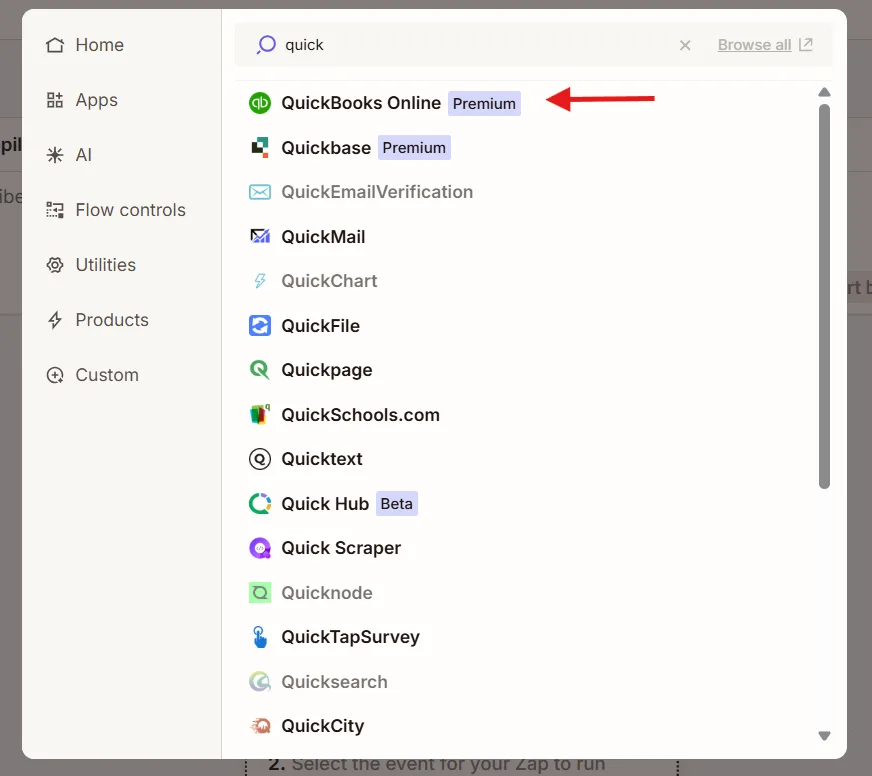
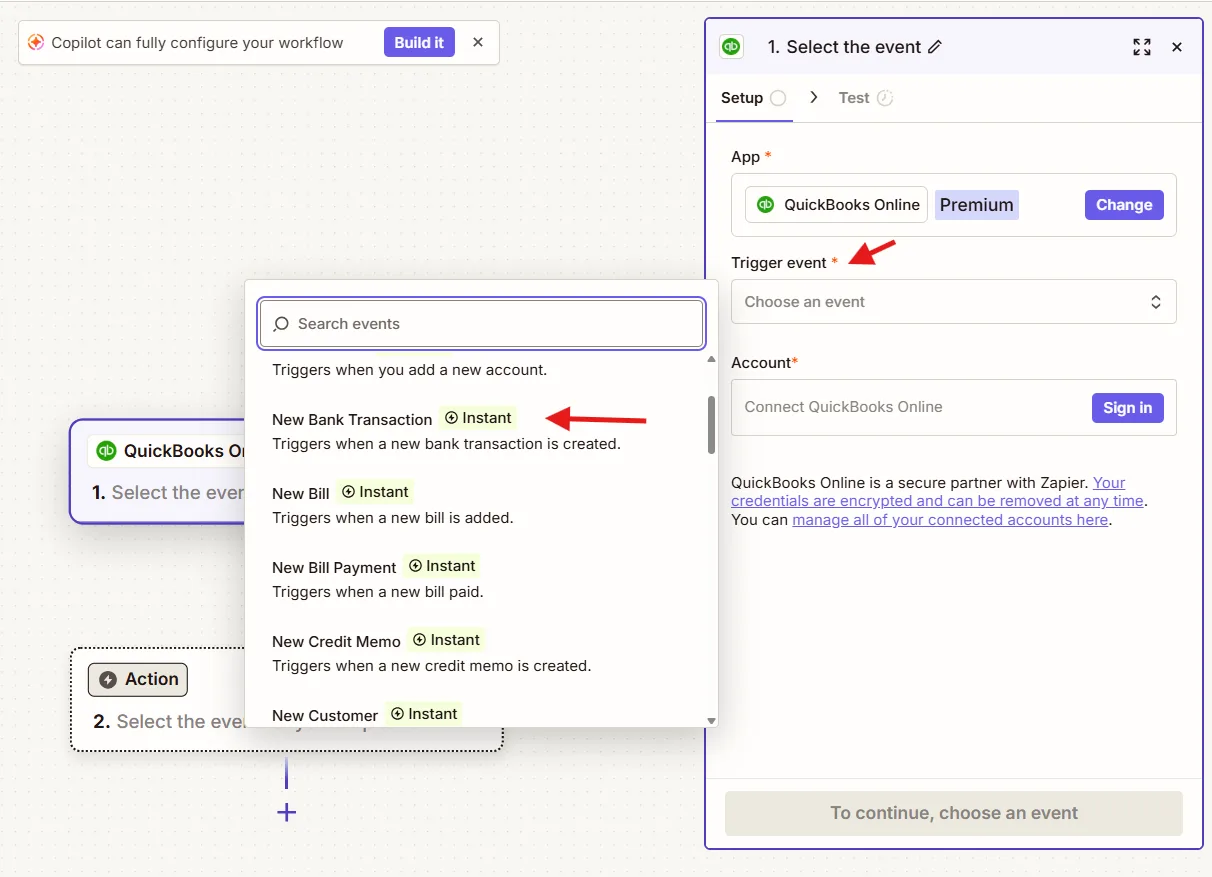
In the Trigger field, find the QuickBooks.
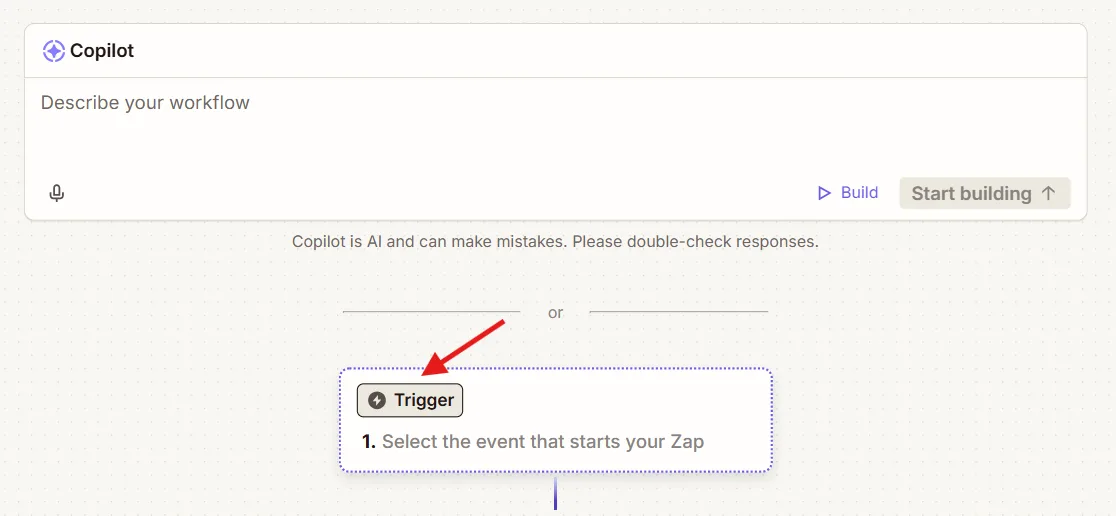
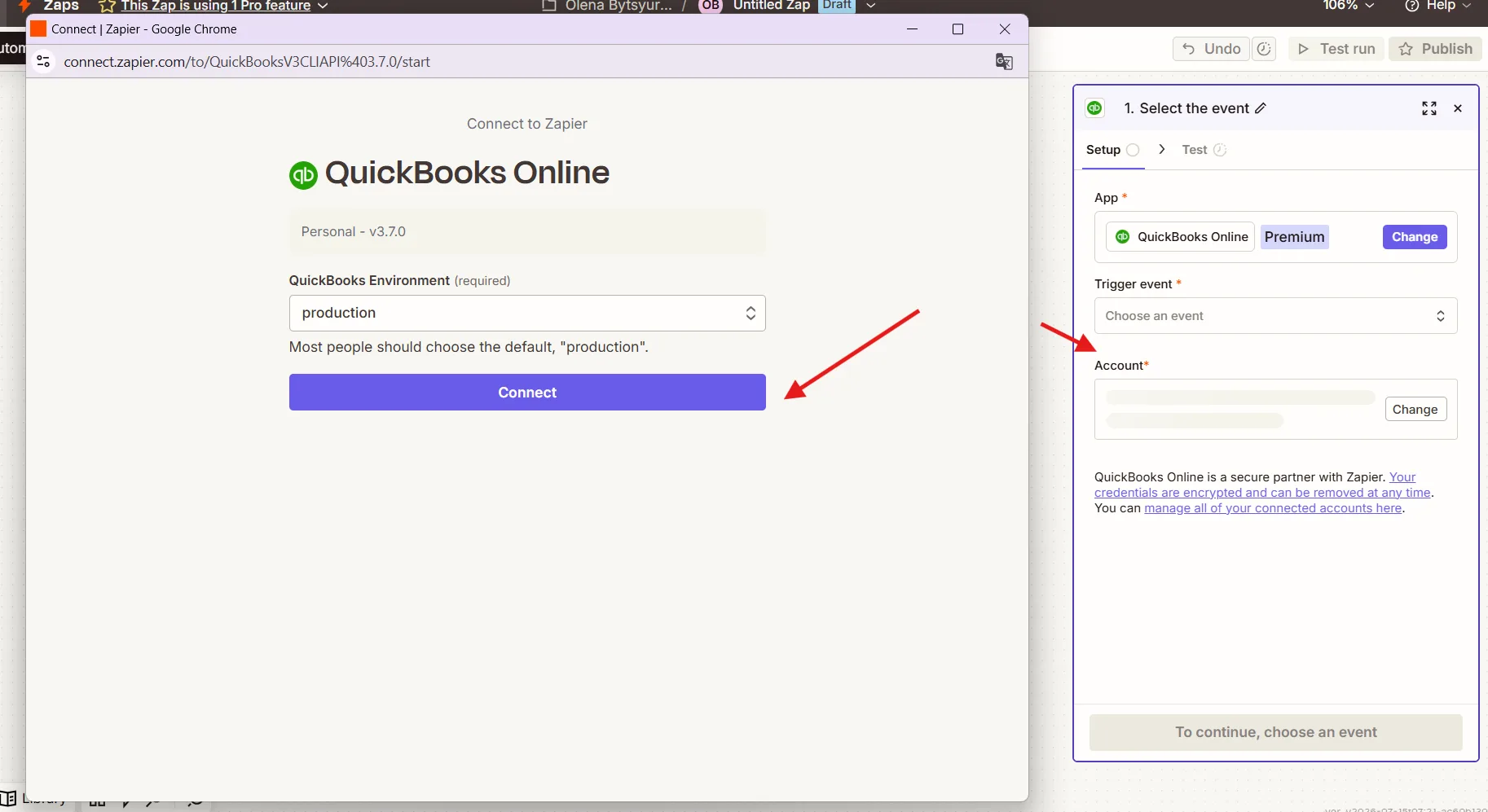
Next, select one of the recommended triggers and connect your QuickBooks account.
Step 3. Set Up the Finmap Action
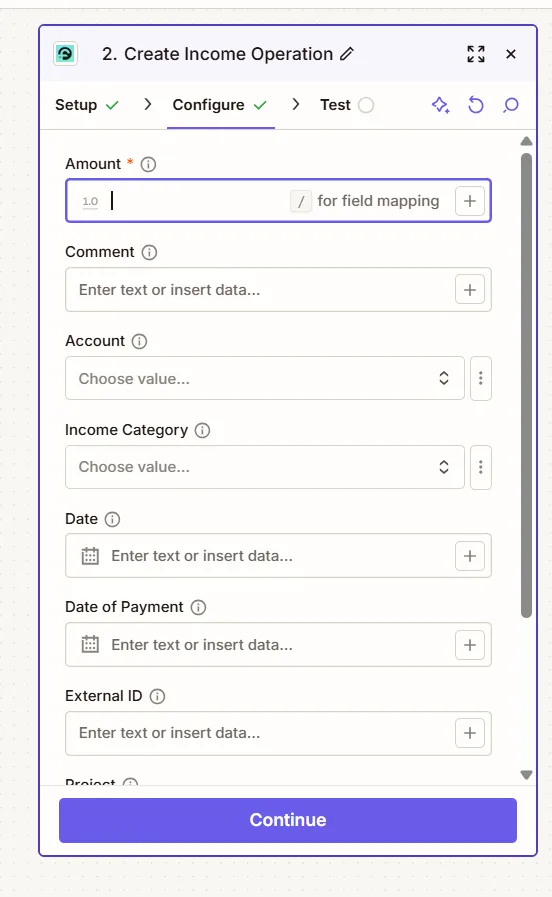
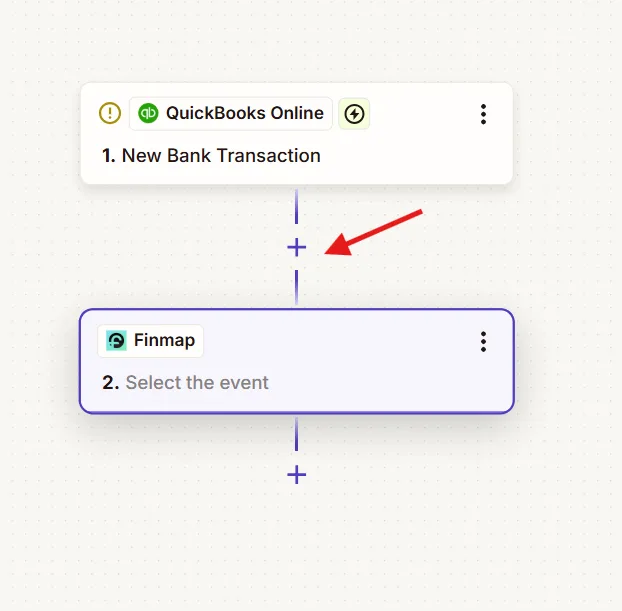
Click + below the trigger.
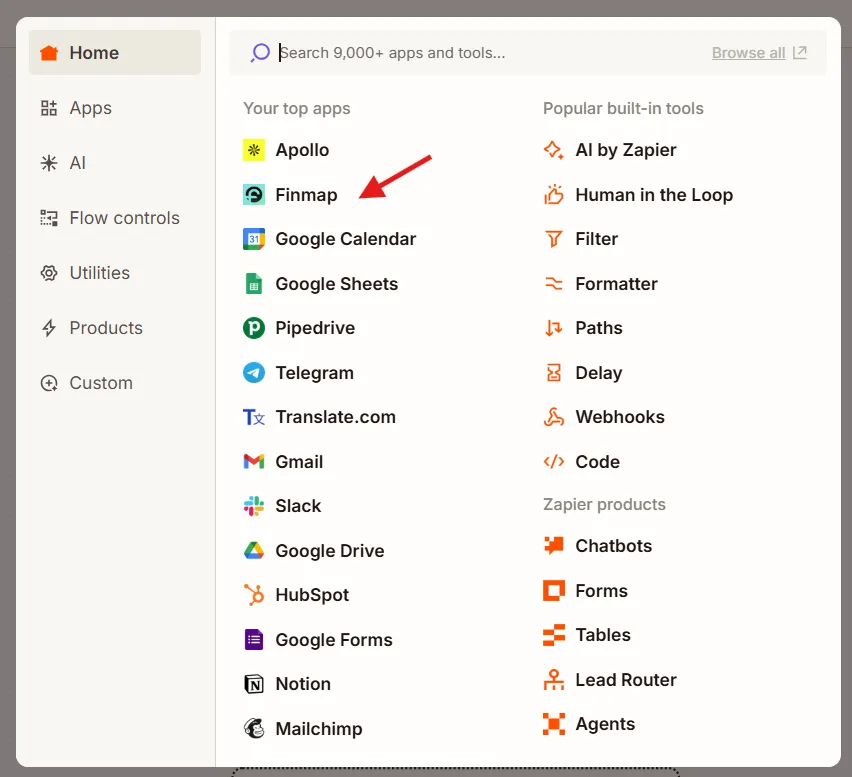
Select the Finmap
.
Step 4. Create an Action
Select which QuickBooks trigger should affect Finmap.
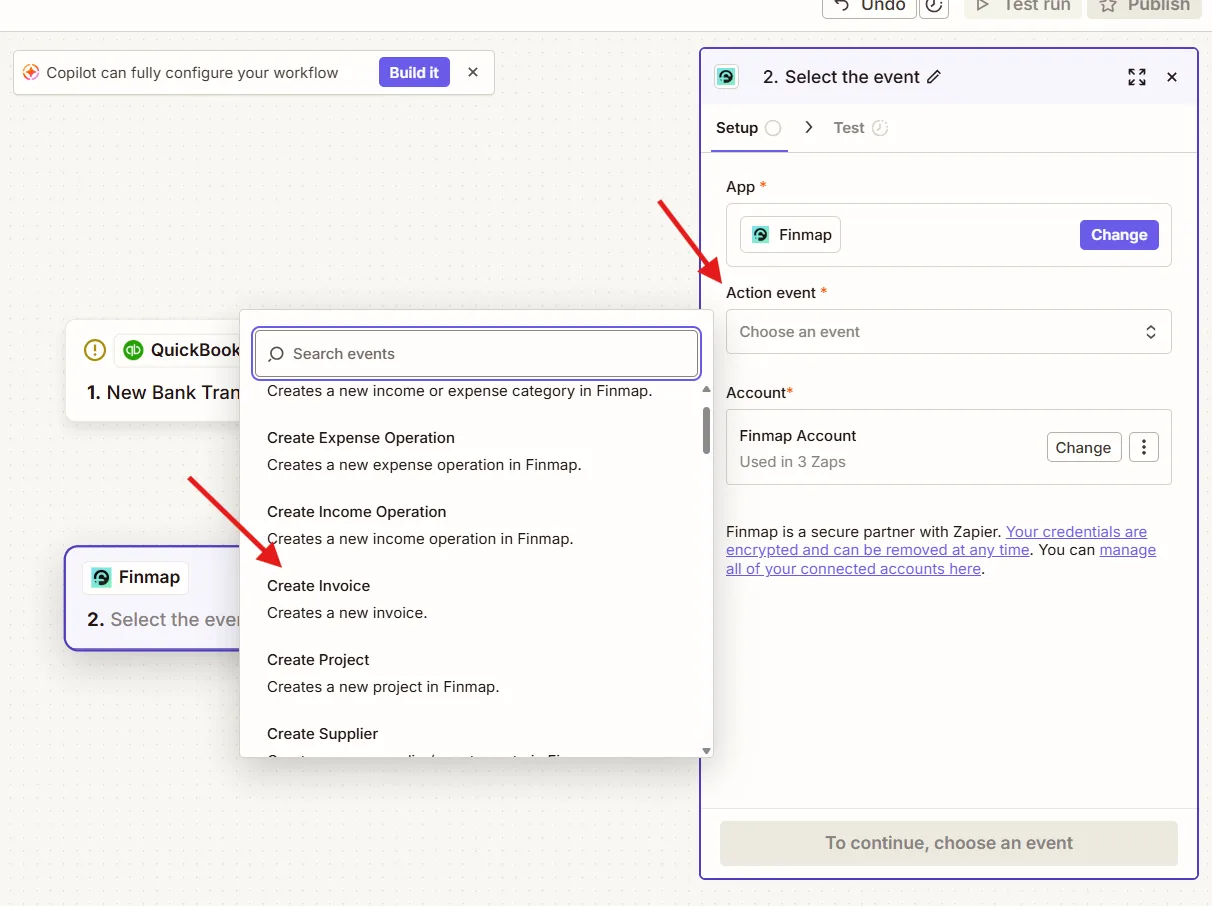
Map the fields so that data is transferred to the correct places in Finmap.
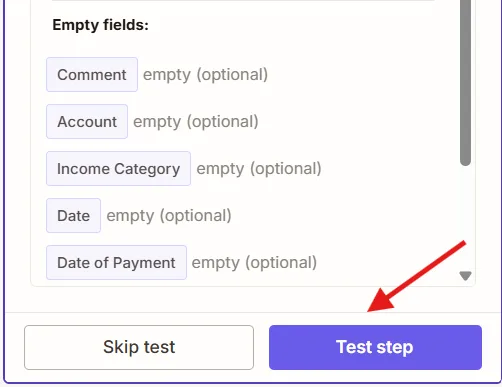
Step 5. Test the Integration
Click Test Step.
Step 6. Publish the Zap
Click Publish or Turn On Zap.
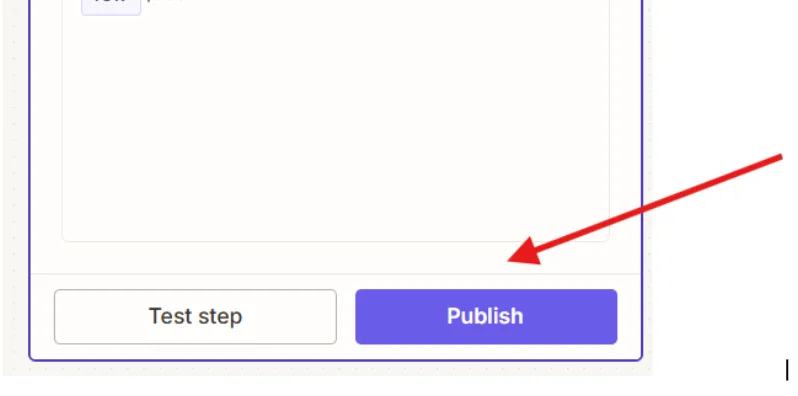
After this, the integration will start working automatically.
Recommended Integration Scenarios
Before setting up the integration, we recommend determining which system is the primary source of data in your business.
Scenario 1. QuickBooks as the Primary Source of Cash Flow
When to Use
bank accounts are not connected directly to Finmap;
accounting is managed in QuickBooks;
QuickBooks is the first to receive cash flow information.
We Recommend Using
✅ New Bank Transaction
✅ New Payment
✅ New Expense (for cash expenses)
Result
All actual cash movements will be automatically created in Finmap without manual entry.
Scenario 2. Finmap Already Synced with the Bank
When to Use
bank accounts are already connected directly to Finmap.
We Recommend
Do Not Use:
❌ New Bank Transaction
❌ New Payment
Use only the events that do not reach Finmap through the bank integration, such as:
cash expenses;
deposit transactions;
scheduled payments.
Result
You will avoid duplicate transactions and maintain an accurate Cash Flow.
Scenario 3. Planning Planned Payments
When to Use
If you use Finmap to plan future income and expenses.
We Recommend Using
✅ New Invoice → create a future income entry;
✅ New Bill → create a future expense entry.
How It Works
After an Invoice or Bill is created in QuickBooks, a planned payment automatically appears in Finmap.
Once funds are actually received or paid, this planned payment needs to be matched (Match) with the actual transaction in Finmap.
Result
This approach allows you to:
plan Cash Flow;
track expected payments;
maintain a planning history;
avoid duplicating actual transactions.
Scenario 4. Unified Analytics by Clients and Projects
When to Use
If you analyse financial metrics by clients, projects, or tags simultaneously in QuickBooks and Finmap.
We Recommend Using
✅ New Customer
✅ New Project
Result
The directory structure in both systems will remain the same, simplifying management reporting and profitability analysis by clients or projects.
How to Avoid Duplicate Transactions
Before launching the integration, we recommend answering a few questions.
Is the bank connected to Finmap?
If yes, do not use these triggers:
New Bank Transaction;
New Payment.
Otherwise, the same transaction may be created twice.
Where is the financial transaction created first?
One financial event should be created in only one service.
If a transaction already exists in Finmap, there is no need to create it again through QuickBooks.
Do you use payment planning?
If yes, we recommend using:
New Invoice;
New Bill.
After actual cash movement, always perform Match between the planned and actual transaction in Finmap.
Recommendations
For stable integration operation, we recommend:
designate one system as the primary source of financial data;
not create the same transaction simultaneously in QuickBooks and Finmap;
use New Invoice and New Bill only for planned payments;
after actual payment or receipt, perform matching (Match) of planned and actual transactions;
use a separate account for deposit transactions;
before launching the integration, test the automation with a few transactions.
Common Mistakes
The most common mistakes when setting up the integration:
The bank is already connected to Finmap, but New Bank Transaction from QuickBooks is also being used. This leads to duplication of all bank transactions.
New Payment is used together with the bank integration. As a result, each payment may appear in Finmap twice.
New Invoice or New Bill creates actual transactions instead of planned payments. This distorts Cash Flow and plan-vs-actual analysis, as the money has not yet been received or paid.
The operating account is used for deposits. This can lead to incorrect display of cash balances. It is recommended to manage deposit transactions in a separate account.
Transactions are created manually in Finmap and automatically imported from QuickBooks at the same time. This leads to data duplication and distortion of management reports.
Once correctly set up, QuickBooks and Finmap can work as a unified system: QuickBooks handles accounting, while Finmap manages up-to-date management records, planning, and cash flow analysis.