


Contents
Xero and Finmap Integration via Zapier
Connect Your Accounting and Financial Management
If you use Xero for accounting and Finmap for business financial management, Zapier can help automatically sync events between the two services.
With this integration, you can:
automatically create financial transactions;
plan future income and expenses;
sync clients and projects;
minimize manual data duplication.
Important. Xero and Finmap serve different purposes. Xero handles accounting and source documents, while Finmap is used for Cash Flow management, planning, and financial analytics. Before setting up the integration, we recommend determining which system will be the primary source of financial data.
How Zapier Works
Zapier is an automation service that lets you transfer data between different systems without coding.
Any automation consists of two parts.
Trigger
An event that starts the automation.
For example:
a new invoice is created;
a payment is received;
a bank transaction is created.
Action
The action Zapier performs after the trigger fires.
For example:
creates a transaction in Finmap;
creates a scheduled payment;
updates the financial forecast;
creates a project or counterparty.
Once configured, the Zap runs automatically.
What You Need to Get Started
Before you begin, prepare the following:
a Zapier account (the free plan is sufficient for most scenarios);
a Finmap API Key (Profile → API); Important! Do not delete the generated key, as it is required for the integration to work.
a Xero API Key (learn how to generate it — read here).
Supported Xero Events
Xero Event | When to use | What to keep in mind |
New Bank Transaction | If the bank account is not connected directly to Finmap. In this case, Xero can serve as the source of bank transactions. | If the bank is already synced with Finmap, do not use this trigger. Otherwise, one transaction will be created twice. |
New Payment | If payments are recorded in Xero and do not reach Finmap by other means. | If the bank is already integrated with Finmap, using this trigger will result in duplicate payments. |
New Reconciled Payment | If you only need to send fully confirmed and reconciled payments to Finmap. | This is a safer scenario than New Payment if Xero uses the Bank Reconciliation process. |
New Bill | If you need to automatically create future expenses or scheduled payments in Finmap. | A Bill does not mean actual funds have been debited. Create a scheduled payment based on it, and after payment, perform a Match with the actual transaction in Finmap. |
New Sales Invoice | If you need to create future income entries in Finmap. | An Invoice does not mean funds have been received. We recommend using it to create a scheduled payment, and after payment, matching it with the actual transaction. |
Updated Sales Invoice | If the amount, payment date, or other parameters changed after the invoice was created. | Allows automatic updates to the scheduled payment in Finmap if it has not yet been paid. |
Overdue Sales Invoice | If you need to monitor overdue payments. | Can be used to create tasks, reminders, or automatically update the status of a scheduled payment in Finmap. |
New Contact | If counterparties are used for analytics in Finmap. | If counterparties are created automatically during financial transaction imports, separate synchronization is not needed. |
New or Updated Contact | If it is important to maintain a unified counterparty directory across both systems. | Suitable for companies that regularly update client or supplier information. |
New Project | If projects are used simultaneously in Xero and Finmap. | Allows you to maintain the same project structure across both systems. |
New Quote | If you need to create a preliminary financial forecast. | A Quote is not yet a financial obligation, so it is recommended to use it only for internal forecasting, not for creating financial transactions. |
Setting Up the Integration
Step 1. Create a New Zap
Log in to Zapier and click Create Zap.
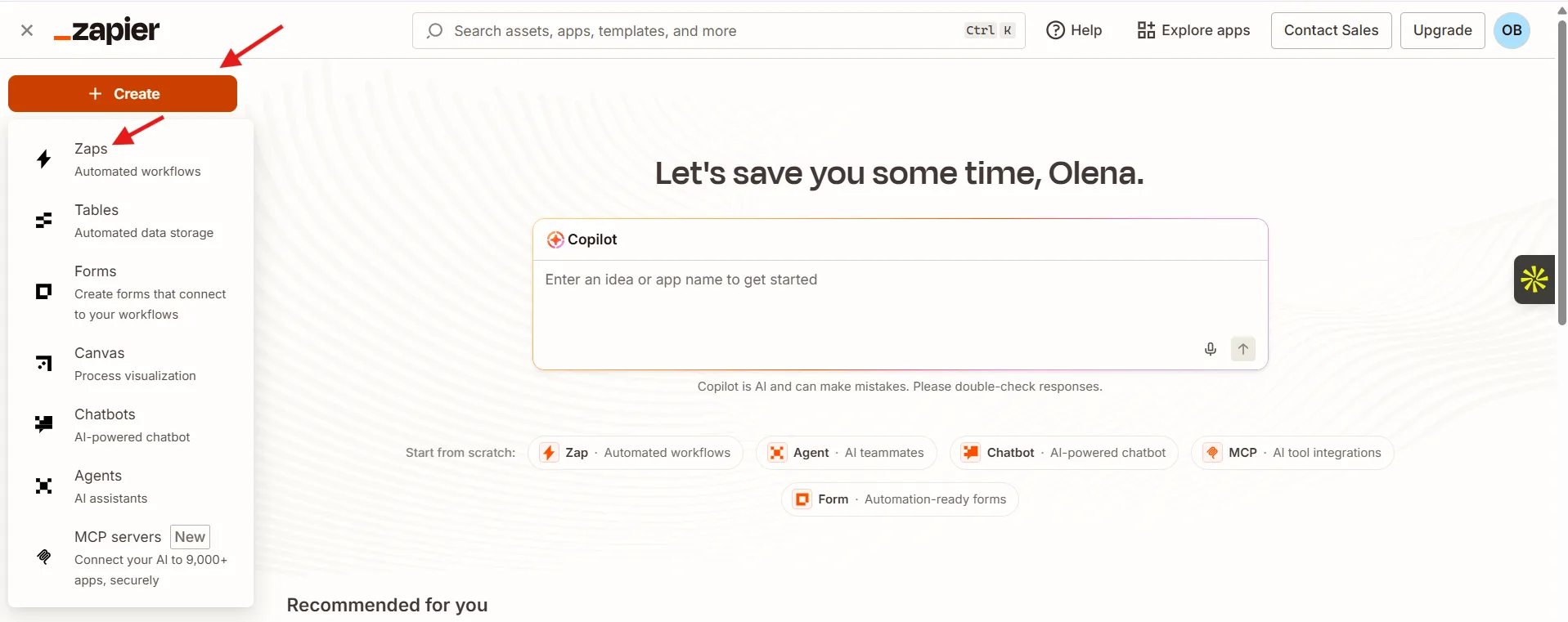
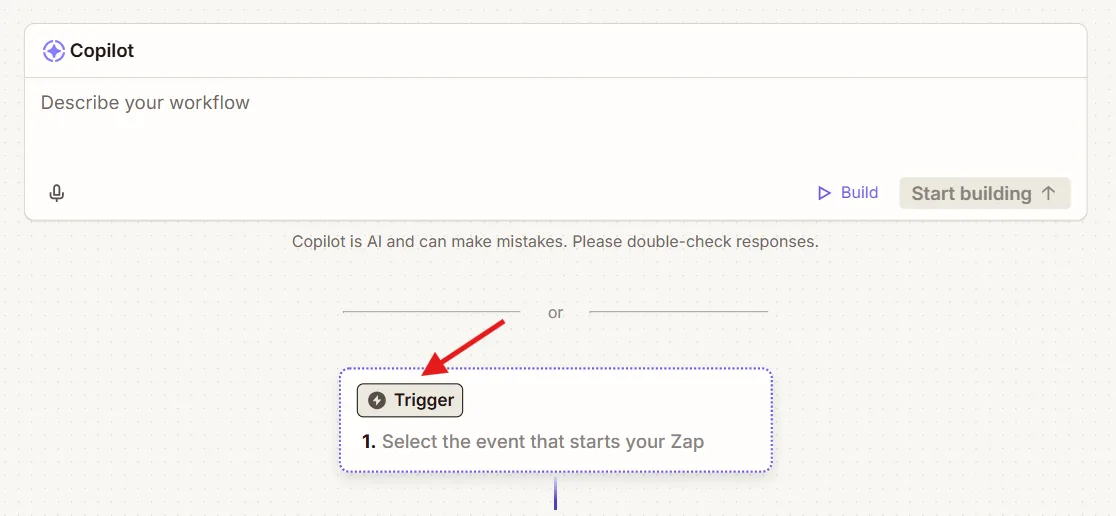
Step 2. Configure the Xero Trigger
In the Trigger field, find the Xero.
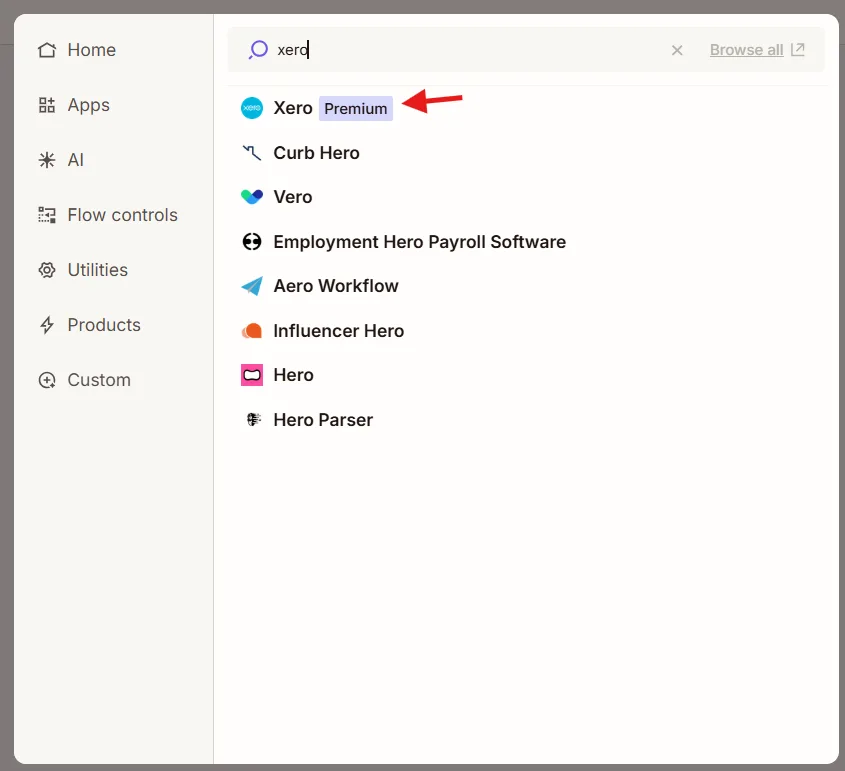
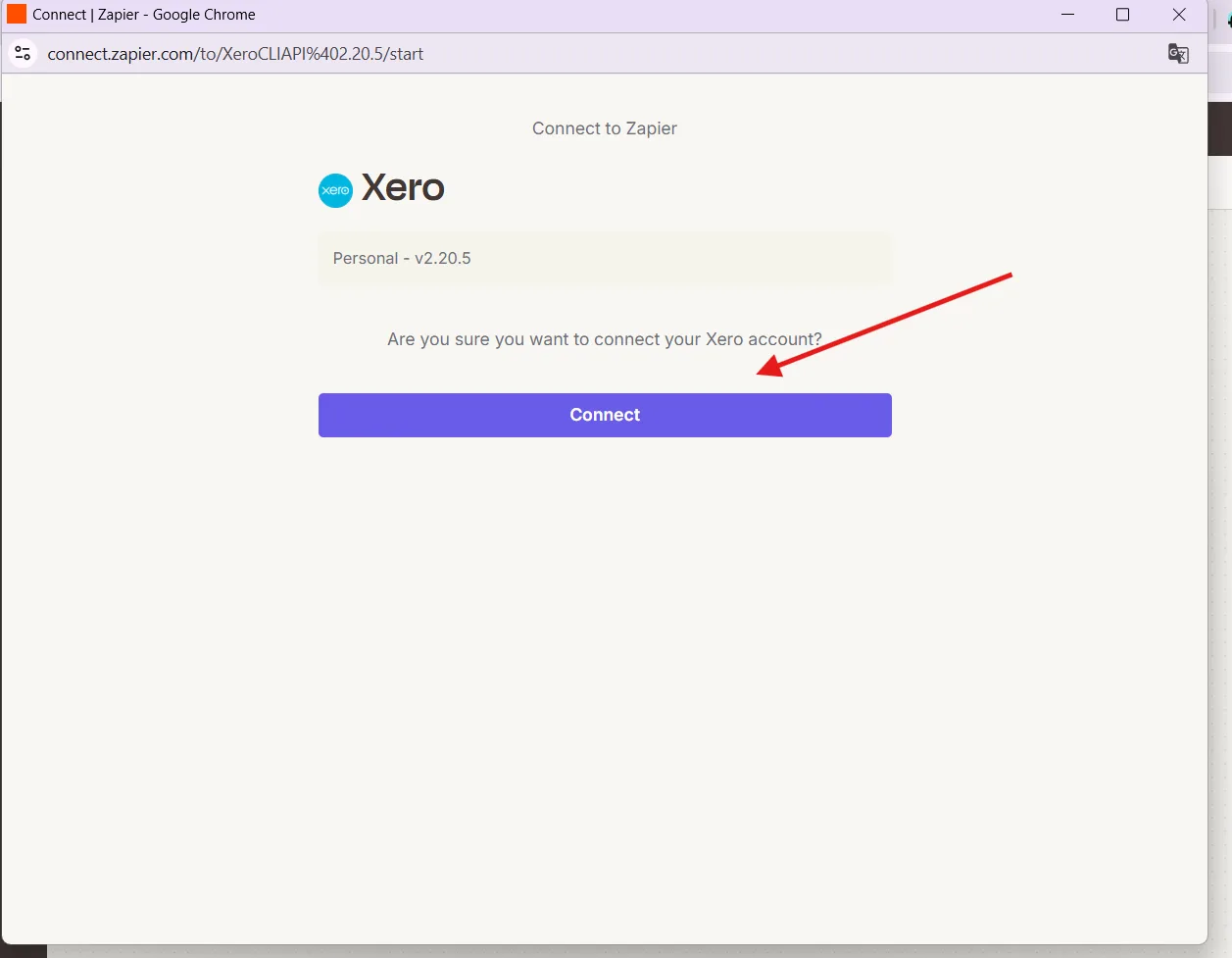
Далі оберіть один з рекомендованих тригерів та під’єднайте акаунт Xero.
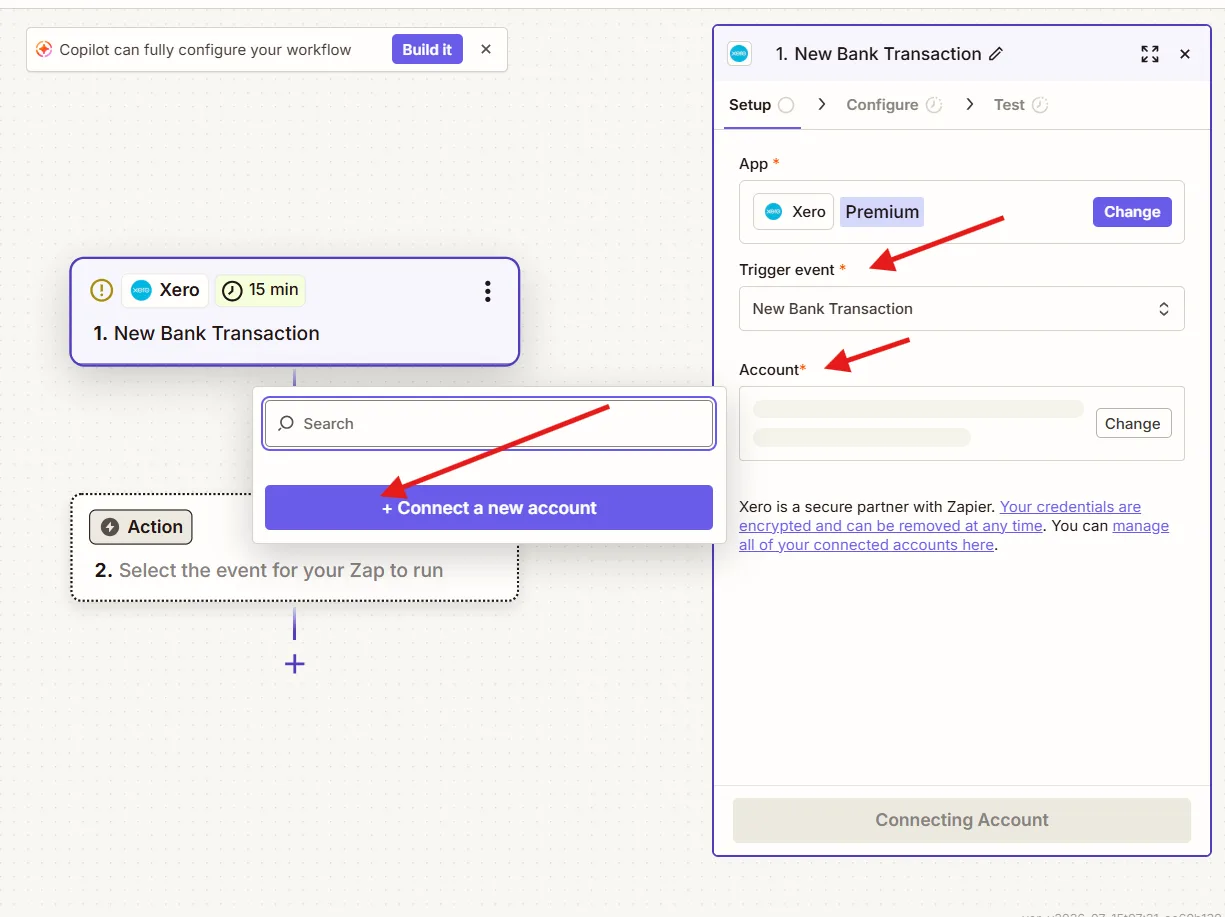
Step 3. Configure the Finmap Action
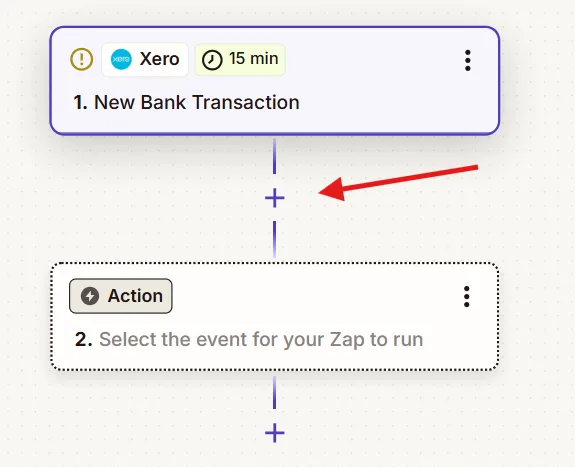
Click + below the trigger.
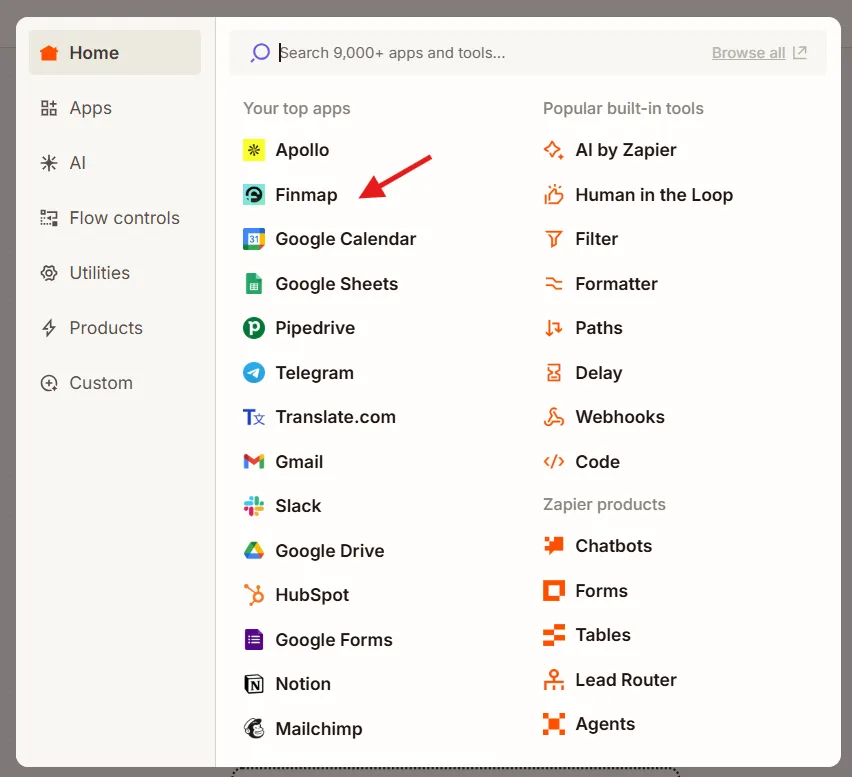
Select the Finmap
.
Step 4. Create the Action
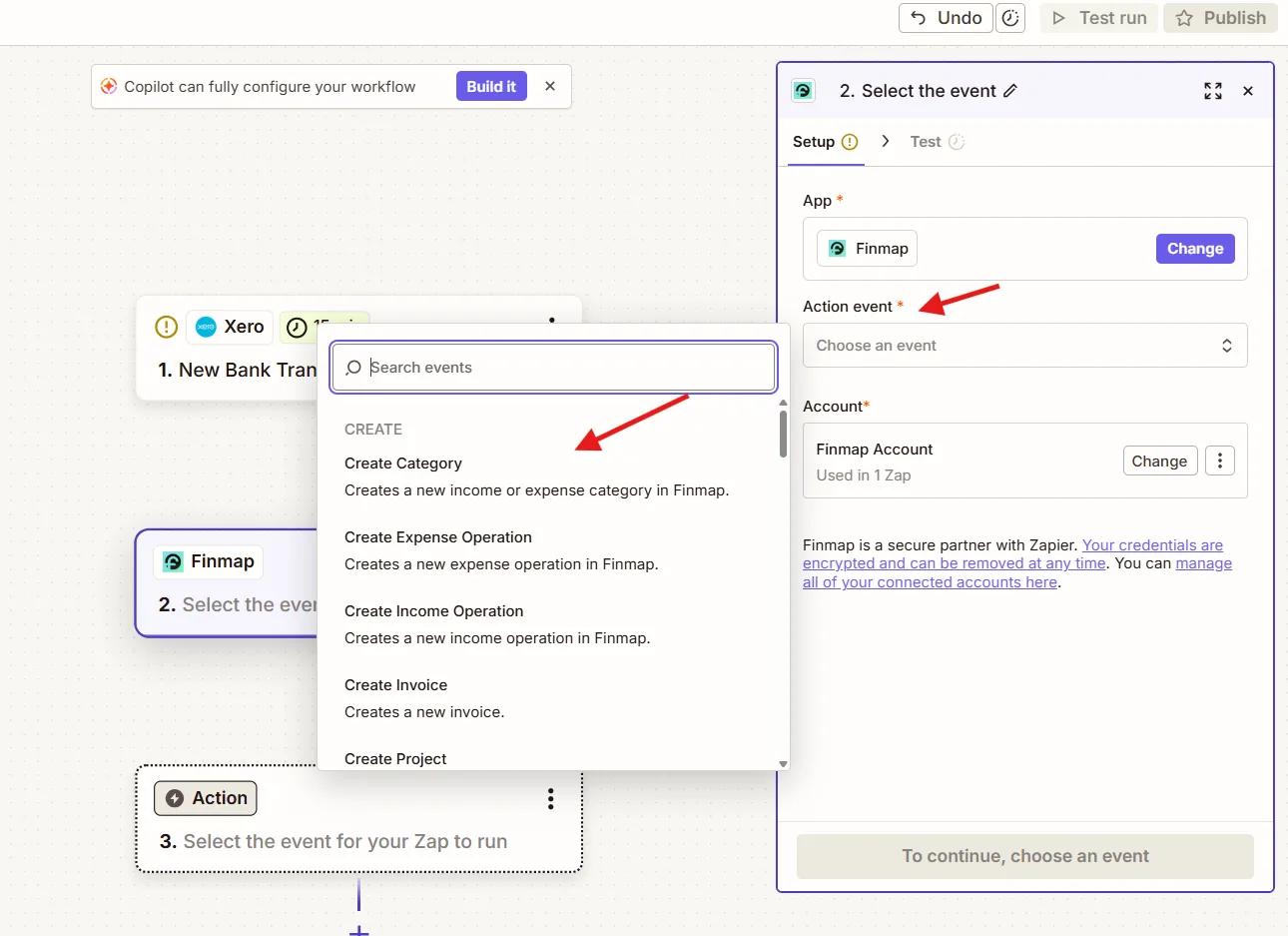
Choose how the Xero trigger should affect Finmap.
Map the fields so Xero sends data to the correct places in Finmap.
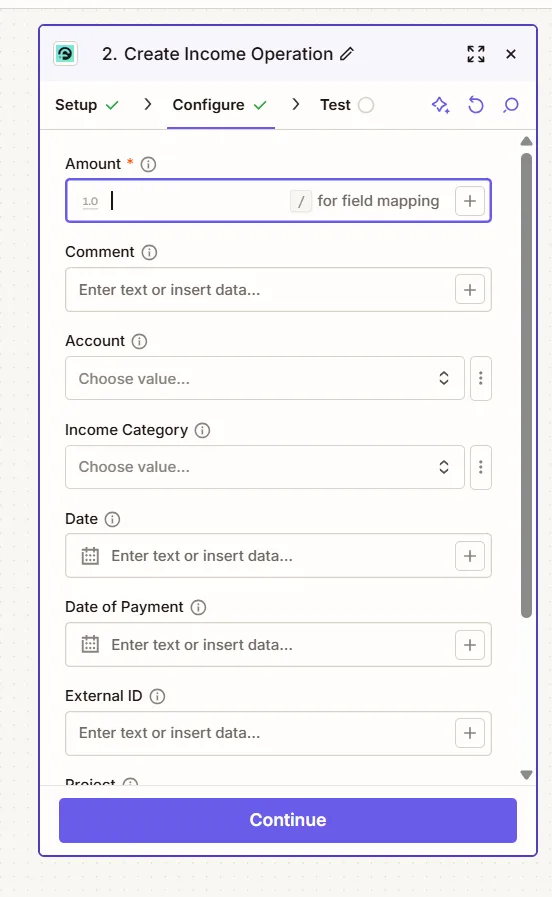
Step 5. Test the Integration
Click Test Step.
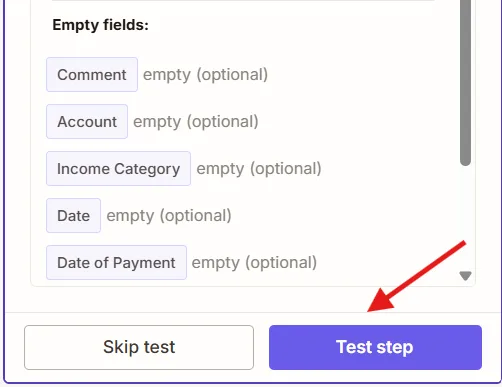
Step 6. Publish the Zap
Click Publish or Turn On Zap.
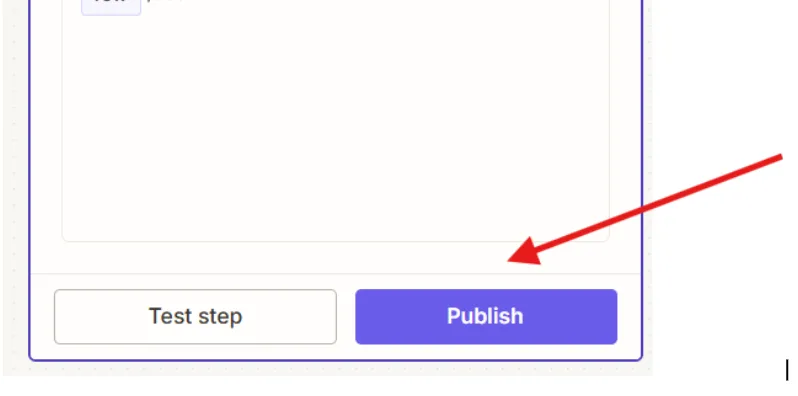
After this, the integration will start working automatically.
Recommended Integration Scenarios
Scenario 1. Xero as the Primary Source of Cash Flow
When to use
bank accounts are not connected to Finmap;
accounting is managed in Xero;
Xero is the source of cash flow information.
Recommended triggers
✅ New Bank Transaction
✅ New Payment or New Reconciled Payment
Result
Actual income and expenses are automatically created in Finmap without manual entry.
Recommendation. If Xero uses Bank Reconciliation, it is better to use New Reconciled Payment. This ensures that only confirmed payments reach Finmap.
Scenario 2. Planning Planned Payments
When to use
If Finmap is used for Cash Flow planning.
Recommended triggers
✅ New Sales Invoice → create a scheduled income entry;
✅ New Bill → create a scheduled expense.
How it works
After an Invoice or Bill is created in Xero, a scheduled payment is automatically created in Finmap.
After the actual receipt or debit of funds, this payment needs to be matched (Match) with the actual transaction.
Result
You get an up-to-date cash flow forecast and can analyze the difference between planned and actual payments.
Scenario 3. Automatic Financial Forecast Updates
When to use
If the following changed after a Sales Invoice was created:
amount;
payment date;
other parameters affecting the forecast.
Use
Updated Sales Invoice
↓
Update the scheduled payment in Finmap.
Result
Scheduled payments in Finmap always match the latest data from Xero.
Scenario 4. Overdue Payment Monitoring
When to use
If you need to quickly see invoices with overdue payments from clients.
Use
Overdue Sales Invoice
↓
Update the status of the scheduled payment or create a task in Finmap.
Result
The team can see overdue income and respond faster to payment delays.
Scenario 5. Directory Synchronization
When to use
If you analyze financial metrics by counterparty or project.
Use
✅ New Contact
✅ New or Updated Contact
✅ New Project
Result
Counterparties and projects will have the same structure in Xero and Finmap.
Reverse Integration: Finmap → Xero
In addition to sending data from Xero to Finmap, you can also set up a reverse scenario.
For example:
after creating a transaction in Finmap, update the invoice status in Xero;
transfer payment information;
update the actual payment date;
change the document status.
Key requirement
Reverse synchronization is only possible when there is a unique identifier.
This can be:
Invoice Number;
Bill Number;
External ID;
contract number;
order number.
Zapier will use this value to find and update the correct document in Xero.
How to Avoid Duplication
Before launching the integration, we recommend answering three questions.
Is the bank connected to Finmap?
If yes, do not use:
New Bank Transaction;
New Payment;
New Reconciled Payment.
Where does the cash flow first appear?
Each financial transaction should be created in only one service.
Do you use payment planning?
If yes, use:
New Sales Invoice;
New Bill.
After actual payment, perform a Match between the planned and actual transaction in Finmap.
Common Mistakes
Using the Finmap bank integration and New Bank Transaction from Xero simultaneously — leads to duplicate transactions.
Creating actual income based on a Sales Invoice — an invoice does not mean funds have been received.
Creating an actual expense based on a Bill — the funds have not yet been debited.
Missing Match between planned and actual payments — the same transaction may affect Cash Flow twice.
Missing a shared identifier between Xero and Finmap — makes it impossible to automatically update the correct document in reverse integration.
Once the integration is properly configured, Xero handles accounting and documents, while Finmap manages cash flow, financial planning, and management analytics. This division of roles helps avoid data duplication and maintains accurate financial information across both systems.